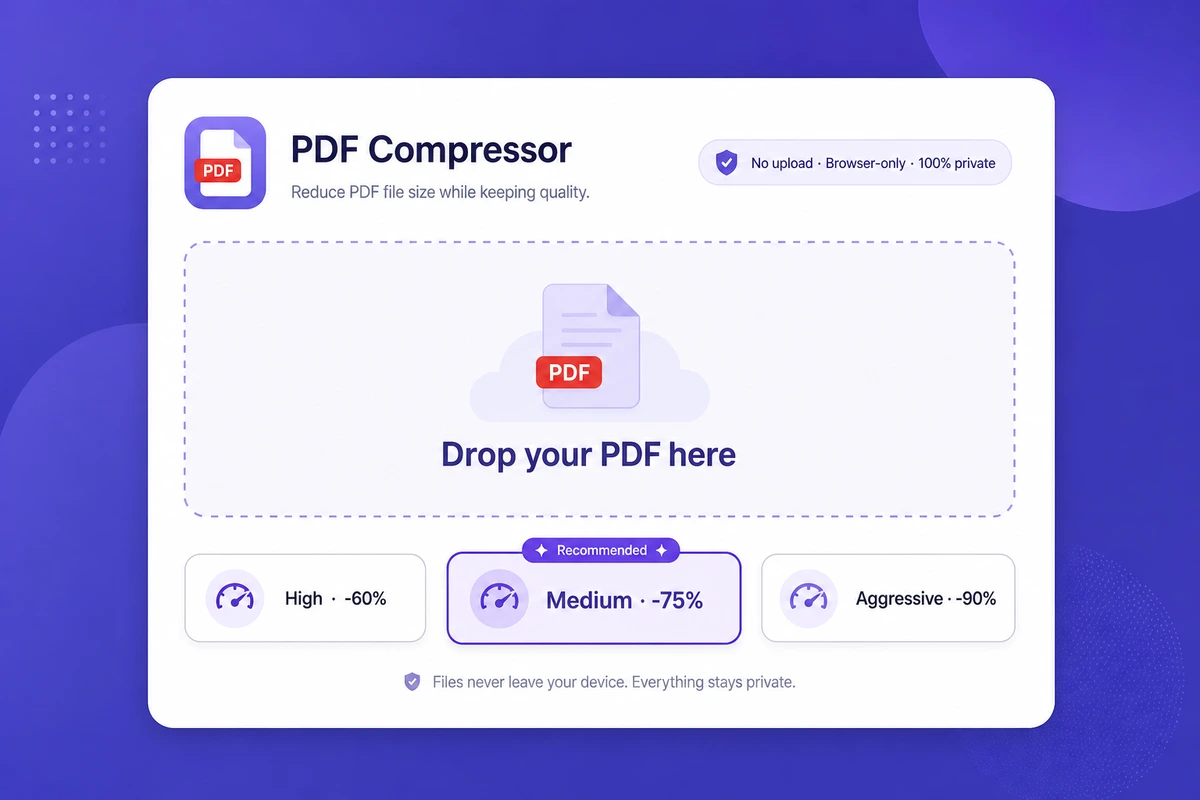
Gmail rejects PDF attachments over 25 MB. To send a large PDF via email, either compress it below 18 MB (Base64 overhead eats the rest), re-export it from the source app at lower image quality, split it into 2-3 parts, or upload to Google Drive and share a link. Six methods that actually work in 2026, ranked from easiest to most thorough.
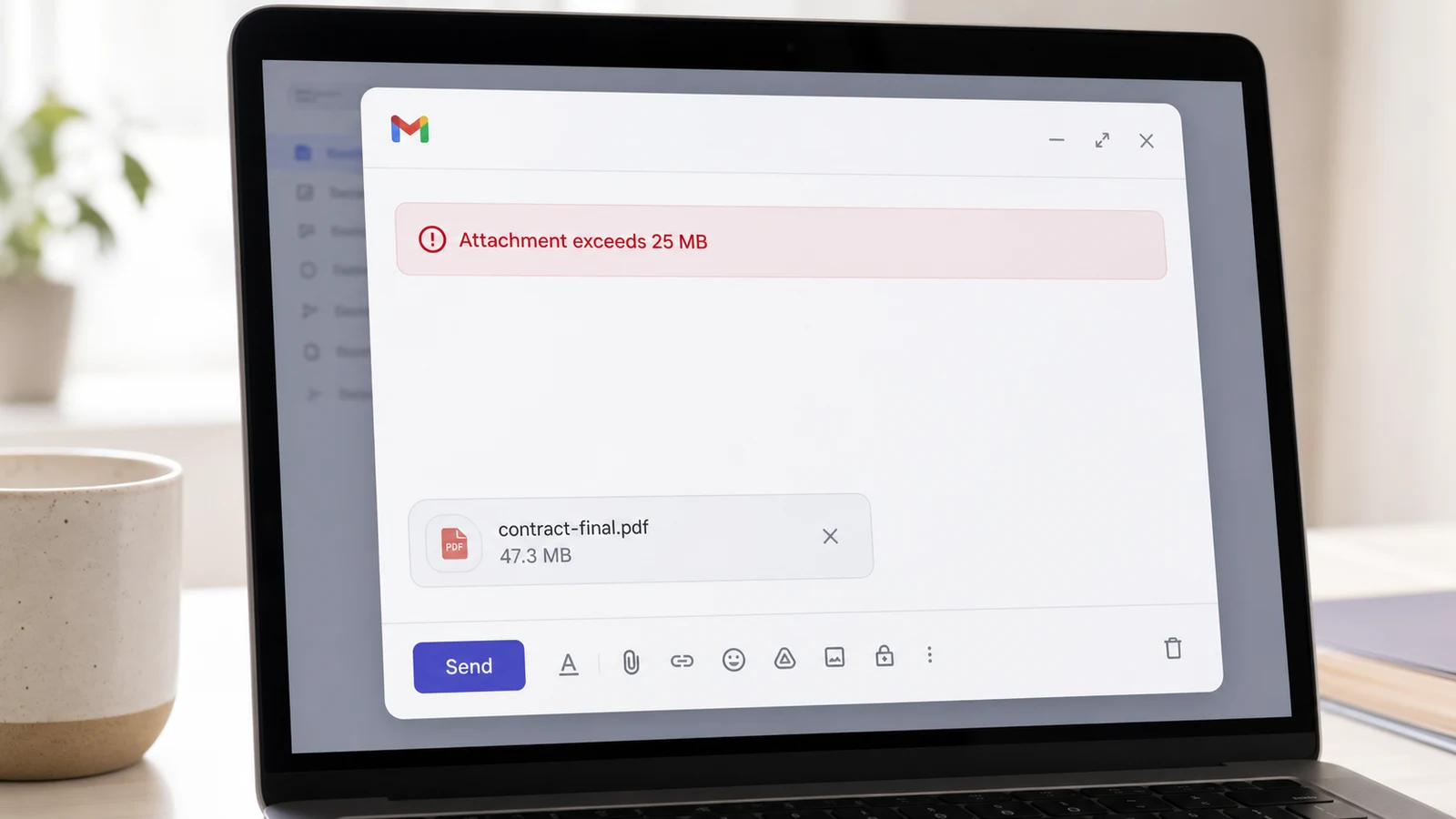
You hit Send, Gmail throws back "Attachment exceeds 25 MB," and now the deal/contract/medical scan you've been chasing for two weeks is stuck on your laptop. Sound familiar? Email providers haven't budged on file-size limits for years, while PDF sizes have ballooned thanks to high-res scans and embedded images. Here's how to fix it — six methods that actually work in 2026, ranked from easiest to most thorough.
What email providers actually allow in 2026
The hard cap is 25 MB on Gmail/Yahoo, 20 MB on Outlook.com/iCloud, and as low as 7-20 MB on most corporate Exchange servers. Aim for 18 MB on disk to leave Base64 headroom and you'll get through every major provider.
Current limits for direct attachments (providers change these — check your own provider's help page before you rely on a number):
| Provider | Attached cap | Real safe target | Cloud fallback |
|---|---|---|---|
| Gmail | 25 MB | 18 MB | Google Drive link (auto, up to 25 GB) |
| Outlook.com | 20 MB | 14 MB | OneDrive link (up to 2 GB) |
| Outlook 365 business | 33 MB default | 24 MB | OneDrive (admin-configurable up to 150 MB) |
| iCloud Mail | 20 MB | 14.5 MB | Mail Drop (up to 5 GB, 30-day link) |
| Yahoo Mail | 25 MB | 18 MB | Dropbox / Google Drive integration |
| ProtonMail | 25 MB (free + paid) | 18 MB | Proton Drive link |
| Corporate Exchange | 7-25 MB (varies) | 7 MB safe | Tenant admin / SharePoint |
Note: even if you can send 100 MB, the recipient's server may reject it. Most enterprise spam filters and corporate Exchange tenants cap inbound at 7-25 MB. So 18 MB on disk is the safe target for everyone.
Hidden gotcha — Base64 encoding overhead. SMTP attachments are MIME-encoded in Base64, which inflates payload size by roughly 33–37% (RFC 2045). A 20 MB PDF on disk becomes ~27 MB in transit and gets bounced by Gmail's 25 MB cap. Real-world effective limits work out to about 18 MB for Gmail/Yahoo, 14.5 MB for Outlook/iCloud, and as low as 7.3 MB for some corporate Exchange tenants. Aim for files under 18 MB on disk to leave headroom and avoid silent rejections.
Why your PDF is huge in the first place
Most oversized PDFs come down to one of two causes: high-resolution scans (600 dpi where 150 dpi would do) or unsubsetted embedded fonts. Vector overhead from Office exports is the rarer third case. Knowing which one bloated your file tells you which compression method to pick.
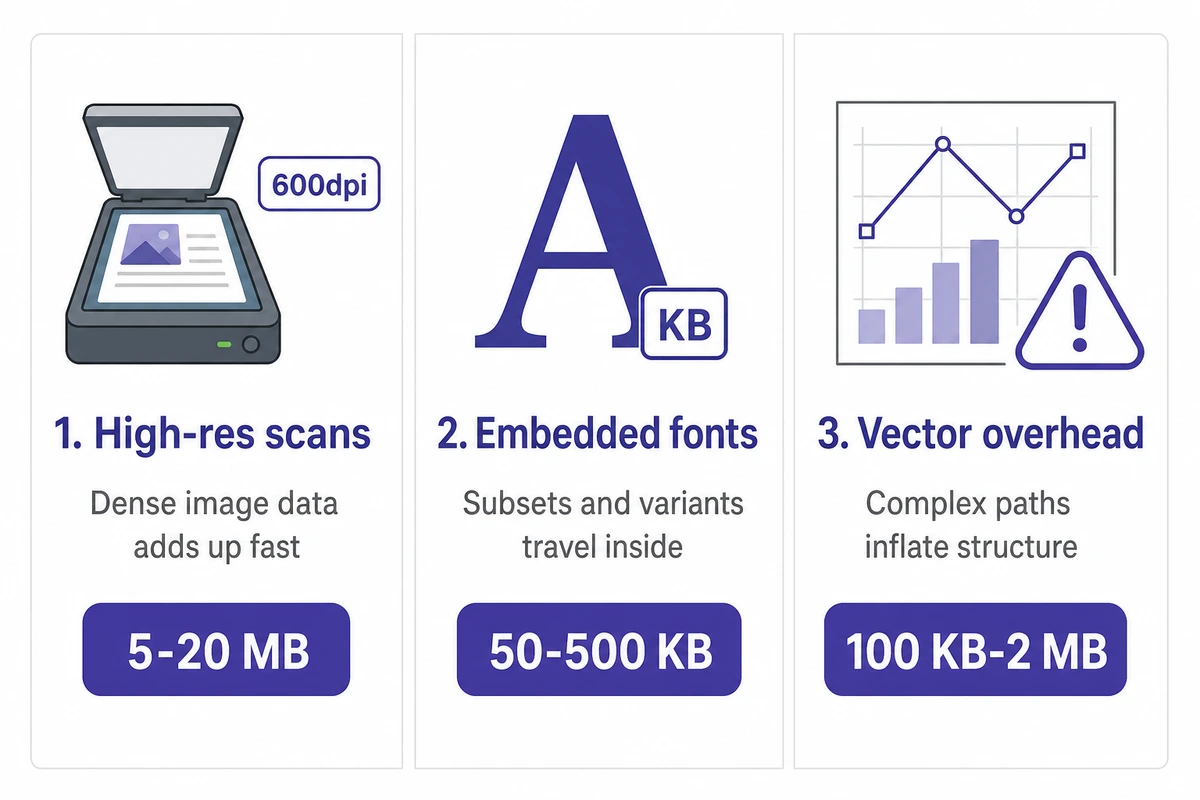
Three culprits, in order:
- High-resolution images. A scan at 600 dpi weighs several times more than the same scan at 150 dpi, with no visible difference on screen.
- Embedded fonts. Each unsubsetted font carries the whole typeface instead of the handful of glyphs you used. Multiply by five fonts and you're shipping a chunk of typography nobody will ever see.
- Vector overhead. A presentation exported with charts and SmartArt can balloon before a single photo is added. Office is a frequent offender.
A clean re-export from Word with the right settings often does more than any compression tool afterwards.
Method 1 — Re-export from the source
Easiest fix, biggest savings. If you generated the PDF yourself:
- Word: File > Save As > PDF > Options > "Minimum size (publishing online)"
- Google Docs: File > Download > PDF (already optimized)
- Pages: File > Export To > PDF > Image Quality: Good (not Best)
This single step often gets you under 25 MB without any third-party tool.
Method 2 — A browser-based PDF compressor
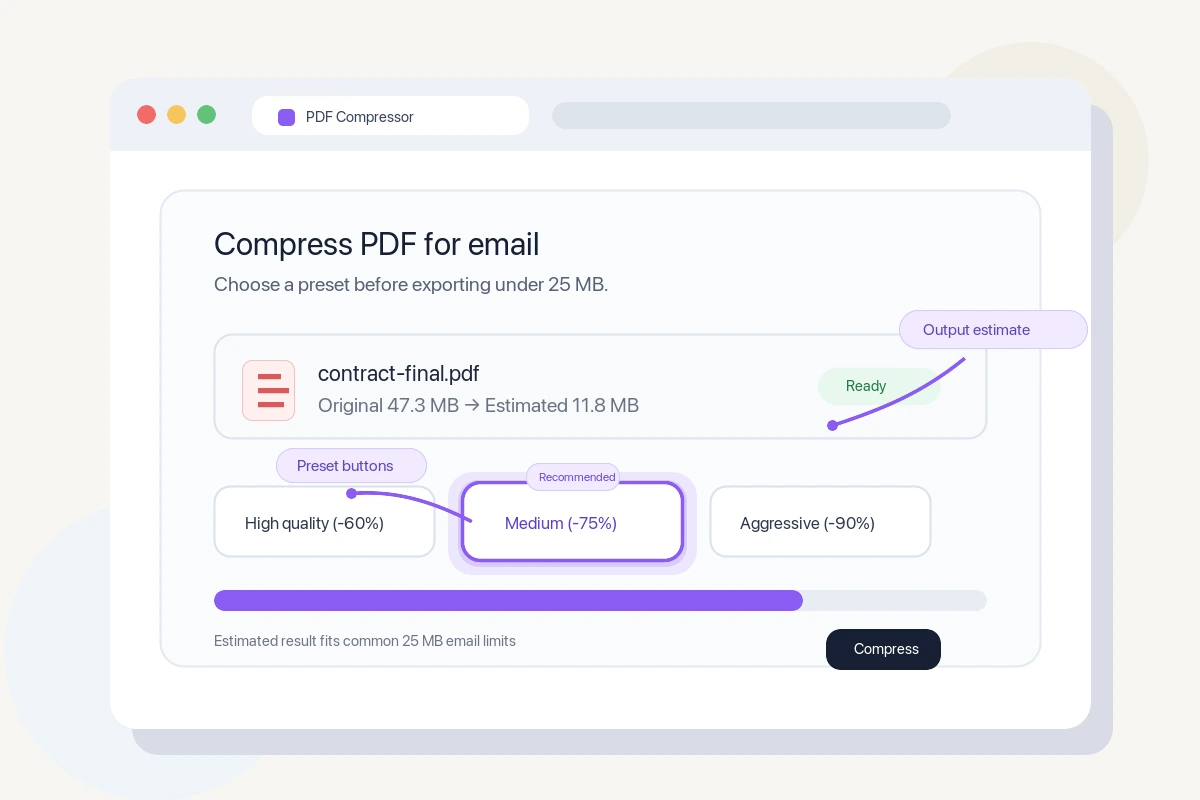
Pick a client-side compressor (the file stays in your browser) for confidential PDFs ; pick a server-side one only if you trust the provider's GDPR posture. The "Medium" middle setting is the one to try first — it usually shaves real weight without anything showing on screen.
When you can't re-export (you only have the PDF), a compressor is the next stop. With iFillPDF's free PDF compressor, the file never leaves your browser — it's compressed client-side, so you can shrink confidential PDFs without privacy risk. Three levels are available (Light, Medium, Strong); they rewrite the PDF structure in a more compact form, which helps most on files bloated by fonts and redundant objects rather than on photo-heavy scans. For a scan whose weight is pure image data, downsampling at the source (Method 3) still wins.
Other reasonable options:
- PDF24 Tools — client-side, German-hosted
- Smallpdf — server-side, Swiss-hosted, capped free tier
- ILovePDF — server-side, free tier with a paid plan above it
- FreePDFConvert — server-side
Aim for "medium" first — it's almost always invisible to the human eye.
Method 3 — Reduce image resolution manually
If your PDF is image-heavy (say, a scanned contract), the biggest win is downsampling. Two quick paths:
- macOS Preview: File > Export > Quartz Filter > "Reduce File Size" (built-in, free, surprisingly effective)
- Adobe Acrobat: File > Save as Other > Reduced Size PDF (if you have it)
- Online tools: most compressors expose a "DPI target" — set it to 150 dpi for screen reading, 300 dpi if it might be printed
For an image-heavy scan, dropping from 600 dpi to 150 dpi is usually the single change that takes the file from unsendable to comfortably under the limit.
Method 4 — Split the PDF and send in parts
When compression would hurt quality (architectural plans, medical scans, legal exhibits), split the PDF into 2-3 chunks and send each as a separate email. Each chunk stays under 18 MB and the recipient can re-merge with any free PDF tool.
If compression isn't enough or quality matters too much, split your PDF into 2-3 chunks and send them in separate emails. Practical for contracts where each section is independent. Recipients can re-merge with any free tool.
Pro tip: name the files clearly: contract-2026-part-1-of-3.pdf, contract-2026-part-2-of-3.pdf, contract-2026-part-3-of-3.pdf. Saves everyone confusion.
Method 5 — Use a cloud link instead
For files that just won't shrink (200 MB design portfolios, video walkthroughs, raw scans), upload to Google Drive or Dropbox and email the link. Gmail does this automatically when you attach a file > 25 MB. WeTransfer is the no-account option.
Real numbers for cloud sharing:
- Google Drive: free tier included with any Google account, sharing in 1 click from Gmail
- Dropbox: free tier for small files, paid plans for large libraries
- WeTransfer: works without an account, links expire after a few days
- Smash: no hard file-size ceiling on the free tier, links expire after a couple of weeks
- Apple Mail Drop: built into iCloud Mail, large attachments, link expires after 30 days
Sharing quotas and expiry windows move around — check the provider's page before promising a recipient a link that lasts. Heads up: some clients block links from "unknown" file-sharing services. Google Drive and Dropbox are the safest defaults.
Method 6 — Compress + re-OCR for searchable scans
If your compressed scan loses its searchable text layer, run an OCR pass to rebuild it. OCR adds a little weight back but restores Ctrl+F, accessibility (WCAG), and AI tools' ability to extract data.
Special case: if you've compressed a scanned PDF aggressively, the text layer can degrade. Run an OCR pass afterward to rebuild a clean searchable text layer — it adds a little weight back but keeps the document searchable and accessible.
Which route fits which file
There is no single "best" compression setting — what works depends on what is making your file heavy. Match the route to the culprit you identified earlier rather than running every tool in turn.
| Your file | Route to try first | What you trade |
|---|---|---|
| You still have the source (Word, Slides, Pages) | Re-export at lower image quality | A few minutes, nothing else |
| Digital PDF bloated by fonts and objects | A structural compressor (iFillPDF, PDF24) | Nothing visible |
| Scan whose weight is pure image data | Downsample to 150 dpi (Preview, Acrobat, a DPI setting online) | Sharpness if it will be printed |
| Scan that must stay searchable | Downsample, then re-run OCR | A little weight back, text layer restored |
| Plans, medical imaging, legal exhibits | Split into parts, or send a cloud link | Recipient opens two files instead of one |
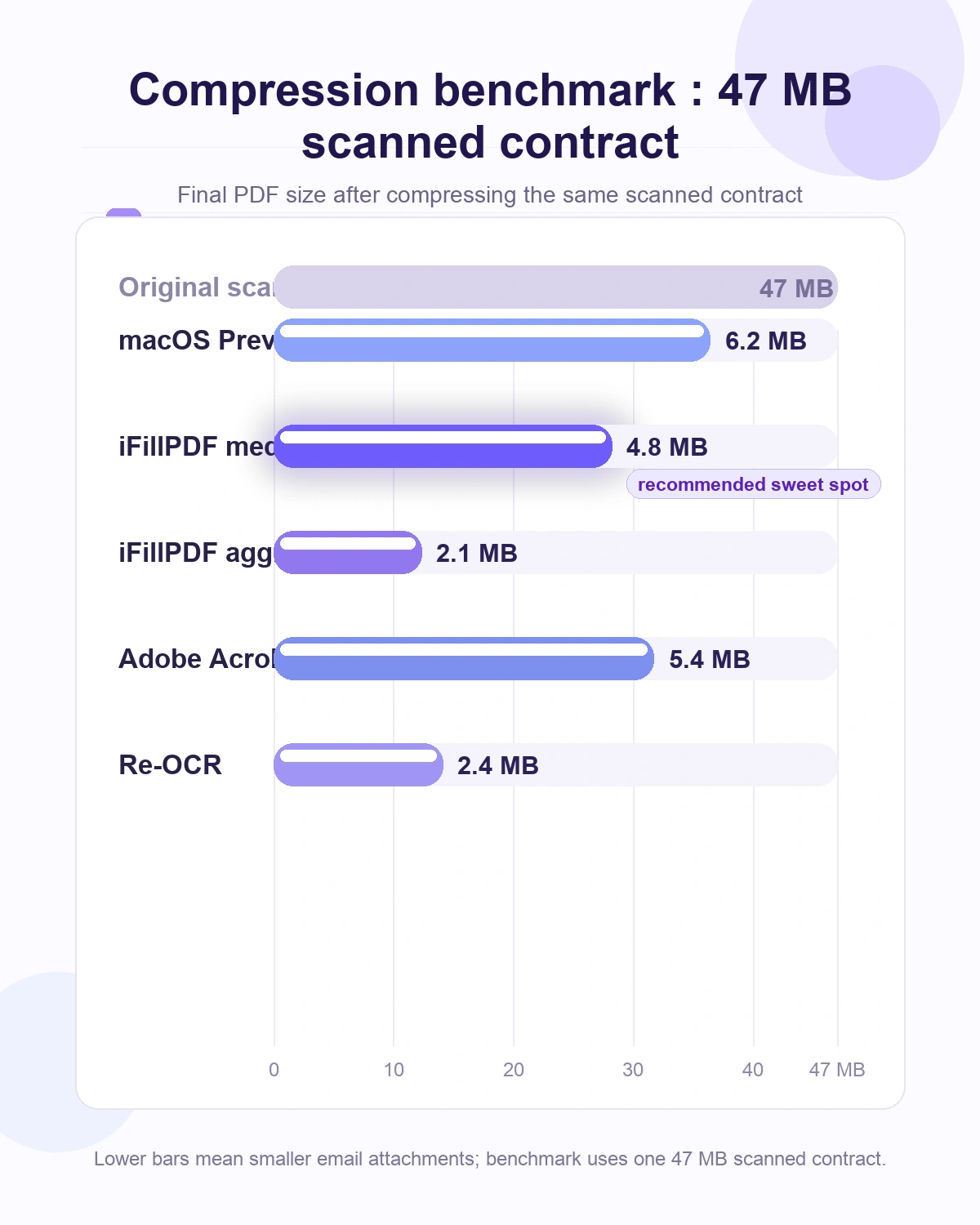
For most everyday documents the middle setting is the sweet spot — enough to clear the limit without anything showing on screen.
FAQ
How do I send a PDF over 25 MB in Gmail? Gmail auto-substitutes a Google Drive link when you attach a file over 25 MB — no need to upload manually. Click "Send" and Gmail uploads to your Drive, shares the link, and sends a regular email with the link in place of the attachment. The recipient gets a clickable link instead of a 25 MB-failing attachment.
Why does Gmail say my PDF is too large when it's only 24 MB? Because of Base64 MIME encoding (RFC 2045), SMTP attachments inflate by 33-37% in transit. A 24 MB file becomes ~32 MB on the wire, which exceeds Gmail's 25 MB cap. Aim for under 18 MB on disk to leave headroom.
Is it safe to compress confidential PDFs with online tools? Only with client-side tools (the file never leaves your browser) like iFillPDF or PDF24. Server-side tools (Smallpdf, ILovePDF, FreePDFConvert) upload your file to their servers — fine for non-sensitive PDFs but check their data-retention policy first. For NDAs, legal contracts, medical records, prefer client-side or a desktop tool.
Will compression ruin my PDF quality? The middle setting is normally invisible to the human eye. The most aggressive setting is fine for screen reading but can blur small text on scans. If the PDF must stay print-quality, use the lightest setting, downsample to 300 dpi rather than 150, or split the file instead.
Does compressing a PDF break the searchable text layer? Aggressive compression on scanned PDFs can degrade the OCR layer. To restore it, run an OCR pass after compression — it adds a little weight back but rebuilds full text searchability and accessibility (WCAG).
Can I compress a PDF on my phone?
Yes. iOS Files app lets you "Compress" a PDF in-place via long-press → Compress (creates a .zip though, not a smaller PDF). For a real PDF compressor on mobile, use a browser-based tool — most modern PDF compressors work on mobile Safari/Chrome with the same client-side privacy.
Compress your PDF in the next minute
If you just need to get that PDF into your next email, drop it into iFillPDF's free compress-PDF tool, pick the Medium level, download, attach. The file stays on your device throughout — handy for confidential contracts. And if you need to also merge several PDFs before compressing, do that first to avoid sending three separate emails.