To split a PDF online, drop your file into a browser-based splitter, mark where to cut (by page range, every N pages, or by file size), then download the parts as separate PDFs or a single ZIP. The whole flow takes 30-60 seconds, and the best tools require zero signup, leave no watermark, and either process the file client-side in your browser or auto-delete it within an hour.
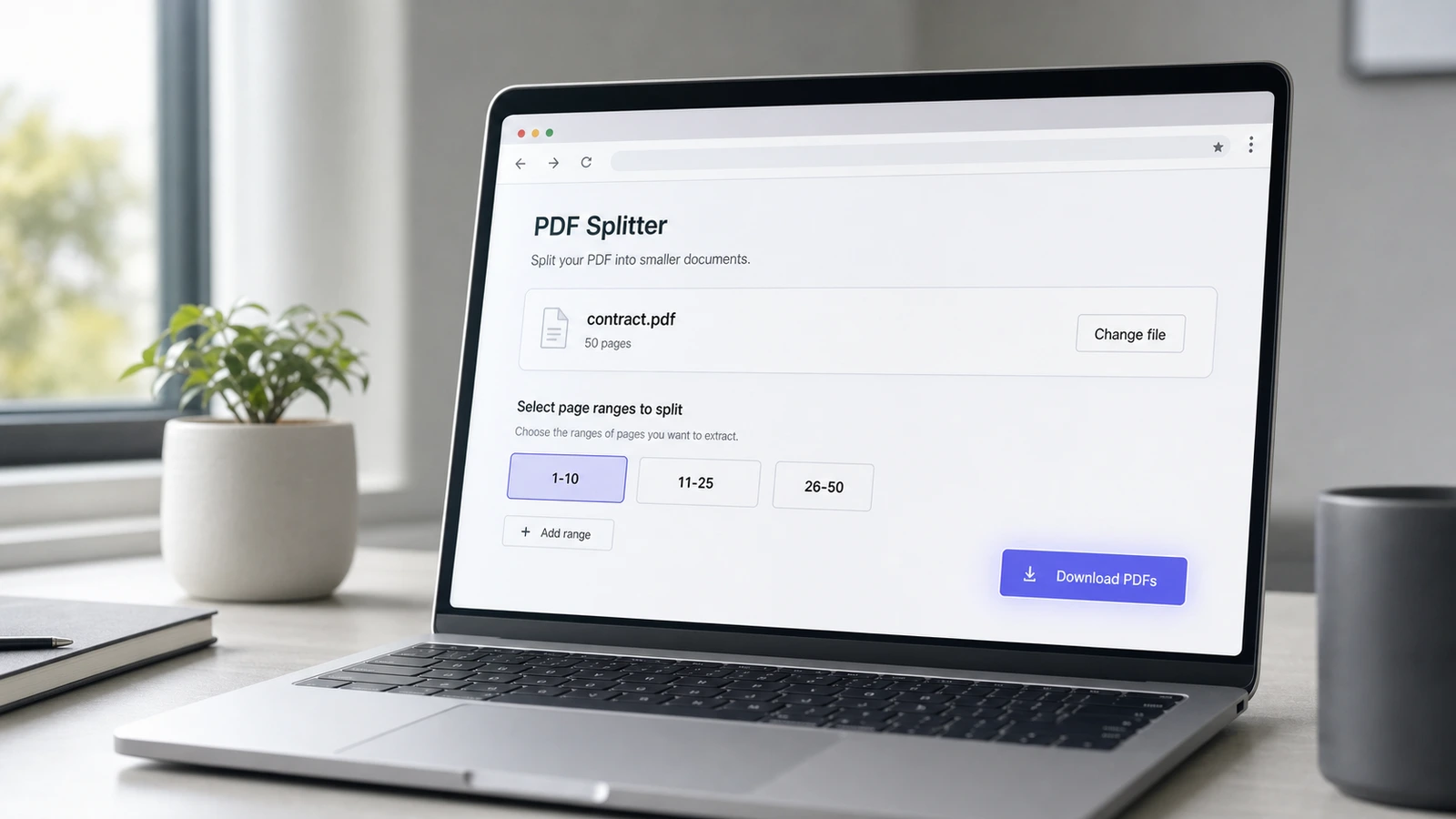
If you have ever tried to email a 200-page PDF, isolate one chapter from a textbook, or send a single signed page from a 50-page contract, you have hit the same wall: the file is too big, too long, or contains pages you do not want to share. Splitting the PDF — cutting it into smaller files — is the fix. This guide compares the 5 tools that dominate the US results for split pdf online, explains the 4 splitting modes you should know, and flags the privacy trade-offs that almost every free splitter glosses over.
What does "split a PDF" actually mean?
Splitting a PDF means producing two or more new PDF files from a single source, each containing a subset of the original pages — without altering the page content itself. It is different from extracting (which usually keeps only one selection and discards the rest), and different from compressing (which keeps all pages but shrinks the file size).
Three splitting modes cover almost every real-world need :
- By page range — you define ranges like 1-10, 11-25, 26-50 and get one PDF per range.
- Every N pages — you split a 100-page report into ten 10-page chunks automatically.
- By file size — you cap each output file at, say, 25 MB to fit your email provider's Gmail attachment limit.
Adobe Acrobat adds a fourth mode — splitting by top-level bookmarks — which is useful for academic books or annual reports with chapter markers, but few free online tools expose it.
How to split a PDF online in 60 seconds
Drag your PDF into the splitter, choose the split mode, click Split, then download. On an ordinary multi-page document the split itself is near-instant, and client-side tools do it with no upload to a server at all.
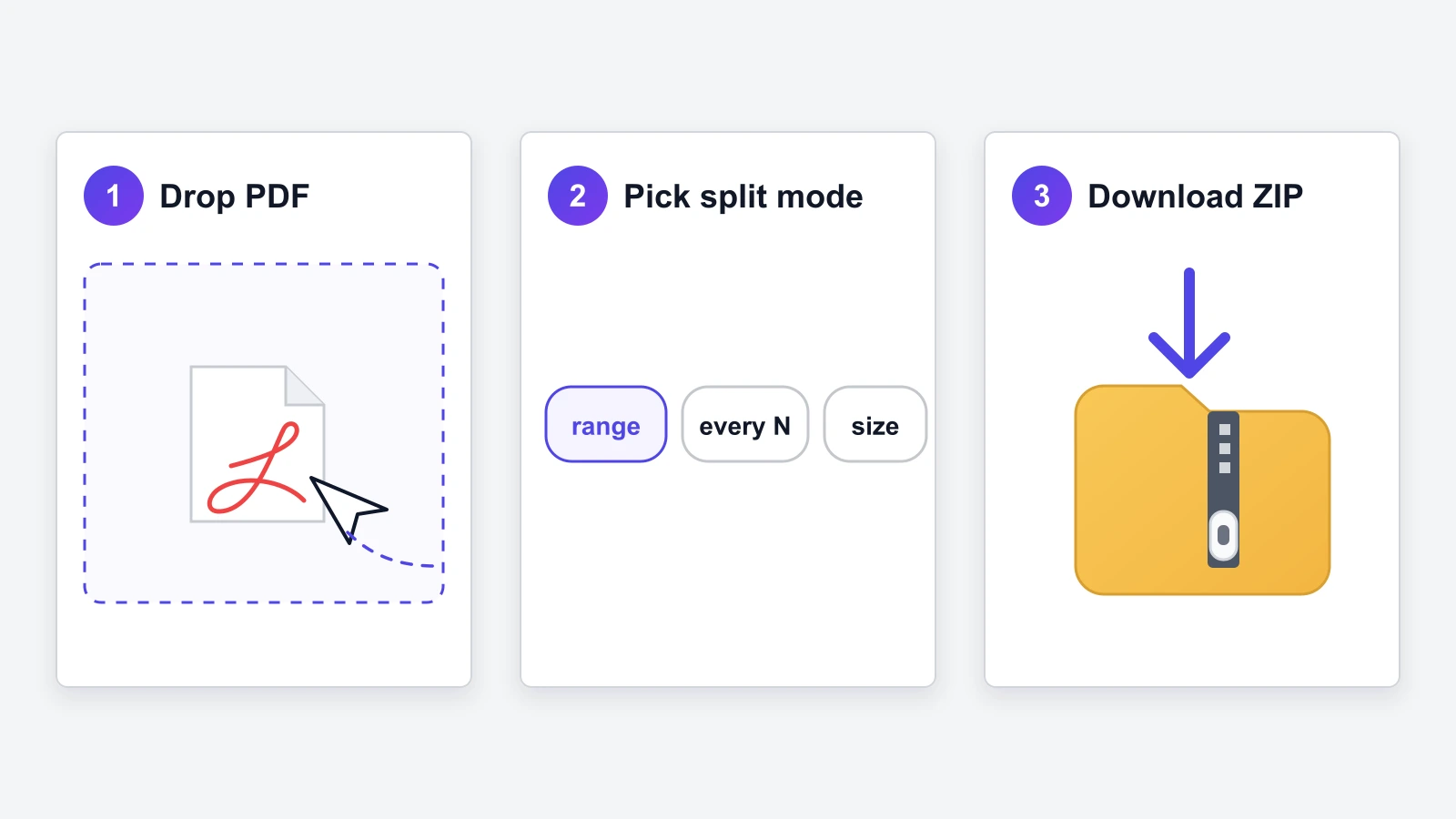
The mechanical flow is identical across every major splitter — iLovePDF, Smallpdf, Adobe, PDF24, iFillPDF. What varies is what happens to your file in step 2. Some tools (Drawboard, iFillPDF) run entirely in your browser, so the PDF never leaves your device. Others (Adobe, iLovePDF) upload to a remote server, process, and delete after a retention window — Adobe explicitly states a 24-hour retention for files processed by Acrobat online. Smallpdf claims one-hour deletion. PDF24 keeps files "as long as necessary." For a contract, payslip, or medical report, that distinction matters.
Comparison: 5 free PDF splitters in 2026
The differences that actually decide the choice are checkable ones: whether the file is uploaded or stays in your browser, whether an account is required, what the free ceiling is, and how long an uploaded file is retained. The table below states only those facts — no scores, no rankings.
| Tool | Free ceiling | Signup required? | Watermark? | Where the file is processed | Output |
|---|---|---|---|---|---|
| iLovePDF | ~25 MB / 50 pages (free) | No (free tier) | No | Server (deleted after ~2h) | ZIP or merged PDF |
| Smallpdf | 2 free splits / day | No (limited free) | No | Server (deleted after 1h) | Individual PDFs |
| Adobe Acrobat online | 1,500 pages / up to 20 outputs | Yes (Adobe ID) | No | Adobe cloud (24h) | Cloud folder |
| PDF24 Tools | No declared limit | No | No | Server (short retention) | ZIP |
| Drawboard | No declared limit | No | No | Browser only (no upload) | ZIP |
| iFillPDF | 100 MB / file | No | No | Browser only (no upload) | Individual PDFs |
Every cell above is a published limit or policy, not a score: we do not rate or rank third-party tools. Adobe is the only entry on this list whose documented ceiling covers 1 GB or 1,500-page PDFs; check each vendor’s own page before relying on a figure, since free ceilings change without notice.
Why some splitters use a server (and some do not)
Server-side splitters can handle larger files and more complex split modes, but they require uploading your PDF — which means trusting that the operator deletes it on schedule and operates in a jurisdiction whose privacy law you accept. Browser-side splitters keep the file on your device but are limited by your RAM (typically 100-200 MB practical ceiling).
The technical reason is real. The PDF specification (ISO 32000-2:2020) defines an incremental update mechanism that lets a splitter rewrite only the cross-reference table and trailer when extracting pages — meaning a well-built splitter does not need to re-encode the entire document. WebAssembly libraries like pdf-lib implement this in the browser efficiently, which is why Drawboard and iFillPDF can split 100 MB files locally without melting your CPU. Adobe and iLovePDF prefer servers so they can also handle pages with broken cross-reference tables (common in scans), but they pay the privacy price.
Choosing the right splitter for your file
Match the tool to the file. For a 5-page payslip you would not email to a stranger, pick a browser-only splitter. For a 1,200-page legal brief, pick a server-side tool with a public retention policy.
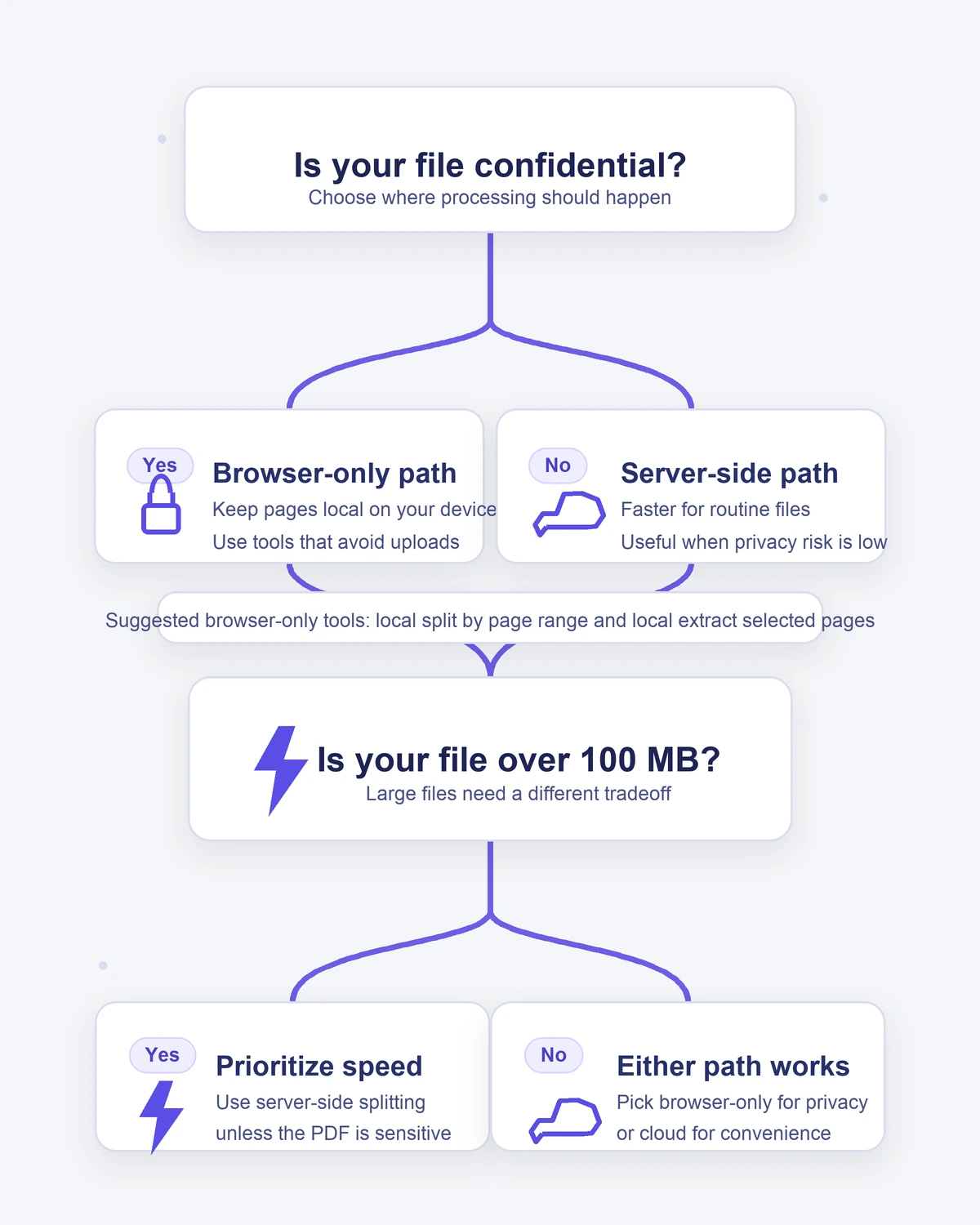
Three quick rules :
- Confidential file under 100 MB → browser-only tool (Drawboard, iFillPDF). Verify in DevTools Network tab : no POST request with
multipart/form-datashould appear during the split. Same trick we used for merging PDFs without server upload. - Non-confidential file over 100 MB → server-side tool with explicit deletion policy (iLovePDF, Smallpdf). Read the policy before you upload.
- Confidential file over 100 MB → no good free option. Use a desktop app like PDFsam Basic (open source, 100 percent local) or the qpdf CLI for batch jobs.
If you also need to merge the resulting parts back later, iFillPDF's merge tool takes the PDF parts any splitter produces, including the ones above — unzip the archive first if your splitter returned one.
After splitting: the 3 actions users do next
Most users don't stop at split. They compress one of the parts to fit an email, edit a page they extracted, or convert a section to Word. Plan the full flow before you split, so you don't bounce between five different sites.
The three follow-ups that come up most often :
- Compress the split part to fit a 25 MB Gmail attachment limit. See our PDF compression guide for email.
- Edit a single page you just extracted (redact a name, fix a typo) using a PDF editor.
- Convert the split section to a Word document for further work.
If your split was actually motivated by needing to fill an isolated form page, jump straight to filling that PDF — splitting first is often unnecessary. Modern fillers handle multi-page documents and let you export only the page you need.
FAQ
How do I split a PDF for free with no signup?
Use a tool that does not require an account on its free tier — Drawboard, PDF24, iLovePDF (free tier), or iFillPDF. Adobe Acrobat online requires an Adobe ID even for the free tier, so skip it if signup is a deal-breaker.
How do I split a PDF in half?
Most splitters expose a "split at page N" or page-range mode. For a 30-page PDF, set the range to 1-15 and 16-30, then click Split. iLovePDF and Smallpdf both support this in two clicks. If you only know the file size and not the page count, open the PDF first or use a splitter with a thumbnail preview.
How do I split a large PDF (over 100 MB)?
Server-side tools handle large files better than browser-only ones. Adobe Acrobat online accepts up to 1 GB or 1,500 pages, iLovePDF up to ~200 MB on free, PDFsam Basic on desktop has no practical limit. Browser-only tools usually choke past 100-150 MB because they hold the whole file in tab memory.
Will splitting a PDF reduce its quality?
No. Splitting is a lossless operation under the ISO 32000-2:2020 PDF specification — pages are copied bit-for-bit, only the document container changes. If you notice quality loss, the tool is doing something extra (re-encoding, downsampling images), which is a bug, not a feature. Adobe explicitly confirms this in their split FAQ.
Can I split a PDF on a Mac without an online tool?
Yes. Open the PDF in Preview, show the thumbnail sidebar (View → Thumbnails), select the pages you want to extract, then drag them onto your desktop — Preview creates a new PDF. This is fully offline and free, but slow for large multi-range splits.
Is it safe to upload a confidential PDF to a free splitter?
Only if you trust the operator's deletion policy and jurisdiction. For confidential files (contracts, medical records, payslips), prefer a browser-only splitter (Drawboard, iFillPDF), a desktop app, or a server-side tool with EU hosting under GDPR — server location matters more than the deletion timer.
Try iFillPDF's free PDF splitter
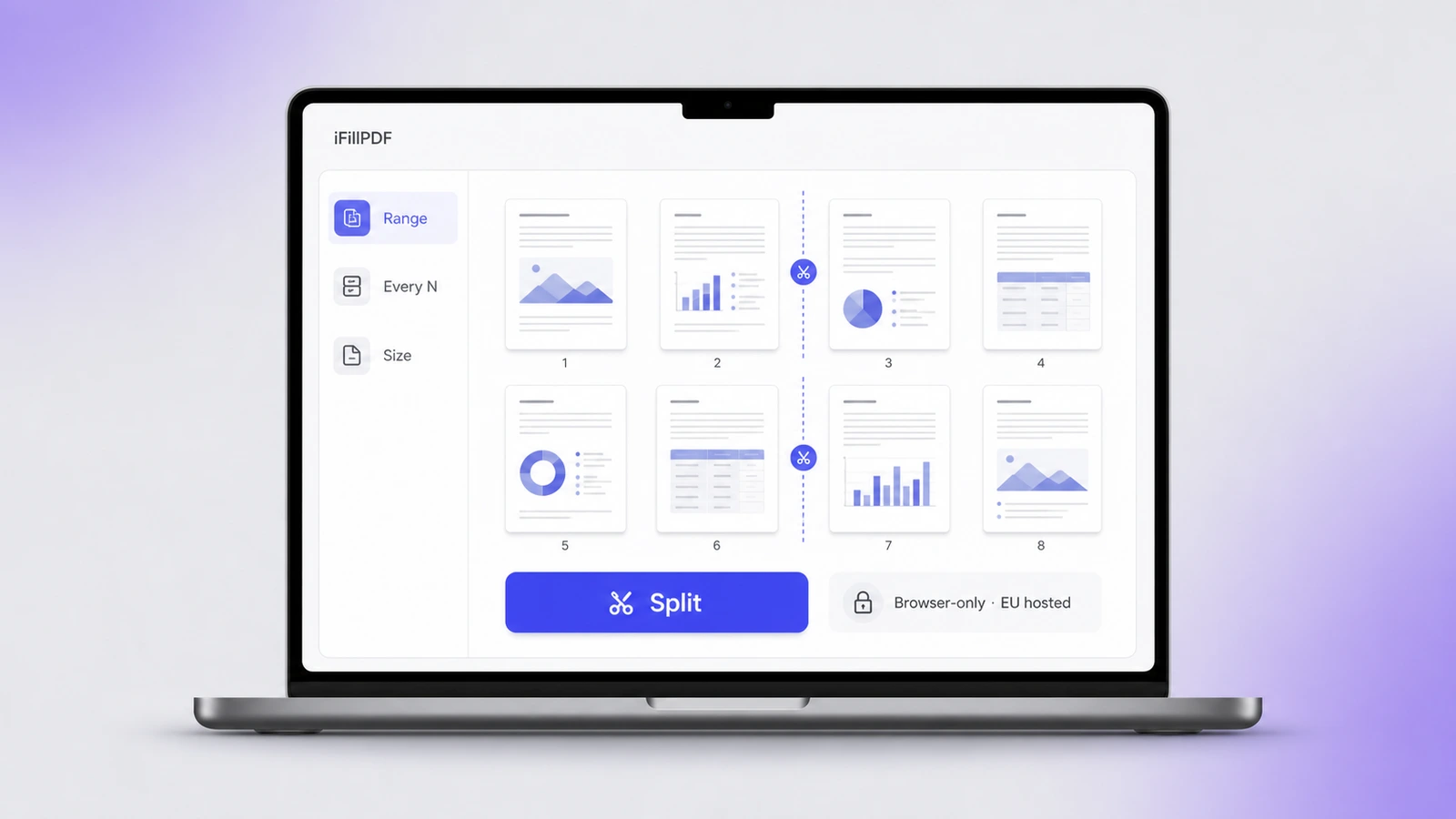
If you want browser-side splitting with nothing uploaded anywhere, try iFillPDF's free PDF splitter — split every page out, or cut by the ranges you name, up to 100 MB. No signup. No watermark. The file never leaves your device. And when you are done, you are one click away from merging, compressing, or filling the result with the same engine — built around AI field detection that no other free splitter offers.