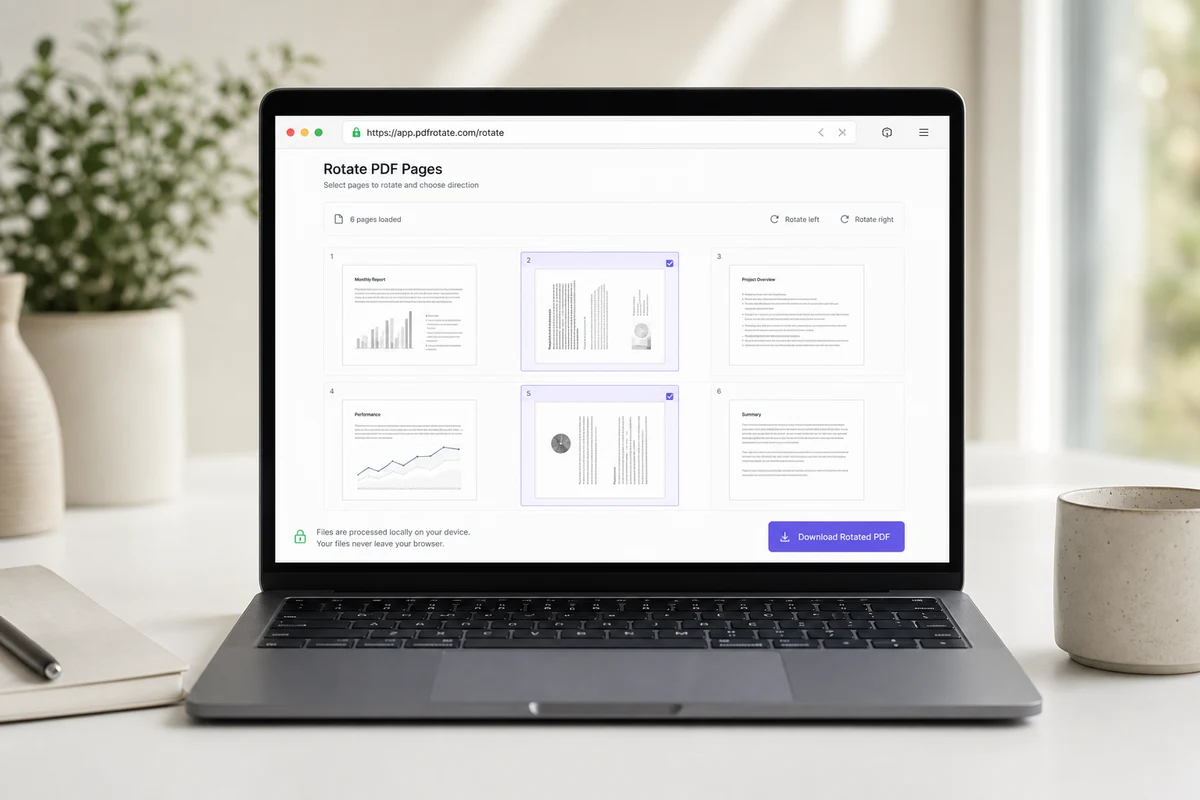
Adobe Reader's rotate buttons only change how the PDF looks on screen — they do not save the rotation to the file. To rotate a PDF permanently, you need a tool that rewrites the page rotation flag inside the PDF (online rotators, macOS Preview, the qpdf CLI, Adobe Acrobat Pro's Organize Pages, or a Print-to-PDF workaround). The fastest free path takes about 30 seconds in a browser; the most powerful path is one terminal command that rotates a folder of 200 PDFs at once.
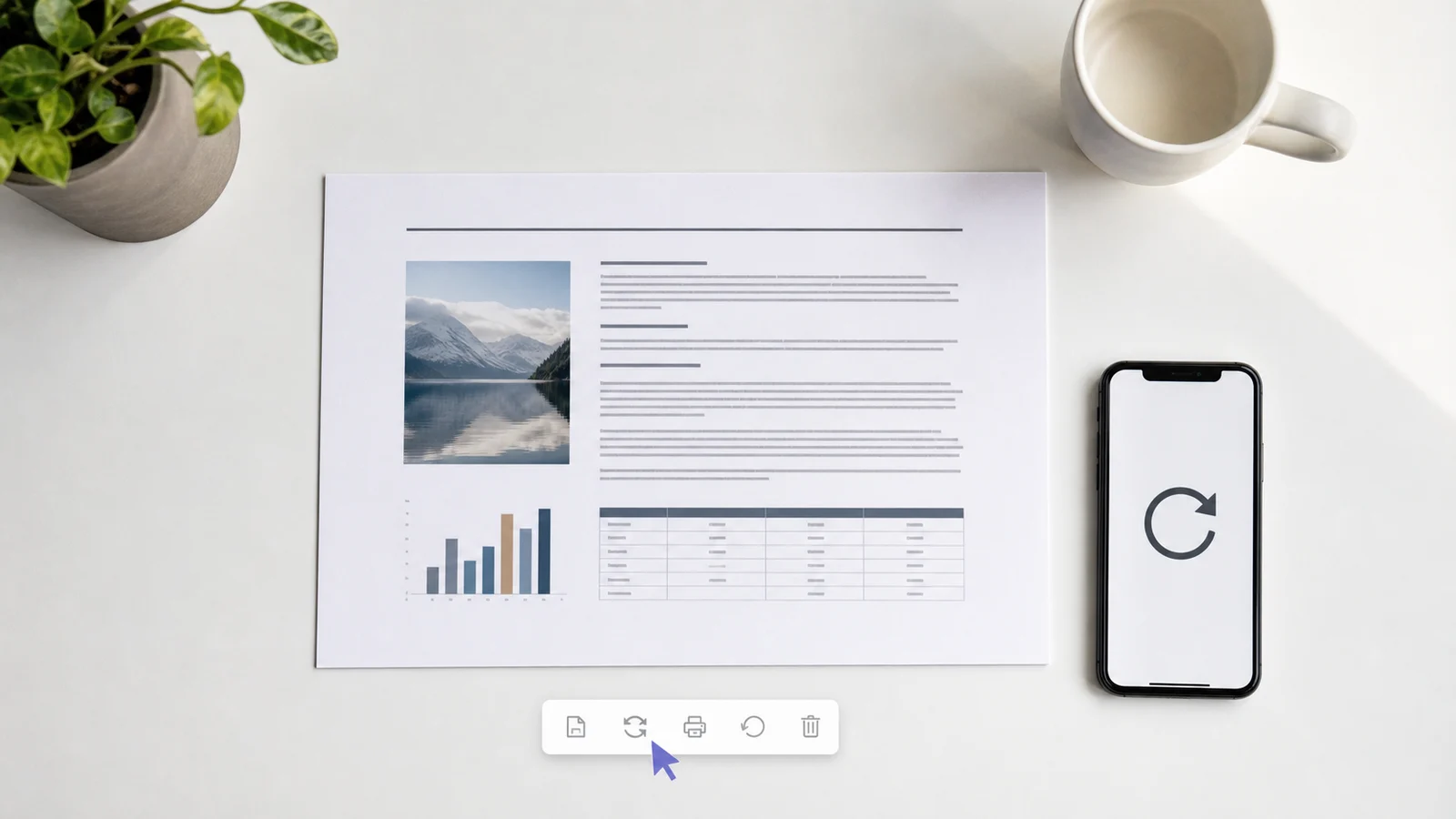
If you have ever scanned a contract upside-down, downloaded a sideways invoice from a supplier, or saved a photo to PDF that opened rotated 90°, you have probably tried Adobe Reader's rotate buttons — clicked Save, reopened the file, and watched it snap right back to the wrong orientation. You are not doing anything wrong. Reader is doing exactly what it is designed to do, and what you actually need is a different operation entirely. This guide walks through the five methods that work in 2026, when each one is the right call, and why most viewers refuse to persist a rotation in the first place.
Why Adobe Reader rotation doesn't save (and what "permanent" means)
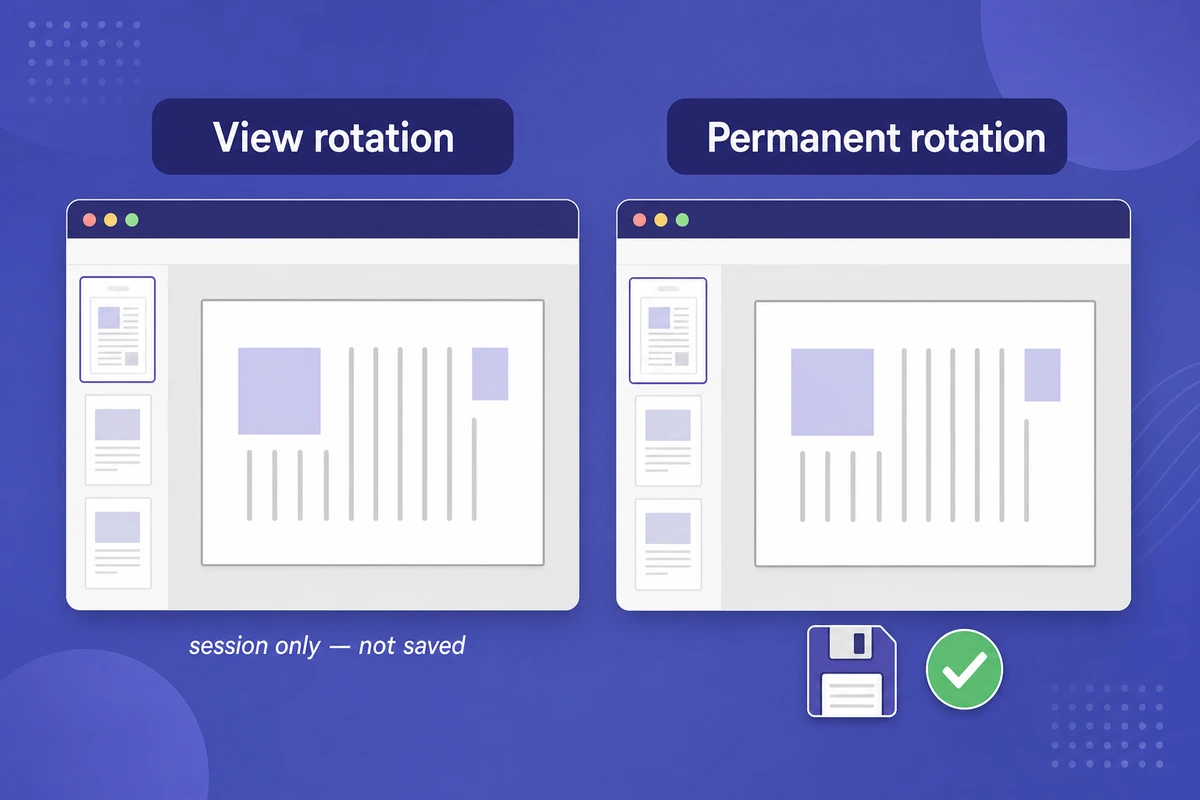
Adobe Reader's View → Rotate View command applies a temporary screen-only transform; it never edits the underlying PDF. To rotate a PDF permanently, you need an editor that writes a new value to each page's /Rotate key — the integer (0, 90, 180, or 270) stored inside the page dictionary that every PDF reader honors when it opens the file.
Free PDF viewers — Adobe Acrobat Reader, Microsoft Edge, Google Chrome, Firefox's built-in viewer, Apple's "open with Reader" mode — all separate "viewing" from "editing" by design. The rotate icons in the toolbar exist so you can read a sideways scan without tilting your head, but the change lives in the viewer's session memory, not the file. Reddit threads going back to Chrome PDF viewer in 2017 and Edge in 2022 document the exact same frustration in German, French, and English audiences — it is a structural choice across every major viewer, not an Adobe quirk.
A truly permanent rotation does one of two things : either it rewrites each page's /Rotate value (cheap, lossless, what qpdf and Acrobat Pro's Organize Pages do), or it re-renders each page as a rotated image and rebuilds the PDF (heavier, can affect text selectability — what some Print-to-PDF chains do). The first method is always preferable when available.
Method 1 — Rotate a PDF online and save permanently (fastest, no signup)
Drop your PDF into a browser-based rotator, click the rotate-clockwise or rotate-counterclockwise arrows on the page thumbnails you want to turn, then download the new file — the rotation is baked in. This is the right method when you have one or two files, no software installed, and want to be done in under a minute.
The flow is identical across all the major free tools : drag the PDF in, the page thumbnails appear in a grid, you click the rotate arrows once per 90° step (twice for upside-down pages), then hit Download. Modern client-side tools like iFillPDF's rotate PDF process the rotation in your browser without uploading the file to a server — useful when the PDF contains personal information you'd rather keep off third-party clouds. Server-side tools (Adobe, Smallpdf, iLovePDF, PDF24) encrypt the transfer and delete uploads after a retention window each publishes on its own site — but the file still leaves your machine.
For a one-off rotation on a non-sensitive file, any of them works. For repeat use on contracts, payslips, medical reports, or scanned IDs, prefer a client-side tool with EU hosting — the rotation stays just as permanent, but the file never travels.
Method 2 — macOS Preview: free, offline, persists rotation
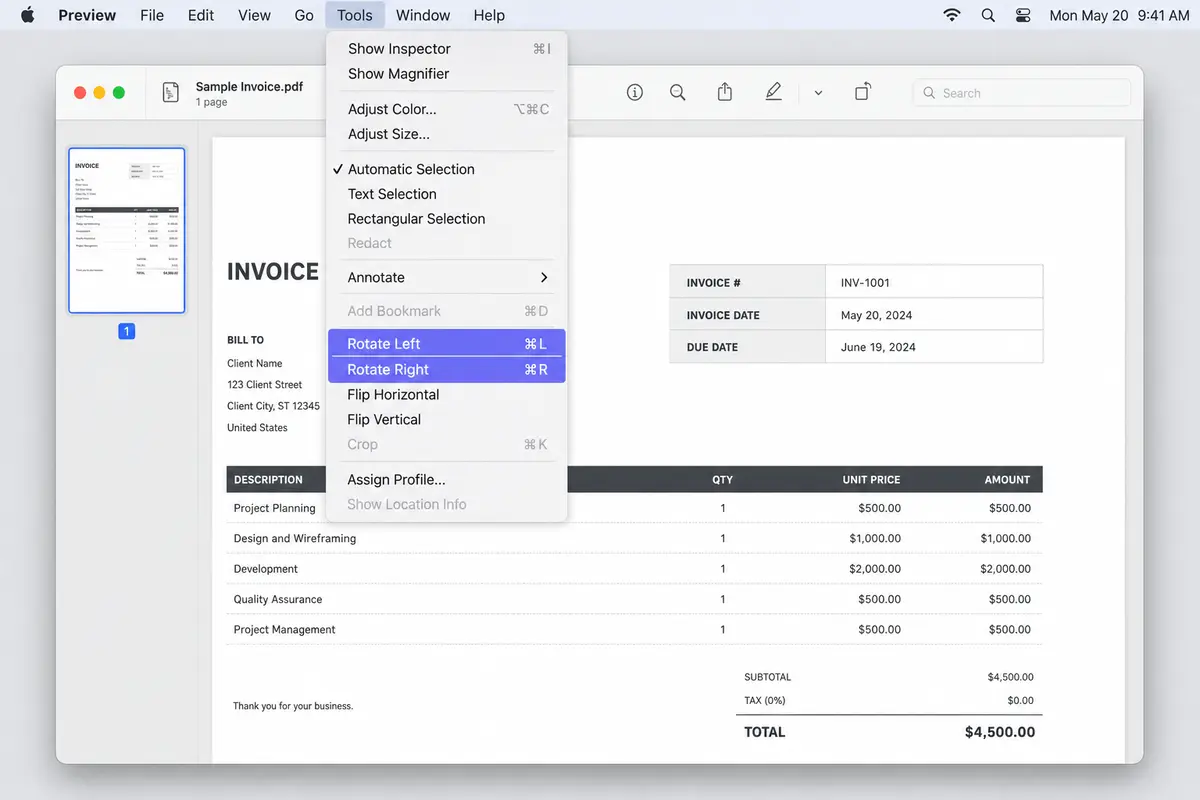
On any Mac, open the PDF in Preview, choose Tools → Rotate Left or Rotate Right (or press ⌘L / ⌘R), then File → Save — Preview rewrites the page rotation flag and the change persists across every viewer. No download, no upload, no internet needed.
Preview is the best-kept secret of macOS for PDF work. The rotation menu lives at Tools → Rotate Left (⌘L) and Tools → Rotate Right (⌘R) ; to rotate a single page inside a multi-page PDF, first open the sidebar with View → Thumbnails, click the page you want, then apply the shortcut. Save with ⌘S and the change is written to disk. Reopen the file in Adobe Reader, Chrome, or Edge — the rotation holds. Linux users get the equivalent free path with Okular (KDE) or qpdf. Windows users without Acrobat Pro have no native Preview equivalent and need to fall back to an online tool or PowerToys.
Method 3 — qpdf CLI: batch rotate dozens of PDFs in one command
Install qpdf (free, open source, available on Mac, Linux, Windows) and run qpdf input.pdf output.pdf --rotate=90:1-z to rotate every page 90° clockwise — or loop the command across a folder to batch rotate hundreds of files. This is the only method built for scale.
The exact syntax confirmed in the qpdf docs is :
--rotate=90:1-zrotates every page 90° clockwise (the1-zpage-range token means "page 1 through last")--rotate=180:1rotates only page 1 by 180°--rotate=-90:2,4,6rotates pages 2, 4, 6 by 90° counterclockwise (negative angle)--rotate=+90:1-zis functionally identical to--rotate=90:1-z
To batch-rotate every PDF in a folder on macOS or Linux : for f in *.pdf; do qpdf "$f" "rotated-$f" --rotate=90:1-z; done. On Windows PowerShell : Get-ChildItem *.pdf | ForEach-Object { qpdf $_.Name "rotated-$($_.Name)" --rotate=90:1-z }. The rotation is lossless — qpdf rewrites only the /Rotate key, leaving the page content stream untouched, so text remains selectable, fonts stay embedded, and file size barely changes. Accountants processing a month of supplier invoices, paralegals normalizing scanned exhibits, or anyone with a folder of misoriented receipts get hours back from a 30-second one-liner.
PDFsam Basic, the open-source desktop alternative, exposes the same rotation primitive as qpdf through a click-through interface — useful if you want a GUI without leaving your machine.
Method 4 — Adobe Acrobat Pro: Organize Pages workflow
In Adobe Acrobat Pro, open the PDF, choose Tools → Organize Pages, select the page thumbnails to rotate, click the rotate arrows in the page-level toolbar, then File → Save. Unlike Reader's View → Rotate View, Organize Pages writes the rotation to disk. This is the right method if you already pay for Acrobat Pro and want a single tool for rotation, splitting, merging, and editing.
Acrobat Pro is a paid subscription, and Acrobat Standard — the cheaper tier — also exposes Organize Pages, so the rotation persists there too. Free Adobe Acrobat Reader does not — it only ships the temporary View → Rotate View, which is the source of the original frustration this article exists to solve. If rotation is your only need, Acrobat Pro is overkill ; methods 1, 2, or 3 above all do the same job for free.

Method 5 — Google Drive Print-to-PDF workaround
Open the PDF in Google Chrome (or upload to Google Drive and open it), press Ctrl+P (Cmd+P on Mac), pick Save as PDF in the destination, change Layout from Portrait to Landscape (or vice versa), and save the new file. The output PDF is rotated permanently because it is re-rendered, not just re-flagged. This is a last-resort method when nothing else is installed.
The catch : Print-to-PDF re-rasterizes some PDFs (especially scanned ones) and may strip text selectability, OCR layers, form fields, or signatures. For text-based PDFs (invoices generated from Word, exported reports, web pages saved as PDF) it usually preserves text, but you should always verify with Cmd/Ctrl + F after rotation. Treat this as the I have no other option right now path, not a daily workflow.
Comparison — which rotation method should you pick?
Pick the fastest method that matches your file count and trust requirements : online for one quick rotation, Preview if you're on a Mac, qpdf for batch, Acrobat Pro if you already own it, Print-to-PDF only as a fallback.
| Method | Persists to file? | Free? | Mobile-friendly? | Batch? | Best for |
|---|---|---|---|---|---|
| Adobe Reader View → Rotate View | No (view-only) | Yes | Yes | No | Reading sideways scans |
| Online tool (iFillPDF, iLovePDF, Smallpdf, PDF24) | Yes | Yes | Yes | Limited (1–10 files) | One-off rotation, any device |
| macOS Preview | Yes | Yes (built-in) | No (Mac only) | No | Mac users, offline, sensitive files |
| qpdf CLI | Yes (lossless) | Yes (open source) | No | Yes (unlimited) | Power users, automation, hundreds of files |
| Adobe Acrobat Pro Organize Pages | Yes | No (paid subscription) | Limited | Yes | Existing Acrobat subscribers |
| Chrome / Drive Print-to-PDF | Yes (re-rendered) | Yes | Limited | No | Last resort, text-only PDFs |
If your rotation is part of a larger PDF workflow — splitting a long contract, merging signed pages, signing the result, or compressing for email — chain it with split PDF, merge PDF, sign PDF, or compress PDF so the file moves through one trusted browser session instead of three different sites.
FAQ
How do I rotate a PDF permanently in Adobe Reader for free?
You cannot — free Adobe Acrobat Reader only ships View → Rotate View, which is screen-only. To save the rotation, either upgrade to Acrobat Pro and use Tools → Organize Pages, or rotate the PDF for free in your browser with an online rotator, in macOS Preview (⌘L / ⌘R, then ⌘S), or via the qpdf CLI.
How do I rotate a PDF on iPhone or iPad?
Open the PDF in the Files app or Safari, tap the share icon, and use a browser-based rotator that works on mobile (most do). Apple's built-in Markup tool can rotate images but not PDFs. The Adobe Acrobat iOS app requires a paid subscription to rotate-and-save.
Can I rotate just a single page in a multi-page PDF?
Yes. In macOS Preview, open the thumbnail sidebar (View → Thumbnails), click the one page you want to rotate, then press ⌘L or ⌘R. In an online rotator, click the rotate arrow on that single page thumbnail. With qpdf : qpdf in.pdf out.pdf --rotate=90:3 rotates only page 3.
How do I batch rotate multiple PDFs at once?
Use qpdf with a shell loop : on Mac/Linux, for f in *.pdf; do qpdf "$f" "rotated-$f" --rotate=90:1-z; done rotates every PDF in the current folder 90° clockwise. iLovePDF, Adobe online, and PDF24 also accept multiple uploads in one session, but qpdf scales without limits and runs offline.
How do I rotate a scanned PDF that opens upside-down?
Apply a 180° rotation, not 90°. In an online tool, click the rotate-clockwise arrow twice on each upside-down page. In Preview, press ⌘R twice. With qpdf : qpdf scan.pdf scan-fixed.pdf --rotate=180:1-z. Scanned PDFs are usually image-based, so any rotation method preserves them — including the Print-to-PDF workaround.
Is rotating a PDF permanently safe? Will it lose quality?
Methods that rewrite the /Rotate flag (qpdf, online tools, Preview, Acrobat Pro Organize Pages) are lossless — file size barely changes and text stays selectable. The Print-to-PDF workaround re-rasterizes the page and can strip text, OCR layers, or form fields, so always verify selectability with Cmd/Ctrl + F after that path.
When iFillPDF makes sense
If your rotation is part of a privacy-sensitive workflow — payslips, medical reports, passports, signed contracts — iFillPDF's rotate PDF does the whole thing client-side in your browser: the document is never uploaded, so there is no retention window to trust. No signup, no watermark, one file at a time, and the rotated PDF is yours to download immediately.