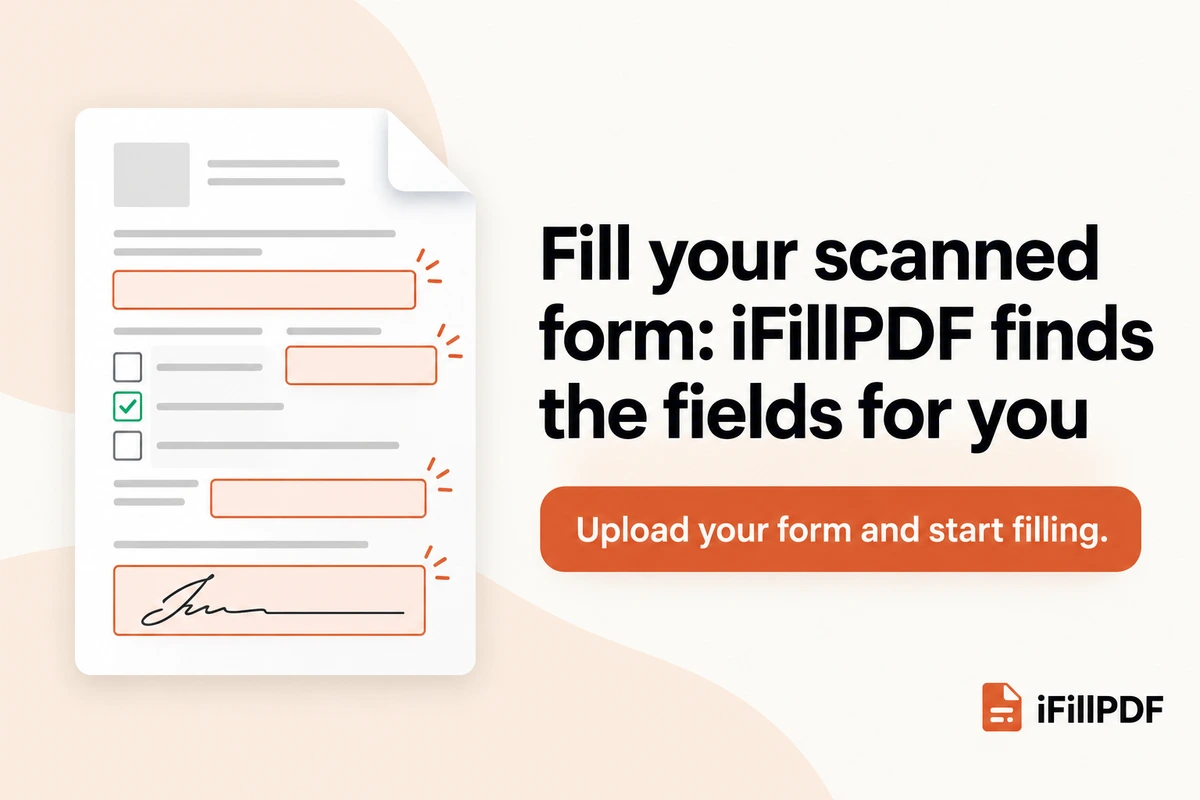
To fill a scanned PDF form, you need a tool that puts typeable fields on top of the page image, because a scan has no real form fields. iFillPDF does this automatically: it detects the empty text fields, checkboxes and signature boxes on the scan for free, so you click and type instead of drawing every box by hand.
The short answer
iFillPDF is a browser-based PDF filler that automatically detects the empty text fields, checkboxes and signature boxes on a scanned or flattened PDF by analysing the page image with a computer-vision model, so the form becomes clickable even when it has no text layer; detection is free, including for guests without an account.
Once the fields are detected, you type your answers, tick the boxes, sign, and download the completed PDF. Downloading needs a free account (you confirm an email code), and free downloads carry a small watermark that a one-off lifetime payment removes.
If you prefer to place every box yourself, PDF24, PDFgear, Smallpdf, Sejda and Acrobat Reader all let you add text on top of a scan at no cost. The difference is who finds the blanks: you, or the software. iLovePDF (Premium) and paid Acrobat plans also detect fields; iFillPDF does it free.
Why you can't type on a scanned PDF
A scanned PDF is a photograph of paper wrapped in a PDF file. The lines, boxes and labels you see are pixels, so a PDF viewer finds nothing to click into.
A fillable PDF is different. It contains AcroForm fields: invisible, named areas that Chrome, Edge, Preview or Acrobat Reader recognise, which is why you can tab from one box to the next. A form that was printed, filled by hand and rescanned, or exported as an image, loses those fields. People call the result a flat, flattened or non-fillable PDF.
To check which kind you have, open the file in Chrome and click a blank line. If a cursor appears, the form is fillable and our guide to filling a PDF form without Acrobat covers the quick options. If nothing happens, keep reading.
Three ways to fill a flat or scanned PDF form
You can type over a scanned form in three ways, from the slowest to the fastest.
- Print, write by hand, rescan. It needs no software, but the result is harder to read and you need a printer and a scanner.
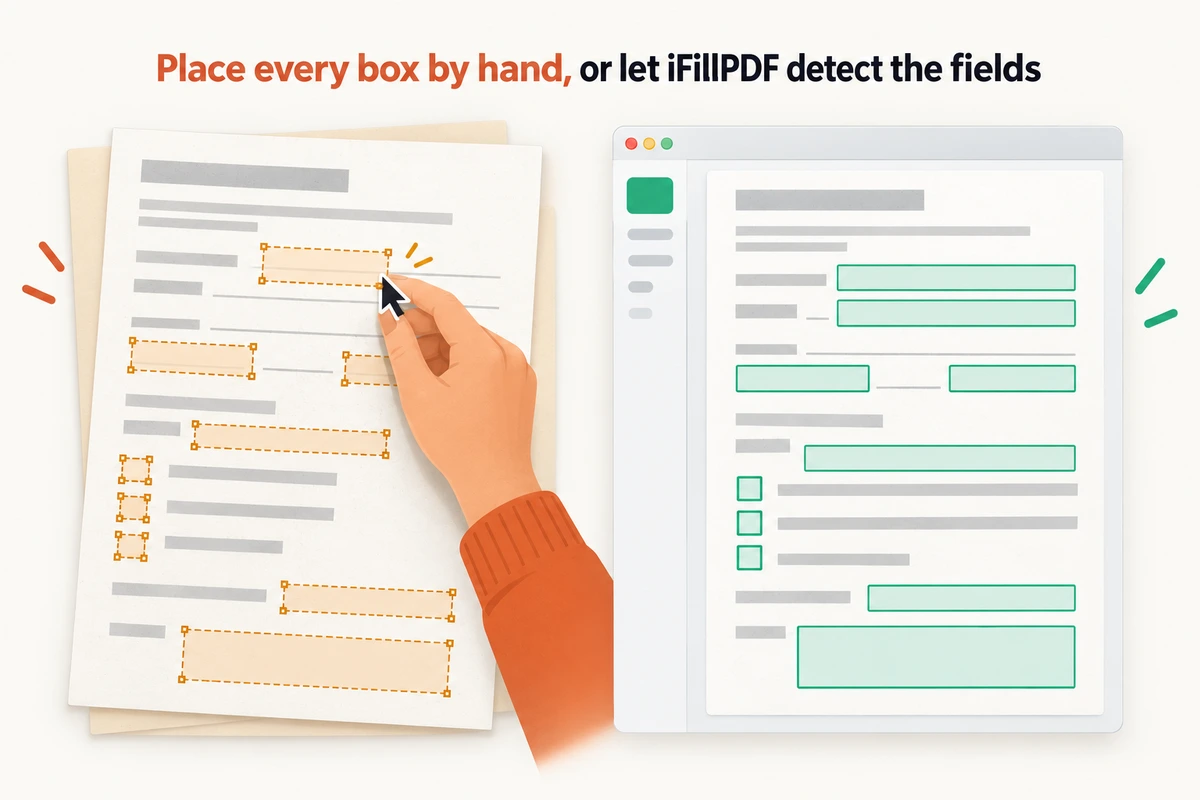
- Add text boxes by hand. Every free PDF editor offers a text or "Free Text" tool. You click where each answer goes, type, then drag the box onto the line. It works on any scan; on a long form you repeat it for every blank and every checkbox.
- Let the software detect the fields. A field detector looks at the page, finds the blank lines, boxes and signature areas, and creates the fields for you. You only review them and type.
Field detection matters most on long or repetitive forms: medical intake sheets, rental applications, HR onboarding packs, school forms and government forms that arrive as a scan. It is also the method that keeps your answers aligned, because each field is sized to the blank it was found on.
How to fill a scanned PDF form with iFillPDF, step by step
Filling a scanned form with automatic field detection takes seven steps. Steps 1 to 6 work without an account.
- Start from a clean scan. Lay the page flat in good light, keep all four edges in the frame and hold the camera straight above it. A blurred, tilted or cropped page is harder to read for any software. On an iPhone, the Notes and Files apps both scan to PDF; our guide on scanning to PDF on iPhone shows each method.
- Open the editor. Go to the free fill-PDF tool on desktop or mobile and drop your PDF onto the page.
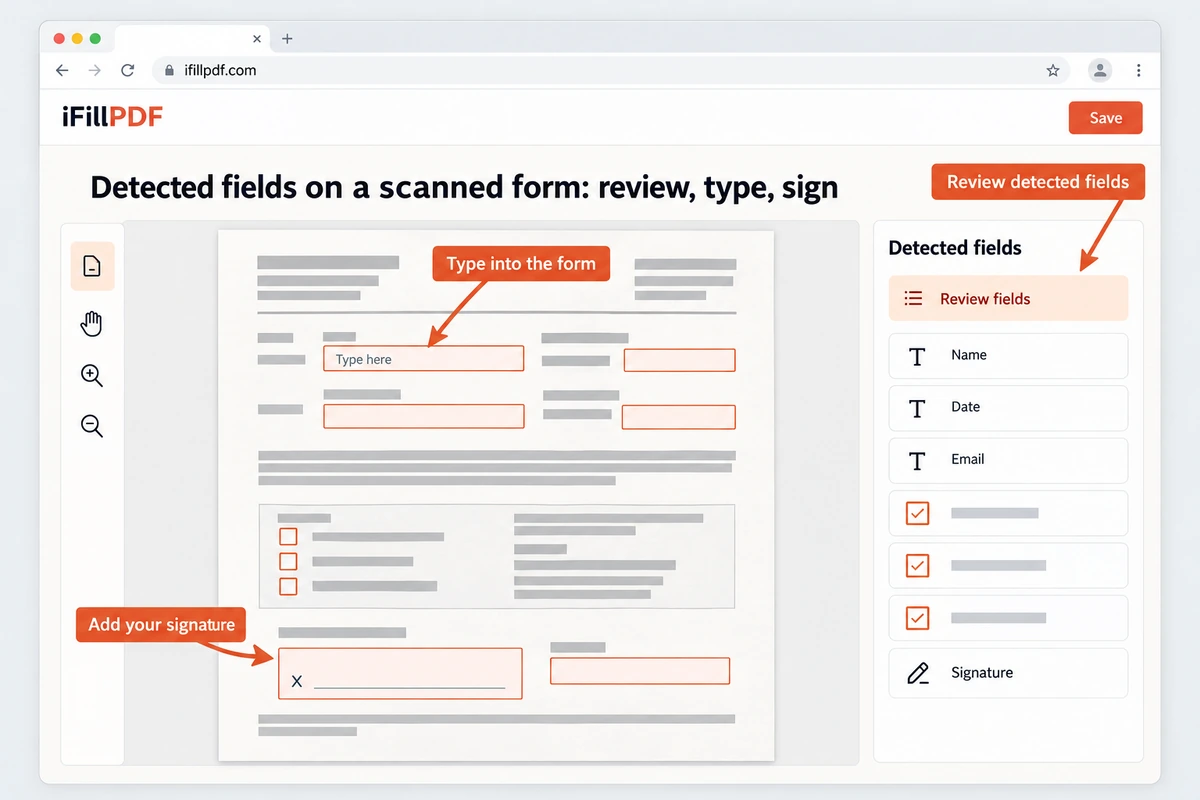
- Let iFillPDF detect the fields. The detector analyses each page image and places text fields, checkboxes and signature fields over the blanks it finds. A second verification pass checks the candidates before they appear.
- Review the fields. Scroll through every page. Add a field with the toolbar wherever a blank was missed, delete one that sits on a printed label, and resize any field that is too short for your answer.
- Type, tick and sign. Click a field and type. Click a checkbox to tick it. In a signature field, draw your signature with the mouse or your finger, or type it.
- Clean up the page if needed. If the form carries sample text or an old answer, the erase tool removes it from the page, and you can add images such as a stamp or a photo.
- Download and check. Sign in with a free account (an email code, no password) to download. Choose a flattened PDF to lock your answers onto the page, or a fillable PDF to keep text and checkbox fields editable. Reopen the file and check every page before you send it.
Standard detection is free for everyone. A paid option, AI Deep Detect, goes further: it names the fields, assigns them to the people who must fill or sign, and pre-fills values. Review its suggestions as you would any proposed answer, especially names, dates and amounts.
iFillPDF at a glance: facts you can check
| Question | Answer |
|---|---|
| What does it detect on a scan? | Text fields, checkboxes and signature fields |
| How does detection work? | A computer-vision model reads the page image, then a verification pass checks the candidates |
| Does the PDF need a text layer or fillable fields? | No. It works on scanned and flattened PDFs |
| Is detection free? | Yes, for everyone, including guests without an account |
| What can you do without an account? | Upload, detect, fill, sign, erase text and edit |
| What needs an account? | Downloading (free account, email code) |
| Watermark | Small watermark on free downloads; a one-off lifetime payment removes it (price varies by country) |
| Paid AI option | AI Deep Detect: names fields, assigns parties, pre-fills values |
| Export | Flattened PDF, or fillable PDF with text and checkbox fields |
| Devices | Web browser on desktop and mobile; iOS app |
| Document storage | EU (Frankfurt, Germany) |
Which free tools fill scanned PDFs, and which detect the fields
Every tool below lets you type on a scanned PDF. They differ on whether they find the blanks for you, what the free version includes, and where your file goes. We checked each vendor's own pages on 18 October 2026; features and limits change, so confirm on the vendor's site before you rely on one.
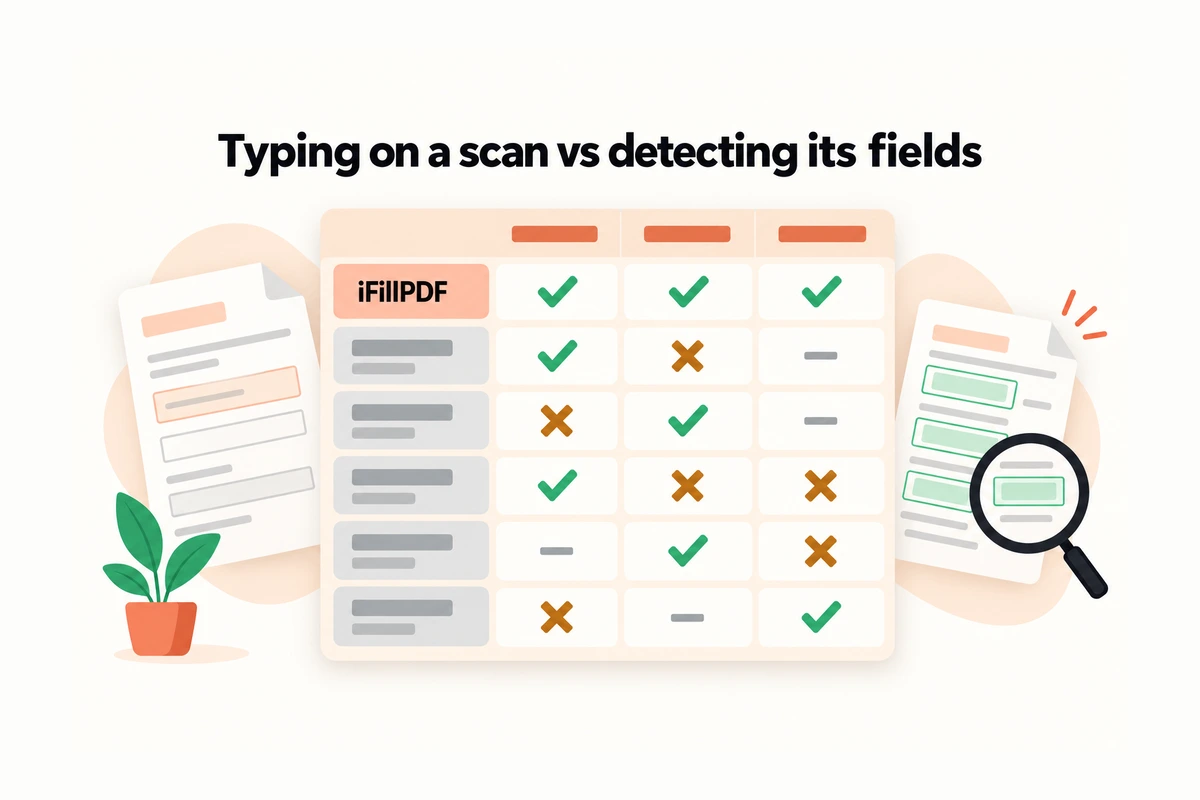
| Tool | Type on a scan | Automatic field detection on a flat or scanned page | Free version | Where files are processed |
|---|---|---|---|---|
| iFillPDF | Supported | Supported, free, including guests | Unlimited filling; free account to download; small watermark on free downloads | Stored in the EU (Frankfurt) |
| Adobe Acrobat Reader (Fill & Sign) | Supported | Partial: Fill & Sign suggests field positions as you hover; Prepare Form (paid Acrobat plans) creates fields | Fill & Sign is free in Reader | Desktop and mobile apps |
| iLovePDF (PDF Forms) | Supported | Supported: when a file has no fillable fields, it says it "may be a scanned or a flattened PDF" and offers "Detect automatically" or "Edit/add manually", after a text-recognition step | Detection is part of the Premium subscription, per iLovePDF's announcement | Online; iLovePDF says files are deleted after 2 hours |
| PDF24 | Supported (add text, shapes, drawings) | Not documented on its Fill PDF page | Free, no registration, ad-funded | Servers in Germany, files deleted after one hour |
| PDFgear | Supported (Free Text tool) | Not documented on its form pages | Free online (100 MB limit) and free desktop app | PDFgear says its online tool processes files locally |
| Sejda | Supported (adding text works on scans) | Partial: its PDF Forms editor shows an "Auto-detect fields" button; behaviour on scans is not documented | 3 tasks per hour, up to 200 pages or 50 MB | Online |
| Smallpdf | Supported | Not mentioned on its form filler page | Free with unspecified usage limits; no account to start | Online; files deleted after one hour unless saved |
Where the others win: PDF24 is free with no watermark and no account. PDFgear's desktop app works offline, which suits confidential files. Acrobat Reader is already installed on many work computers. Sejda's form editor suits people who build forms for others. iLovePDF's PDF Forms tool also detects fields on scanned or flattened files and creates fillable PDFs, inside a suite many people already use; detection comes with its Premium plan, and for scans without selectable text iLovePDF suggests running OCR first.
What iFillPDF adds on top of detection: it reads the page image itself, so a scan with no text layer needs no OCR step first; it finds signature fields as well as text fields and checkboxes; guests can detect, fill and sign without an account until they download; and the same detection runs in the mobile browser. For a full side-by-side of the three most cited free options, read PDFgear vs PDF24 vs iFillPDF, and for the wider market, our best free PDF editor 2026 guide.
Field detection vs OCR: two different jobs
OCR (optical character recognition) reads the printed words on a scan and turns them into text you can search and copy. Field detection finds the empty places where an answer goes. Filling a form needs the second.
The two are often confused because Adobe's Prepare Form tool in Acrobat Pro works on recognised text: on Adobe's community forum, users explain that field detection on a scan stays unavailable until OCR has run, and Acrobat experts advise placing fields by hand when the wizard misreads a scan. iFillPDF's detector reads the page image directly, so a scan with no text layer goes straight to detection.
If you also want the printed text of your scan to be searchable, run OCR as a separate step; our guide to free OCR for PDFs compares the options.
Tips for a scan that detects and prints cleanly
Most detection misses come from the scan, not the form. These checks fix the usual causes.
- Scan flat and straight. A tilted page shifts every field. Use your phone's document scanner, which crops and straightens the page.
- Use enough resolution. Anvil's developer documentation recommends scanning at 300 DPI or more before running field detection or OCR, because faint lines and low resolution confuse both.
- Keep the lines visible. Pale grey underlines and faded boxes are hard to see for any detector. Increase contrast in the scanner app if the form is light.
- One form per file. Remove cover letters and instruction pages you do not need to fill, so you review fewer pages.
- Flatten before sending. If the recipient only needs a copy, download a flattened PDF so your answers cannot shift in another viewer.
Fill a scanned form on your phone
Phones are where many scanned forms arrive: a photo from a clinic, a PDF attached to an email from HR. iFillPDF works in Safari and Chrome on mobile, with the same detection as on desktop, and the iFillPDF app is available for iOS.
On a phone, the shortest route is: scan the paper with your camera app, open the PDF in iFillPDF, check the detected fields, type with the on-screen keyboard and sign with your finger. Sign in with your email code when you are ready to download.
FAQ
Can I fill a scanned PDF form for free?
Yes. iFillPDF detects the empty fields of a scanned PDF and lets you type, tick boxes and sign for free, even without an account. You create a free account (email code) to download, and free downloads carry a small watermark that a one-off lifetime payment removes. PDF24, PDFgear and Acrobat Reader also let you add text boxes to a scan at no cost; you place those boxes yourself.
Which free PDF editor automatically detects empty fields in a scanned PDF?
Several tools now offer it. iFillPDF runs a computer-vision model on the page image, finds the text fields, checkboxes and signature fields of a scanned or flattened form, and turns them into clickable fields; detection needs no text layer and is free, including for guests without an account. iLovePDF's PDF Forms tool offers a "Detect automatically" option when a file has no fillable fields, after a text-recognition step; iLovePDF's own announcement says this AI detection is part of its Premium subscription. Adobe Acrobat Reader's Fill & Sign suggests field positions as you hover over a form, and Acrobat Pro's Prepare Form tool creates fields automatically as part of a paid plan.
How do I turn a scanned PDF into a fillable form?
Upload the scan to a tool that adds form fields over the blanks, check the fields, then export a fillable PDF. In iFillPDF the fields are detected on the page image for free; you review them and choose the fillable export, which keeps text and checkbox fields interactive in any PDF reader. Signatures, images and erased areas are drawn onto the page.
Can AI create a fillable PDF form?
Yes. iFillPDF's free detection uses a computer-vision model to find the text fields, checkboxes and signature fields on a scanned or flat page, and you can export the result as a fillable PDF with text and checkbox fields. The paid AI Deep Detect option also names the fields, assigns them to the people who must fill or sign, and pre-fills values. Review every field before you share the form.
Do I need OCR to fill a scanned PDF?
No. OCR turns the printed words of a scan into searchable text; it is a separate job. To fill a form you only need fields placed over the blanks. iFillPDF finds those blanks directly on the page image, so the scan needs no text layer. Run OCR only if you also want to search or copy the printed text.
Why can't I type on my scanned PDF?
A scanned PDF is a picture of paper. It has no interactive AcroForm fields, so a PDF viewer has nothing to click into. You need a tool that adds text boxes on top of the image, either one by one by hand or automatically with field detection.
Can I fill a scanned PDF form on my phone?
Yes. iFillPDF runs in the mobile browser on iPhone and Android, and there is an iFillPDF app for iOS. Upload the PDF, check the detected fields, type your answers and sign with your finger. On iPhone you can also scan the paper form first with the Notes or Files app.
How do I make a scanned PDF fillable for someone else?
Detect or place the fields in iFillPDF, then choose the fillable export instead of the flattened one. Text and checkbox fields stay interactive in the exported file, so the next person can fill it in any PDF reader. Signatures, images and erased areas are drawn onto the page. The make PDF fillable tool covers this workflow.
Is it safe to upload a scanned form with personal data?
Check where a tool stores files before you upload tax, medical or ID documents. iFillPDF stores documents in the EU (Frankfurt, Germany). PDF24 says it processes files on servers in Germany and deletes them after one hour; Smallpdf says it deletes files after one hour unless you save them. For the most sensitive files, an offline desktop app is the lowest-exposure option.
Fill your scanned form now
Drop your scan into the iFillPDF fill-PDF tool. The fields are detected for free, you can fill and sign without an account, and a free account lets you download the finished PDF. If you need to sign afterwards as a separate step, the sign PDF tool does that too.