The fastest free way to convert a PDF to Word in 2026 is to upload it to a browser-based tool like Smallpdf, iLovePDF or iFillPDF — under 30 seconds, and no watermark on the resulting .docx. If you already own Microsoft Word or have a Google account, opening the PDF directly in Word or Google Docs is also 100% free and keeps your file off third-party servers. For scanned PDFs, you need OCR — most free tiers cap that feature.
You received a PDF — a contract, a CV, a syllabus, an invoice — and you need to edit the text inside it. Re-typing it would take an hour. Buying Adobe Acrobat for one document feels absurd. The good news : in 2026, several free options convert PDF to Word in seconds, and most preserve fonts, tables, and images surprisingly well. The bad news : they are not all equal on privacy, speed, or scanned-PDF handling. Here are the five methods worth knowing, ranked by who they fit best.
The 30-second answer
If your PDF was generated digitally (Word, InDesign, browser print) use any browser-based converter — they all work fast. If your PDF is a scanned image, you need OCR (optical character recognition), and most free tools throttle that feature. The right method depends on what you already own and how sensitive the document is.
For a one-off, public document, an online converter is fastest. For confidential files (contracts, payslips, medical records), prefer a tool that processes client-side or hosts in the EU under GDPR. We compare both options below.
Method 1 — Free online converters (the default for most people)
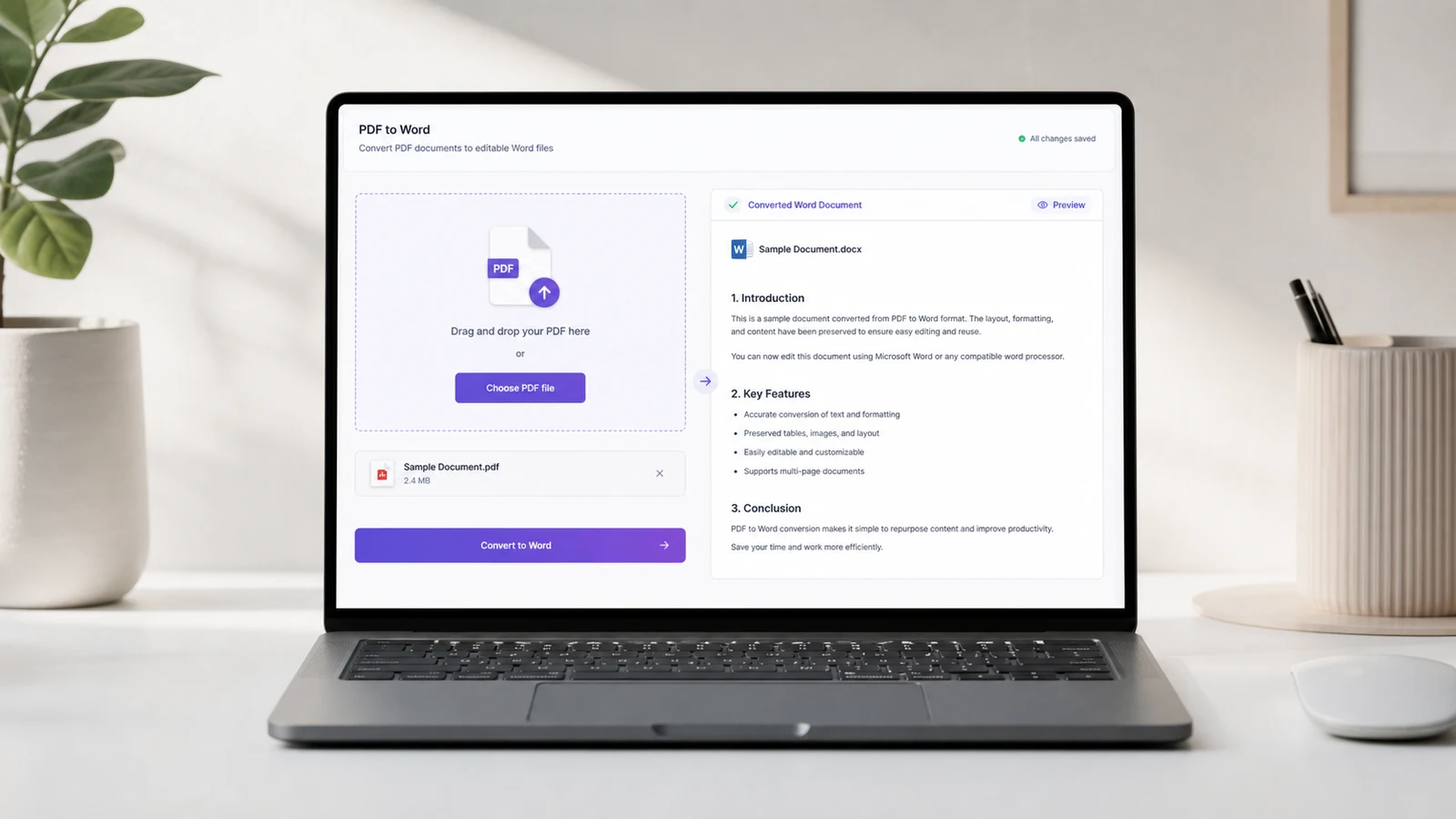
Browser-based converters like iLovePDF, Smallpdf, iFillPDF, and Nitro are the fastest path : drag, click "Convert", download. No installation, no account on most free tiers, and on a digitally generated PDF the layout usually comes through intact.
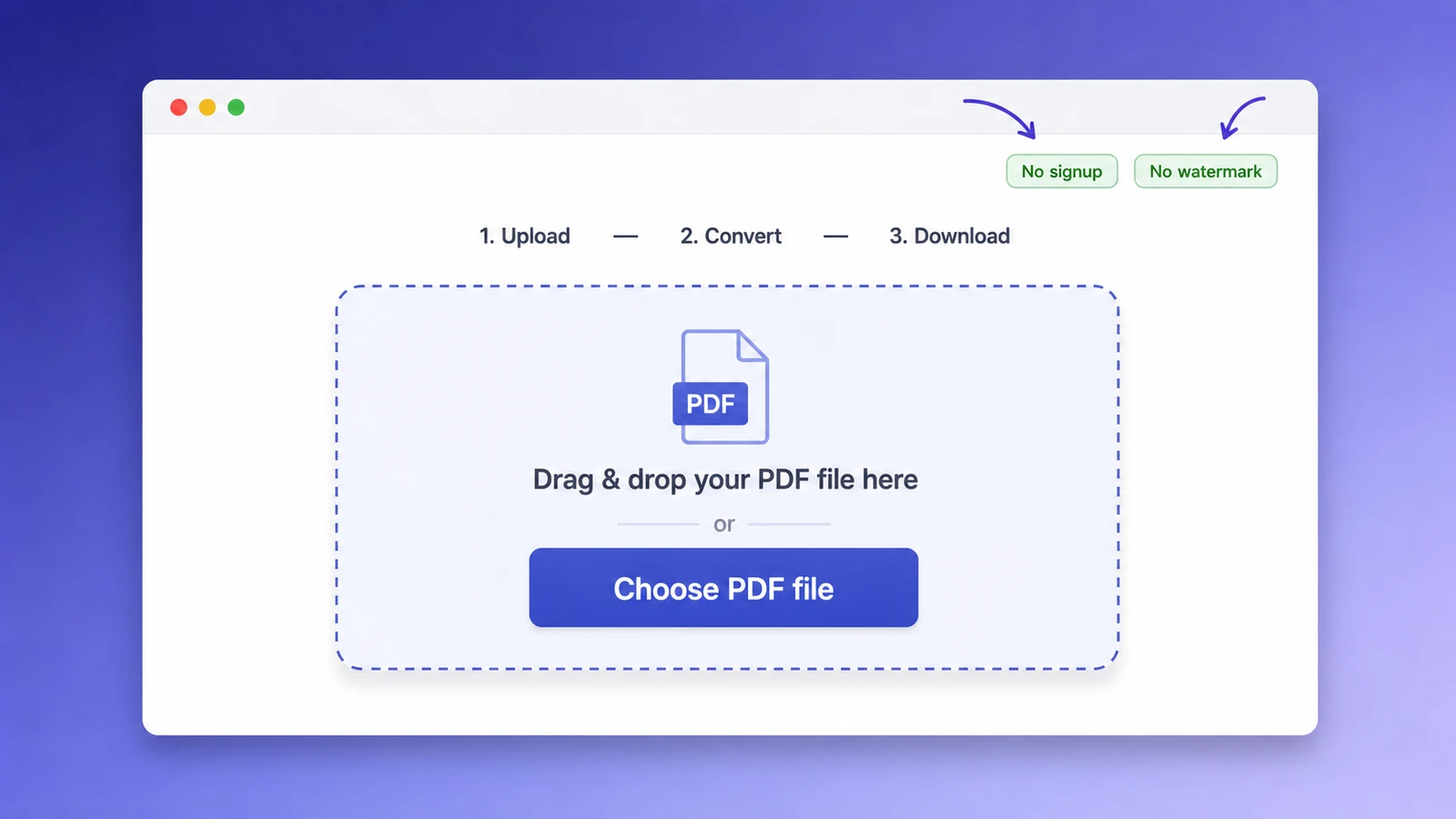
The differences come down to three signals worth checking before you upload :
- Watermark policy. iLovePDF and Smallpdf do not add a watermark on the free tier ; some smaller converters do. Smallpdf states "No sign-ups, no downloads, no watermarks" on its converter page.
- File deletion delay. Reputable tools delete uploads within a couple of hours. iFillPDF works differently: its browser-side utilities never upload the file at all, and anything you save to an account is stored in Frankfurt until you delete it — check the retention model, not just the hosting country.
- Scanned-PDF support. iLovePDF marks OCR as a Premium feature ; Smallpdf includes basic OCR free but caps daily volume.
A note on the engine : iLovePDF's converter is "powered by Solid Documents", a third-party PDF SDK also licensed by Foxit and Tracker Software. Most "different" converters share two or three back-end engines — the user-facing UX is what actually differs.
Method 2 — Microsoft Word's built-in PDF opener
If you already own Microsoft Word (Microsoft 365 or a perpetual Office license), opening a PDF directly in Word converts it for free, locally, with zero data leaving your device. File > Open > select the PDF > Word reflows it into editable text. Microsoft confirms this works "without extra apps, risky upload sites, or formatting headaches".
The catch : Word's reflow is heavy on simple text PDFs but degrades on complex layouts (multi-column journals, dense forms). For invoices and reports it is excellent ; for academic papers with footnotes, expect manual cleanup. Word also struggles on scanned PDFs without OCR — the result is an image embedded in a Word page, not editable text.
Method 3 — Google Docs (truly free, browser-only)
Upload the PDF to Google Drive, right-click and select "Open with > Google Docs". Drive performs OCR automatically on scanned files and converts the result to an editable Doc you can then download as .docx. Total cost : $0, account required (free Google account).
Google Docs is the strongest free option for scanned PDFs in English because Drive's OCR is included at no charge and supports 100+ languages. The downside : layout is the worst of the five methods — tables often collapse into plain text, images may shift, and complex formatting (text boxes, columns) usually breaks. Use it when the content matters more than the look.
Method 4 — Adobe Acrobat online (free tier, 2 conversions / day)
Adobe Acrobat's online PDF-to-Word tool is free without signup for the first conversion of the day ; subsequent conversions require a free Adobe ID. As the inventor of the PDF format (Adobe shipped PDF 1.0 in 1993, now standardized as ISO 32000-2:2020), Adobe's converter has the highest fidelity on Adobe-generated PDFs and forms.
The free tier is capped — for unlimited use you need an Acrobat Pro subscription. For one-off conversions it is a strong option on Adobe-generated files ; for recurring needs, the daily cap pushes you toward a paid plan or another tool.
Method 5 — LibreOffice Draw (offline, open source)
LibreOffice is free open-source software that runs locally on Windows, macOS, and Linux. Open the PDF in LibreOffice Draw (not Writer), then File > Export As > Word format. Nothing leaves your machine, no account, no quota.
LibreOffice Draw treats every PDF page as a canvas of text frames and shapes. The output .docx is editable but visually fragmented — fine for extracting text, awkward for preserving a polished layout. Pick this method when offline use, full data sovereignty, or batch conversion of dozens of files at once is the priority.
Side-by-side comparison
The right tool depends on three variables : whether your PDF is scanned, whether layout fidelity matters more than content, and how sensitive the document is. The table below summarizes the trade-offs across the five methods.
| Method | Free? | Signup | Watermark | Scanned PDF (OCR) | Typical output | Best for |
|---|---|---|---|---|---|---|
| Online converters (iLovePDF, Smallpdf, iFillPDF) | Yes | No | No | Often Premium-only | Text, headings and most tables come through | Speed, one-offs |
| Microsoft Word | If you own Word | Microsoft account | No | No | Clean on simple layouts, manual cleanup on dense ones | Confidential files |
| Google Docs | Yes | Google account | No | Yes (free) | Text recovered, tables and columns often flattened | Scanned text in 100+ languages |
| Adobe Acrobat online | Capped free tier | Adobe ID after #1 | No | Paid plan only | Closest match on Adobe-generated files | Adobe-generated PDFs |
| LibreOffice Draw | Yes (open source) | No | No | No (built-in) | Editable but fragmented into text frames | Offline, batch, sovereignty |
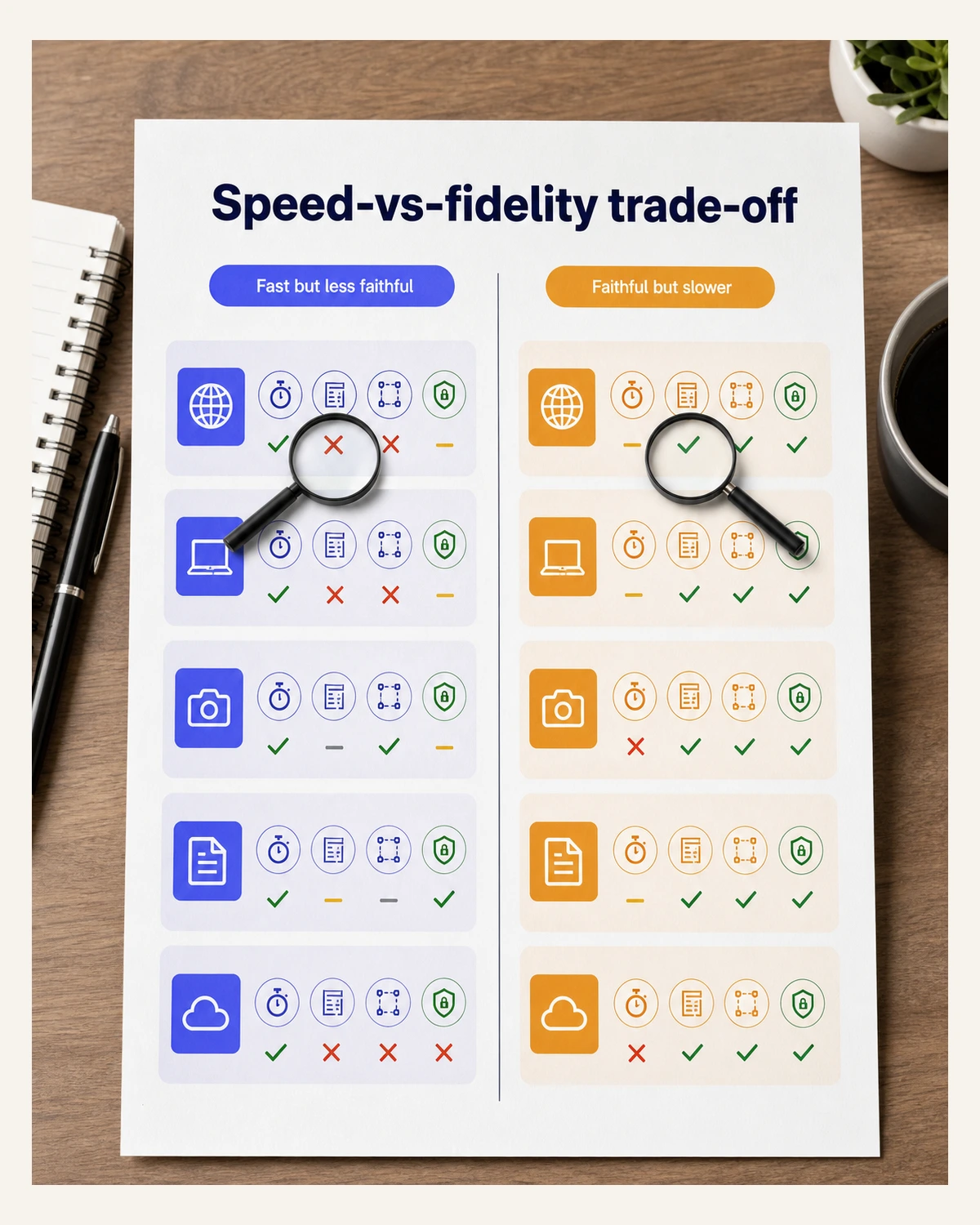
Scanned PDFs need OCR — what changes
A scanned PDF is an image of text, not text. Without OCR (optical character recognition), no converter can produce editable Word output — you would only get a Word page with an embedded picture. Modern OCR engines (Tesseract, Google Cloud Vision, Adobe Sensei) are reliable on clean scans of standard fonts, but degrade fast on handwriting, low-DPI scans, or non-Latin scripts.
Free OCR options in 2026 : Google Docs (free, broad language support), Smallpdf (free with daily cap), and iFillPDF's OCR tool (account required ; the document is analysed on upload, so you are told whether it is a scan before you do anything). Premium OCR is bundled with Adobe Acrobat Pro and iLovePDF Premium.
How to keep tables and images intact
Layout preservation depends on how the PDF was generated. PDFs exported from Word, Google Docs, or LibreOffice convert near-perfectly because they retain a logical text structure. PDFs from InDesign, scanned documents, or print-to-PDF often lose tables and column flow. Two practical tips help :
- Convert page by page for complex documents. Most online tools accept individual pages, which gives you cleaner output to reassemble manually.
- Verify tables first. PDF tables are often a grid of text boxes, not real tables. After conversion, check that columns aligned ; if not, the cleanest fix is to copy-paste data into a fresh Word table.
For complex forms and government PDFs (Cerfa, IRS, HMRC), specialized tools like iFillPDF's PDF editor preserve form fields better than generic converters.
Privacy and security : what happens to your file
The moment you upload a PDF to a third-party server, you trust that vendor with your document. Reputable converters delete files within 1-2 hours and encrypt transit (HTTPS), but the vendor still has the file briefly. For confidential content (legal, medical, HR), three safer paths exist :
- Local conversion (Microsoft Word, LibreOffice) — file never leaves your device.
- EU-hosted, GDPR-compliant tools with a documented retention model (iFillPDF stores documents in Frankfurt and keeps them until you delete them or close the account ; PDF24 hosts in Germany).
- Client-side processing — newer tools convert in-browser using WebAssembly, so the file is parsed locally even though the page is online.
Always verify the vendor's privacy policy mentions GDPR/CCPA and a clear retention window. Anonymous "free PDF converter" sites with no policy at all are where documents quietly go astray.
Where iFillPDF fits
iFillPDF is built for what happens after the conversion : the document is analysed on upload (you are told whether it is a scan, without hunting for an OCR toggle), it is stored in Frankfurt under GDPR, and the same workspace can fill and sign the result. It does not pretend to replace Microsoft Word, and it is not the shortest path if all you want is a .docx and nothing else — that is what Method 1, 2 and 3 are for.
FAQ
Does Microsoft have a free PDF to Word converter? Yes — if you already own Microsoft Word (Microsoft 365 or perpetual Office), it includes a built-in PDF opener. Open Word, File > Open, select the PDF, and Word reflows it into an editable document. No third-party tool, no upload, file stays on your device.
Can I convert PDF to Word free online without giving an email? Yes. iLovePDF, Smallpdf and Nitro all allow free conversion without signup or email on the free tier. Adobe requires a free Adobe ID after the first conversion of the day, and iFillPDF asks for a free account.
Is the converted Word document fully editable? Yes for digital PDFs — text, headings, lists and most tables come through as editable Word elements. For scanned PDFs, the result is editable only if OCR was applied during conversion. Without OCR you get an image embedded in a Word file.
Can I convert PDF to Word free for a download (offline app)? LibreOffice is the main offline free option : open-source, runs on Windows, macOS, and Linux, and converts PDF to .docx without internet. Microsoft Word also works locally if you already own it.
Will my formatting be preserved? It depends on the source. LibreOffice and Google Docs recover the text but often break the layout on complex documents ; Adobe Acrobat, Microsoft Word and the better online converters keep a digital PDF close to its original. Scanned PDFs and complex multi-column layouts always require manual cleanup, regardless of the tool.
Is it safe to convert PDF to Word online? For non-confidential documents, yes — reputable services (iLovePDF, Smallpdf, iFillPDF, Adobe, Nitro) use HTTPS, publish a privacy policy and state how long they keep uploads. For confidential content, prefer local methods (Microsoft Word, LibreOffice) or EU-hosted tools whose retention model you have actually read, such as iFillPDF (Frankfurt, deleted when you delete the document) and PDF24.
Related reading on iFillPDF :