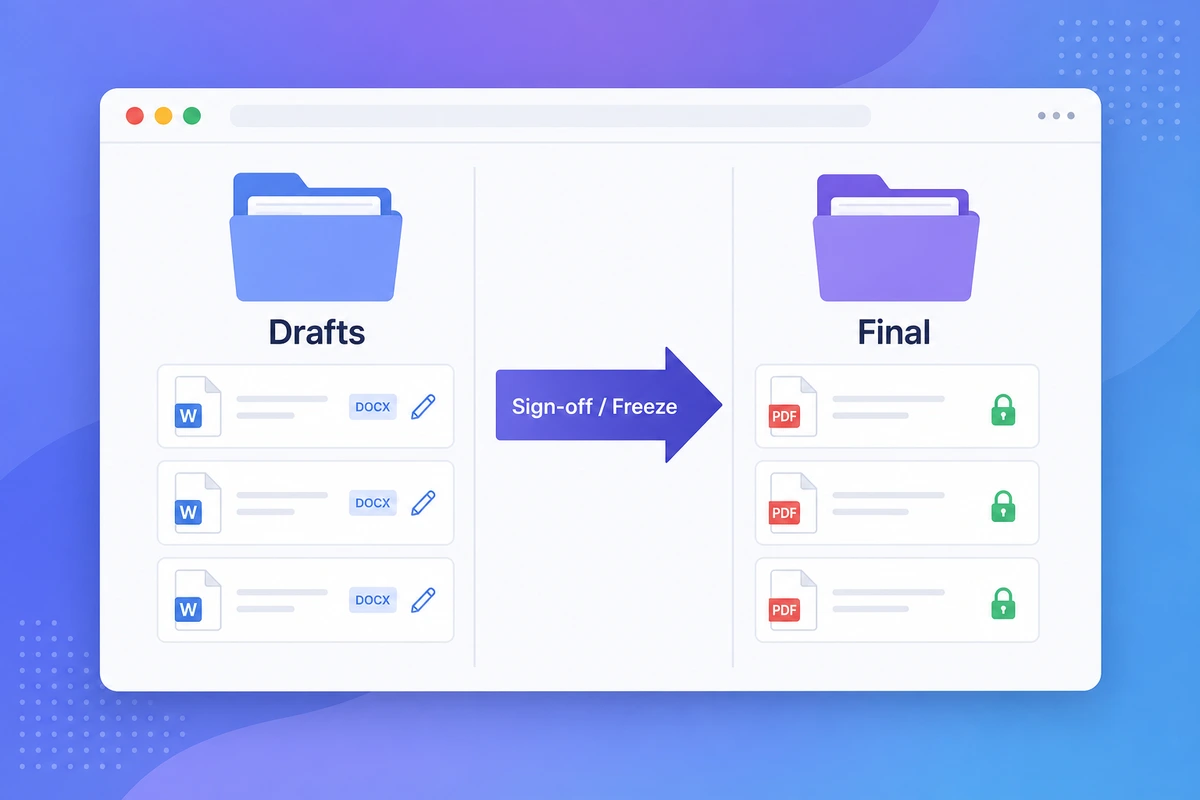
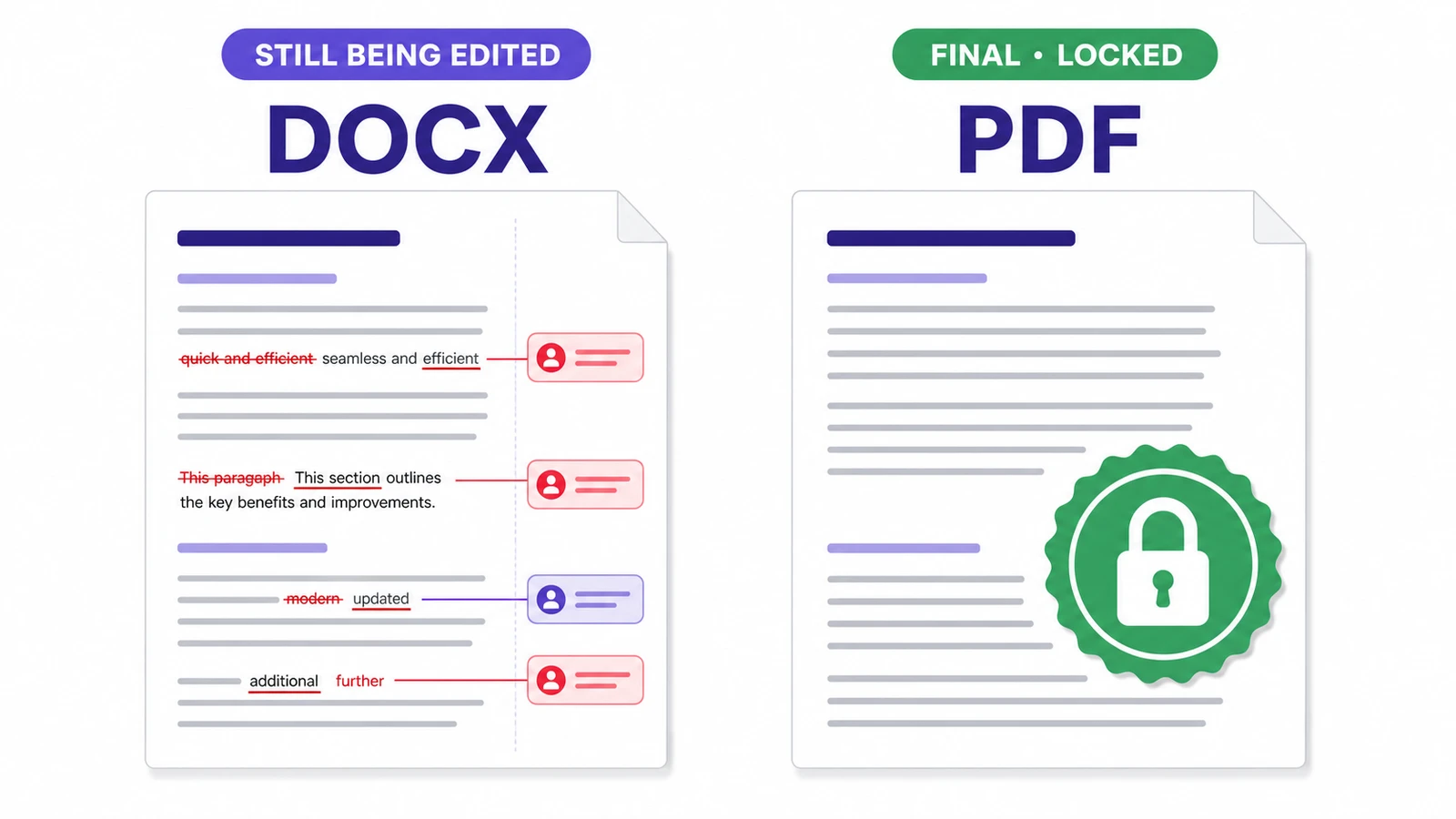
DOCX is for documents that are still being edited (drafts, collaboration, tracked changes). PDF is for documents that are done (contracts ready to sign, invoices, archives, anything that must look identical on every device). For a 2026 resume, send a text-based PDF unless the job posting explicitly asks for DOCX.
It's 2026, and teams still send the wrong format. Someone emails a contract as a .docx and expects the other side not to edit it. Someone else sends a 3-month-old PDF and expects the recipient to "just update the numbers." Both formats are excellent — at the right job. This guide is the opinionated breakdown your team has been missing.
The core difference, in one sentence
DOCX is for documents that are still being written. PDF is for documents that are done.
Everything else flows from that. DOCX preserves the editing experience: styles, tracked changes, comments, collaboration. PDF preserves the output: layout, fonts, images, exactly the same on every device, every operating system, every printer.
Once you internalize this, most format choices become obvious.
When DOCX wins
Use DOCX whenever the document is still in motion : drafts, collaborative editing, tracked changes, templates with variables to swap, long-form text where layout doesn't matter, anything passing through a CMS that indexes Word natively.
DOCX (Word, Google Docs .docx export, LibreOffice) is the right format for:
- Drafts that will be edited again: proposals, blog posts in progress, internal memos
- Collaborative documents: anything where two or more people will add tracked changes or comments
- Templates with variables: contracts where you replace
{{client_name}}and{{date}}programmatically - Long-form text where layout doesn't matter: research papers, internal documentation, knowledge base articles
- Documents that pass through a CMS or DMS: many systems index DOCX text natively, while PDF requires OCR
Concrete example: a sales proposal in DOCX lets your sales rep adjust the numbers, your finance team add the legal disclaimer, and your manager review with comments — all in one file with a clean version history. Send it as PDF first, and you've forced everyone into a tedious convert-edit-reconvert loop.
When PDF wins
Use PDF whenever the document is final : signed contracts, invoices, forms to fill, archives (PDF/A), accessibility-mandated documents (PDF/UA), anything you'll print, anything sent across operating systems, and resumes for ATS systems in 2026.
PDF (Portable Document Format, ISO 32000-2:2020 — the latest version, PDF 2.0) is the right format for:
- Contracts ready for signature: the layout is locked, the wording is final, both parties are signing the exact file
- Invoices and quotes sent to clients: tax authorities, accounting tools, and ERPs all expect PDF (mandatory PDF/A-3 with embedded XML for B2B e-invoicing in France, Germany, Italy)
- Forms to fill in: AcroForm fields and AI-powered field detection make PDF the de facto form format
- Reports for archiving: use PDF/A (ISO 19005), the archival sub-standard — somewhat larger, because every font is embedded, but guaranteed to render identically decades from now. PDF/A-1 (2005), PDF/A-2 (2011), PDF/A-3 (2012, allows embedded files), PDF/A-4 (2020, based on PDF 2.0)
- Anything you'll print: page breaks, margins, fonts are all guaranteed
- Documents shared across operating systems: a DOCX from Mac Word can break in Windows Word; PDF doesn't care
- Documents that include forms or signatures: only PDF supports embedded e-signatures with cryptographic tamper-evidence
- Resumes / CVs sent to recruiters: modern ATS systems (Greenhouse, Lever, Workday) parse text-based PDFs as well as DOCX, and PDF preserves your visual hierarchy for the human reviewer. Use a text PDF (export from Word/Docs, never a scan) and PDF is the safer default — unless the job posting explicitly says "Word format only"
Accessibility angle: WCAG 2.2 applies to PDFs delivered on the web. The PDF-specific standard is PDF/UA (ISO 14289) — tagged PDFs, alt text on images, logical reading order, marked language. PDF/UA implements the WCAG goals for PDF specifically; treat it as the technical checklist when you need to pass an accessibility audit.
Concrete example: an invoice as PDF locks the amount, the date, the line items. Send it as DOCX and your client could (accidentally or intentionally) modify the total before forwarding to accounting.
The hybrid trap: when neither is ideal
Some workflows combine both, badly. Common anti-patterns:
- Sending a PDF "for signature" that the other side has to print, sign by hand, scan, and send back. Every one of those steps is friction you are handing to someone else. Use a real e-signature tool instead.
- Sending a DOCX "to be filled out" that contains form fields. Recipients on Mac, mobile, or non-Microsoft Word will have a broken experience. Convert to a fillable PDF.
- Sending a PDF "that you'll need to update." You'll be back in 3 days asking for the source. Send the DOCX and a final PDF.
- Storing contracts as DOCX in a shared drive. When the contract is signed, freeze it as PDF. The DOCX is the draft; the PDF is the deal.
Conversion in both directions
You'll often need to convert between formats. The tools to know:
- DOCX to PDF: every modern Word processor exports natively. Choose "Minimum size" or "Optimize for screen" to keep file size down.
- PDF to DOCX: trickier — you're asking software to reverse-engineer layout into editable text. A PDF-to-Word converter gets plain body text right most of the time; tables and multi-column layouts are the typical failure points, so always open the result before editing it.
- Scanned PDF to DOCX: you need OCR first. Run OCR on your PDF, then convert. Skip the OCR step and you'll get a DOCX with images instead of text.
File size benchmarks
Rough numbers for a typical 10-page document with a few images:
- DOCX: 200 KB to 2 MB depending on images and embedded fonts
- PDF (default export): 500 KB to 5 MB
- PDF (compressed): 100 KB to 1 MB
- PDF (scanned at 300 dpi): 5 MB to 30 MB
- PDF/A (long-term archival): larger than the equivalent standard PDF, because fonts must be embedded
For email-friendliness, DOCX usually wins on small text-heavy docs, while PDF wins on long documents with consistent rendering needs.
Editing PDFs without going back to Word
A common workflow today: someone sends you a PDF, you don't have the source, but you need to make a small change. You have three options:
- Edit the PDF directly — modern tools (including iFillPDF) let you add text, images, signatures without converting back to Word. Best for small edits.
- Convert PDF → DOCX → edit → re-export PDF — best for large edits, but expect a round of layout cleanup afterwards.
- Re-create from scratch — for older PDFs where the layout is hopelessly broken on conversion, sometimes faster to retype.
The right choice depends on edit size and how perfect the layout needs to be.
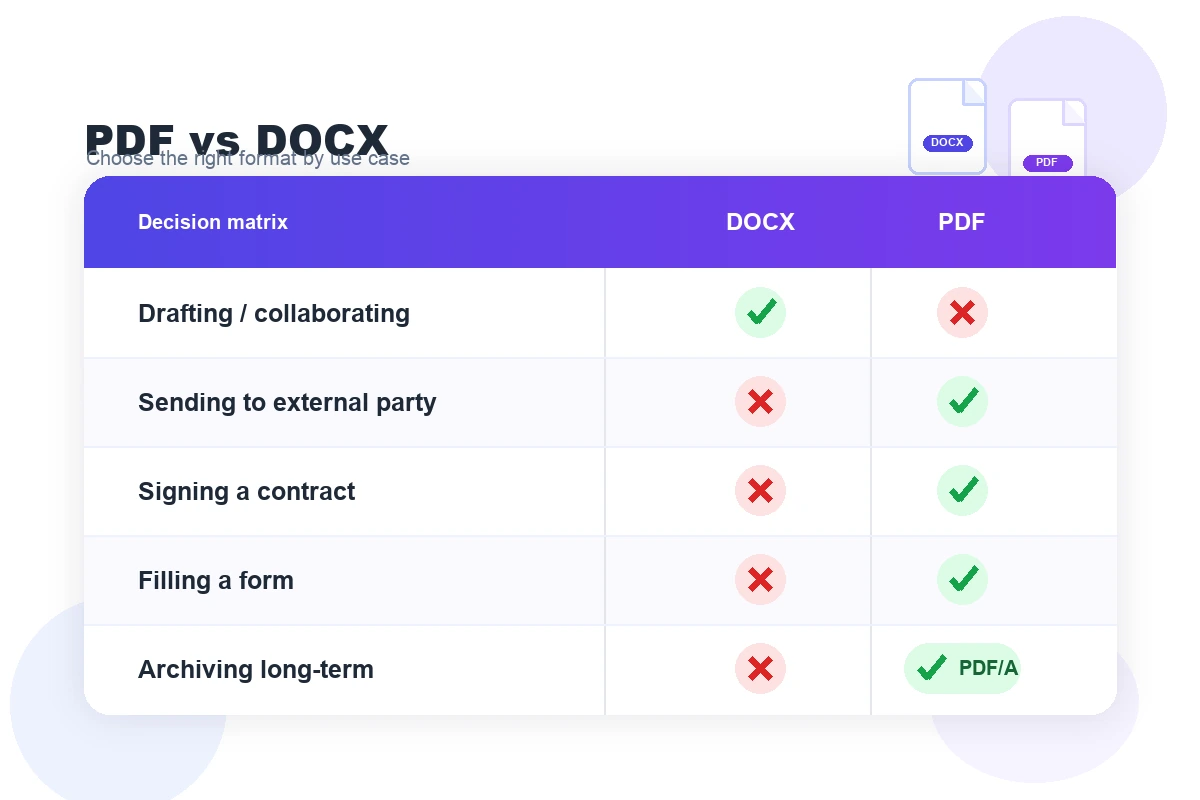
Decision cheatsheet
Print this and stick it above your desk:
- Drafting / collaborating → DOCX
- Sharing with external party → PDF (with DOCX source kept internally)
- Signing a contract → PDF with e-signature
- Filling a form → fillable PDF
- Archiving for the long term → PDF/A (ISO 19005)
- Accessibility-mandated document → tagged PDF / PDF/UA (ISO 14289), WCAG 2.2 conformant
- Printing → PDF
- Editing later → DOCX
- Sending an invoice → PDF (B2B e-invoicing: PDF/A-3 with embedded Factur-X / ZUGFeRD XML)
- Sending a proposal still being negotiated → DOCX, then PDF when finalized
- Resume to recruiter (2026) → text-based PDF unless the posting explicitly asks for DOCX
FAQ
Should I send my resume as PDF or DOCX in 2026? Send a text-based PDF (exported from Word/Google Docs, never a scan) unless the job posting explicitly says "Word format only". Modern ATS (Greenhouse, Lever, Workday) parse text PDFs as well as DOCX, and PDF preserves your visual hierarchy for the human reviewer. Avoid scanned PDFs — ATS can't read them without OCR.
Can I edit a PDF without converting it to Word? Yes. Modern PDF editors (iFillPDF, Foxit, Mac Preview, Adobe Acrobat) let you add text, images, signatures and rearrange pages directly. Use this for small edits. For heavy text rewrites or layout overhauls, convert PDF → DOCX → edit → re-export PDF and accept a round of layout cleanup.
Why does my Word document look different on someone else's computer? DOCX rendering depends on installed fonts, Word version, and OS. A document built in Word 365 Mac with a custom font may break in LibreOffice or Word 2016 Windows. PDF, by contrast, embeds fonts and locks layout — exactly the same on every device. If consistent rendering matters, send PDF.
Is PDF/A different from regular PDF? PDF/A (ISO 19005) is the archival sub-standard. It embeds all fonts, prohibits external dependencies (no audio, no JavaScript, no encryption), and guarantees the document will render identically decades from now. Files are larger than standard PDF as a result. Use PDF/A for legal archives, regulatory submissions, or anything that must survive software changes.
What about B2B e-invoicing — PDF or DOCX? PDF, specifically PDF/A-3 with embedded XML (Factur-X / ZUGFeRD), is what B2B e-invoicing mandates in France, Germany and Italy are built around. Check the current timetable with your national tax authority — the phase-in dates have moved more than once. DOCX is never accepted for B2B e-invoicing. The XML carries machine-readable invoice data ; the PDF carries the human-readable visual.
Which format is more accessible (WCAG)? Tagged PDFs that conform to PDF/UA (ISO 14289) meet WCAG 2.2 requirements : alt text on images, logical reading order, marked language. DOCX has accessibility features (heading styles, alt text, high-contrast colors) but isn't natively WCAG-conformant when shared on the web — most accessibility audits expect PDF/UA for downloadable documents.
Pick the right format the first time
If you're about to send a contract, an invoice, or anything truly final, use PDF — and skip the print-sign-scan loop entirely with iFillPDF's e-signature tool. If you're starting a new agreement and want a clean DOCX baseline, browse our contract templates library for editable starting points. Choose the right format from the start and your team will thank you.