TL;DR — Five PDF-to-PowerPoint routes compared on what you can actually check: whether the output is editable text or flat images, whether OCR is available for scans, batch support, file-size ceiling and hosting region. The right converter depends on your source: native slide exports (clean PPTX), scanned decks (OCR needed), or PDFs originating from Word (text-heavy reflow). iFillPDF, iLovePDF, Smallpdf, Adobe Acrobat online and EasePDF all produce editable PPTX.
Why convert PDF to PPTX (sales decks, training, conferences)
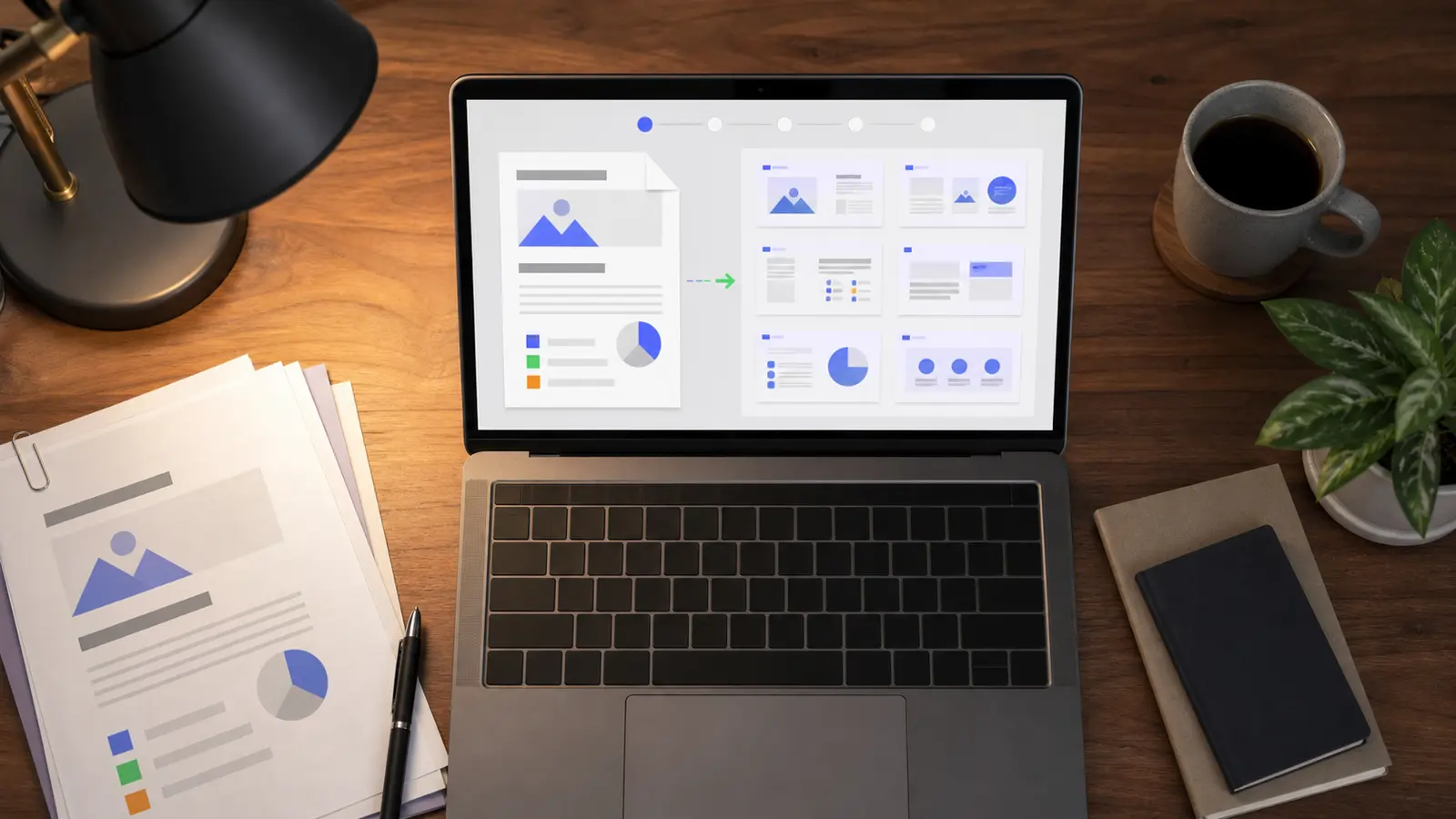
You convert PDF to PowerPoint when you need to edit a slide that only exists as a PDF. The most common scenarios: a sales team receives a partner deck as PDF and needs to swap logos and pricing; a trainer wants to localise a conference PDF into Spanish or German; a teacher rebuilds a 2018 lecture PDF into a 2026 PPTX with new charts.
The technical challenge: PDF stores rendered pages, not editable shapes. A good converter must reverse-engineer text boxes, infer layout grids, re-link fonts, and rasterise images at the right resolution. Tools that simply embed each PDF page as a flat image (the "lazy converter") fail this test — you cannot edit the text. Look for tools that output true editable PPTX with selectable text and movable shapes.
Use cases where conversion matters:
- Sales decks — update quotes, swap client logos, add new case studies
- Training materials — translate, adapt to new cohorts, add quiz slides
- Conference talks — repurpose a published PDF into a follow-up webinar
- Investor pitches — refresh metrics and milestones quarterly
- Academic lectures — annotate, restructure, add interactive elements
Method 1 — Online converters (iFillPDF, Smallpdf, iLovePDF, Adobe online, EasePDF)
The fastest route is a browser-based converter. No install, drag-and-drop, download a PPTX. Quality varies, and so do the limits — here is what each tool publicly supports. Every cell is a checkable capability, not a score:
| Tool | Free tier | Editable text output (not flat images) | OCR for scanned PDFs | Batch upload | Max file size | Hosting region |
|---|---|---|---|---|---|---|
| iFillPDF | Yes (account needed to download) | Yes | Yes | No | 100 MB | Frankfurt (EU) |
| Smallpdf | 2/day | Yes | Pro only | Pro only | 5 GB (Pro) | Switzerland |
| iLovePDF | Limited | Yes | Premium only | Premium only | 200 MB (free) | Spain |
| Adobe Acrobat online | 1/day signed-in | Yes | Yes | No | 100 MB | USA |
| EasePDF | Limited daily | Yes | No | No | 50 MB | USA |
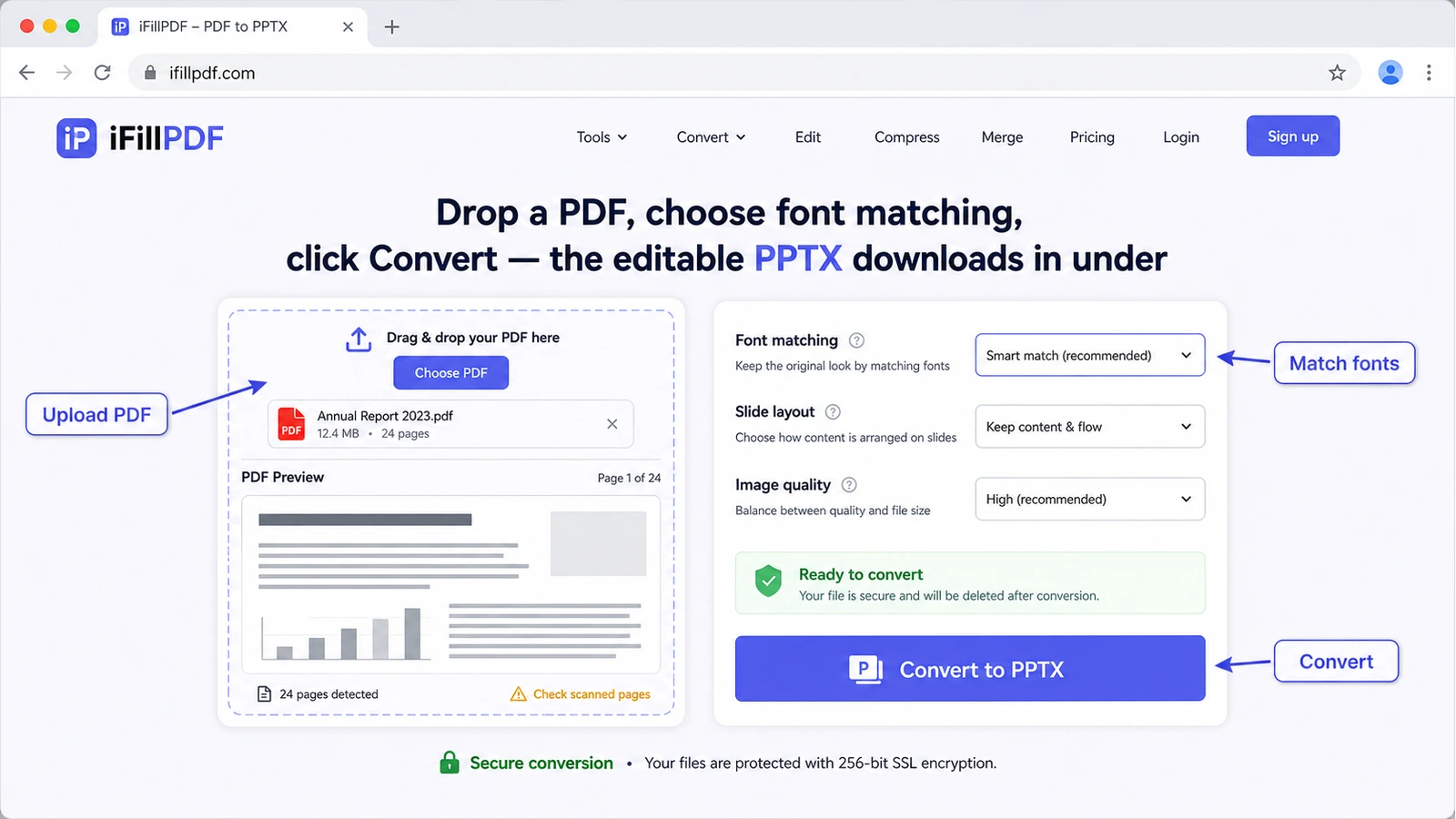
iFillPDF turns each PDF page into a fully editable slide — layout, images and text carried over, and the result opens in PowerPoint, Keynote or Google Slides. Conversion runs on EU servers in Frankfurt, which matters if you handle client documents under GDPR. You can convert without an account; a free account is asked for at the download step, and free exports carry a small watermark.
Method 2 — Adobe Acrobat Pro Export
If you already subscribe to Adobe Acrobat Pro DC, the native Export PDF feature is the most dependable route for complex layouts (multi-column, embedded vector charts, custom fonts).
Procedure:
- Open the PDF in Acrobat Pro
- Tools > Export PDF (right panel)
- Choose Microsoft PowerPoint as the format
- Click Settings to enable Run OCR if the PDF is scanned
- Click Export, name the file, save
Acrobat Pro reads the original PDF font dictionary directly, so font embedding survives cases where converters have to guess. Charts created in Office stay as native PowerPoint shapes rather than images. Downside: a subscription is a lot to carry if you only convert occasionally — for one-off jobs, iFillPDF is free.
Method 3 — Microsoft 365 Word import (workaround)
A clever workaround if you have Microsoft 365: convert the PDF to Word first, then copy-paste content into a new PowerPoint deck. Word's PDF import (File > Open > select PDF) preserves text flow surprisingly well. From Word you can paste structured text into PPTX placeholders.
This works best for text-heavy PDFs (whitepapers, ebooks, reports) where you need the words but want to rebuild the visual design from a fresh PowerPoint template. Use PDF to Word if you do not have Microsoft 365 — the output DOCX opens cleanly in Google Docs or LibreOffice too.
Limitation: complex layouts (two-column slides, custom infographics) lose all positioning. You essentially get raw text, which then needs to be redesigned manually in PowerPoint — budget real time for it on a long deck.
Method 4 — Manual: PDF page → image → PPTX slide
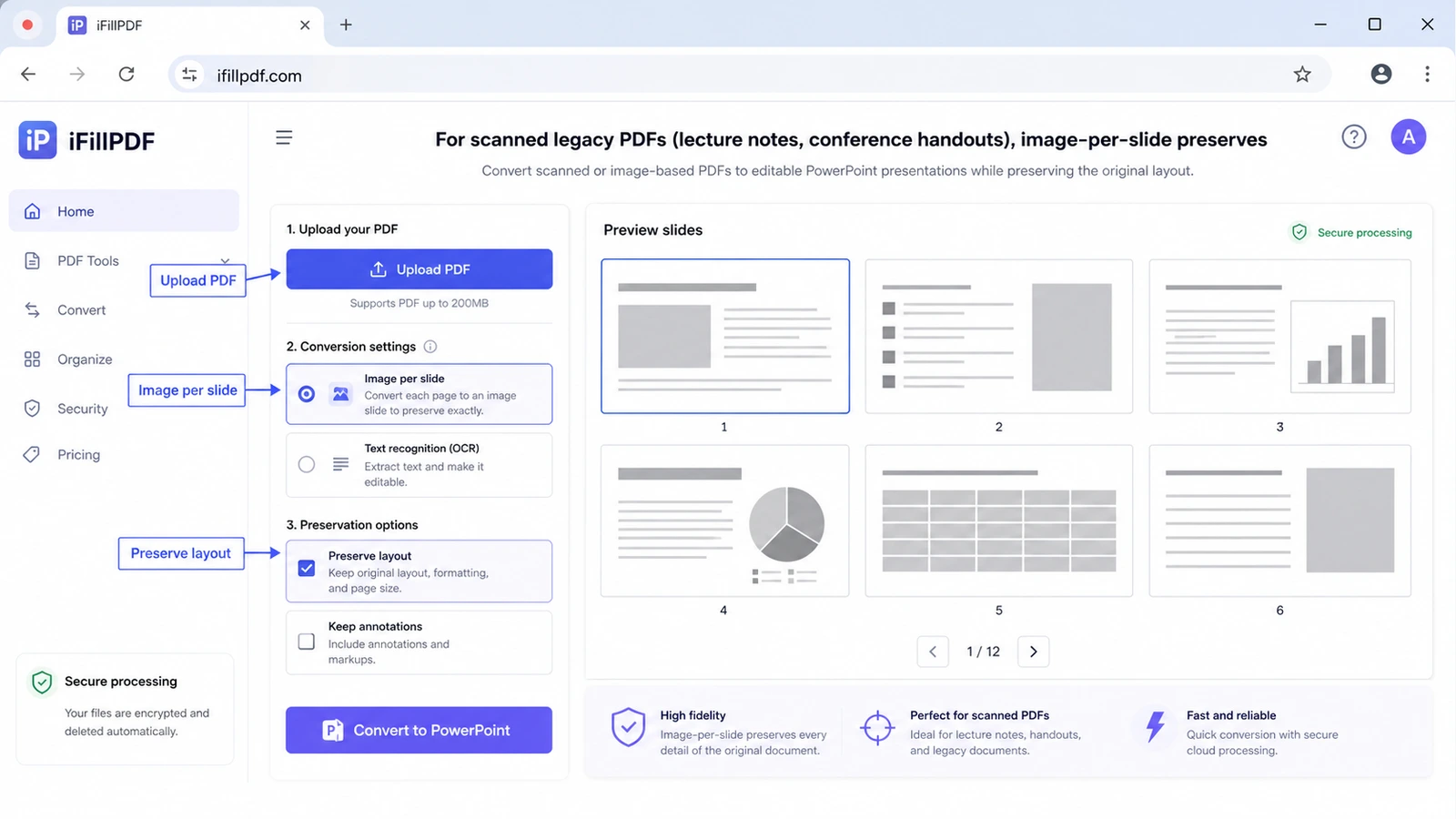
For scanned PDFs where OCR fails (handwriting, low-resolution scans, decorative fonts), the manual fallback is to export each PDF page as an image and insert it as a full-slide background in PowerPoint. You lose editability of text but you preserve every pixel of the original layout — sometimes that is exactly what you need (e.g. archival material, legal exhibits, signed contracts shown during a presentation).
Steps:
- Open PDF in any PDF reader, export pages as PNG at 300 DPI
- Open PowerPoint, set slide size to match PDF aspect ratio (usually 16:9 or A4 landscape)
- Insert > Picture > each PNG into its own slide, fit to slide
- Add transparent text boxes over the image if you need to highlight or annotate
Quality benchmarks: which tool preserves what
Whatever tool you pick, the same handful of things decide whether the PPTX is usable. Here is what typically survives a conversion and what does not:
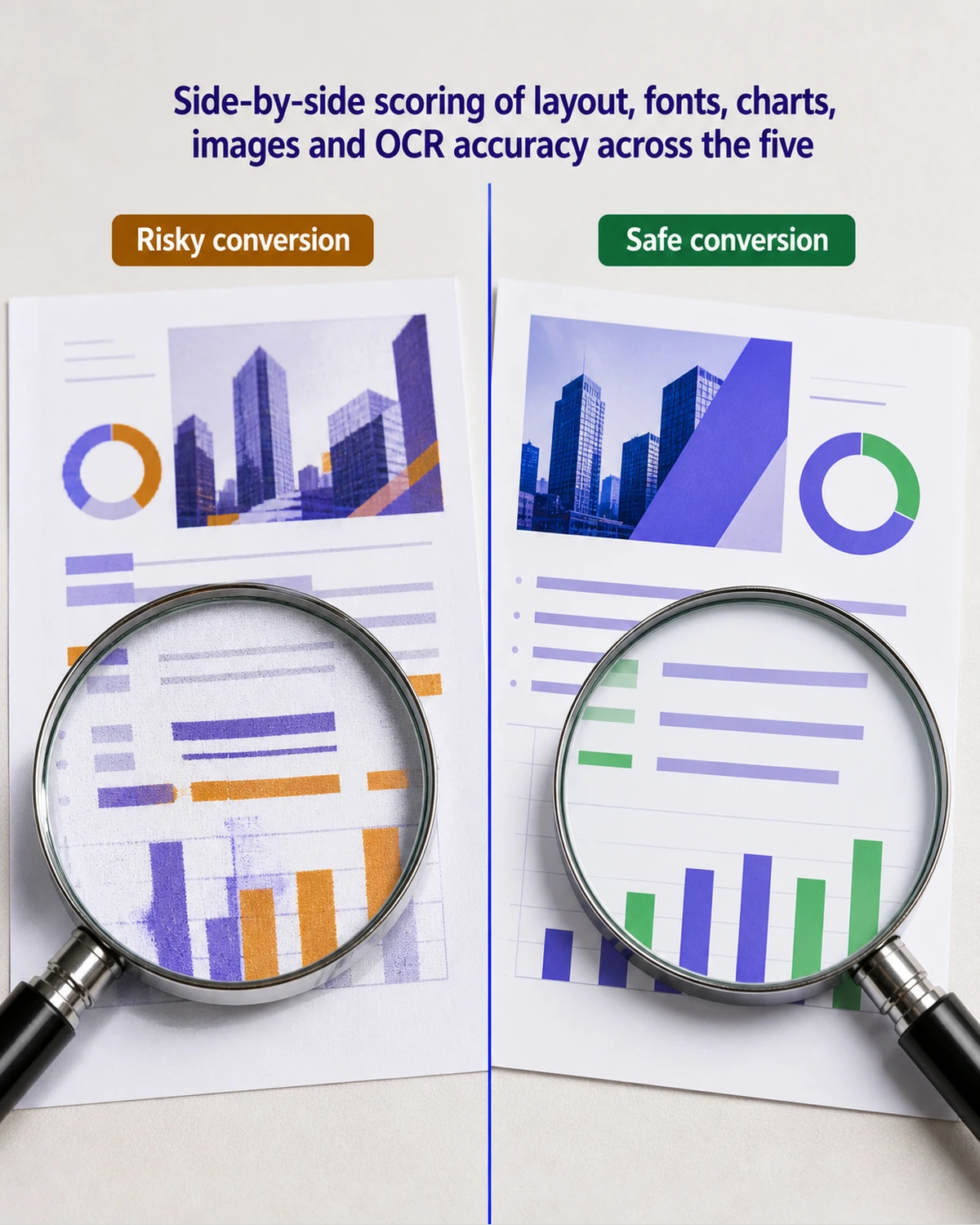
What to check in the output:
- Layout: single-column slides convert cleanly almost everywhere. Multi-column slides and floating captions are where converters diverge — open one before trusting the whole deck.
- Fonts: when the source font is unavailable, a converter either substitutes it or falls back to a system default, which can break your visual identity. Check your headline slide first.
- Charts: charts that originated in Office are rasterised to images by most converters. Acrobat Pro is the exception — it can keep them as native editable shapes, because it reads the source structure directly.
- Images: photos generally survive at full resolution; degradation is the exception, not the rule.
- Scanned PDFs: without OCR you get image-only slides where nothing is selectable. Confirm the tool runs OCR before converting a scan.
FAQ
How can I convert PDF to PowerPoint without Adobe? Use a free online tool like iFillPDF PDF to PPTX, Smallpdf, or iLovePDF. They produce editable PPTX without an Adobe subscription. On complex decks, always open the result and check the multi-column slides before sending it on.
Can I convert a scanned PDF to editable slides? Yes, but only with OCR-enabled tools. iFillPDF and Adobe Acrobat Pro both run OCR before conversion, producing editable text boxes. Tools without OCR will give you image-only slides where the text cannot be selected or modified.
What is the quality difference between free and paid converters? For native PDFs (exported from PowerPoint or Keynote), free tools generally land close enough to paid output that the difference is not worth a subscription for occasional use. The gap widens on scanned PDFs and PDFs with custom fonts, where font embedding and OCR quality do the heavy lifting. For most one-off conversions, free is enough.
How do I convert PDF to Google Slides? Convert the PDF to PPTX first using iFillPDF, then upload the .pptx file to Google Drive. Right-click the file > Open with > Google Slides. Google automatically converts the PPTX to its native Slides format. Some font substitutions may occur — check serif/sans-serif consistency after import.
Can I convert PDF to PowerPoint on mobile? Yes — iFillPDF works in mobile browsers on iOS and Android without an app install. Adobe Acrobat Reader (free mobile app) also exports PDFs to PowerPoint with a paid subscription. For one-off conversions on phone, browser-based tools are faster than installing native apps.
Convert your PDF to PowerPoint now
Drop your PDF on iFillPDF PDF to PPTX and get an editable PowerPoint deck back — one slide per page, EU Frankfurt hosting, no install. Converting needs no account; downloading uses a free one, and free exports carry a small watermark. While you are there, check related tools: PDF to Word, fill PDF forms, sign PDF, and merge PDF.