TL;DR — Five reliable ways to convert Word to PDF in 2026: the fastest is Microsoft Word's built-in Save As PDF (no upload, perfect fidelity). If you do not own Word, Google Docs, Mac Pages, LibreOffice, and trustworthy online converters such as iFillPDF or Smallpdf each take under 30 seconds. Pick the method that matches your privacy needs, batch volume, and quality settings.
Why convert Word to PDF
Convert Word to PDF whenever you need a file that looks identical on every screen, prints predictably, and cannot be edited by accident. PDFs lock fonts, layout, images, and page breaks, which DOCX files do not guarantee across Word versions, Google Docs, or LibreOffice. Recruiters, lawyers, accountants, and government portals routinely refuse .docx for these exact reasons. PDF is also lighter for email, faster to open on mobile, and the only format you can sign legally with eIDAS-compliant electronic signatures.
Method 1 — Microsoft Word native
The cleanest path is built right into Word (2016, 2019, 2021, Microsoft 365, Word for Mac).
- Open the .docx file in Word.
- Click File > Save As (or File > Export on Mac).
- Choose PDF in the file format dropdown.
- Pick Standard for screen-quality, Minimum size for email, or click Options to enable PDF/A archival mode, embed fonts, or include bookmarks from headings.
- Click Save.
This method preserves hyperlinks, table of contents, headings (as PDF bookmarks), and embedded fonts perfectly because it uses Microsoft's own rendering engine. It works fully offline and never uploads your document.
Method 2 — Google Docs
If your file lives in Google Drive or you do not own a Word license, Google Docs converts DOCX to PDF for free.
- Upload the .docx to Google Drive and double-click to open it in Google Docs.
- Click File > Download > PDF Document (.pdf).
- The PDF downloads instantly to your Downloads folder.
Caveats: Google Docs may re-flow complex Word layouts (multi-column resumes, custom fonts, advanced tables). Always preview the PDF before sending. For a round-trip conversion (PDF back to editable Word), use a dedicated PDF to Word converter instead of Google Docs OCR.
Method 3 — Online converters
When you cannot install software, online tools handle the job in seconds. Here is how the six most popular options compare in 2026:
| Tool | Free tier | Signup | Batch | Privacy | Typical use |
|---|---|---|---|---|---|
| iFillPDF | Yes (account needed to download) | To download | No | Server-side, EU (Germany) | PDF/A-3 archival export |
| Smallpdf | 2/day | For more | Pro only | Server-side, deletes after 1h | Occasional one-off conversion |
| iLovePDF | Generous | Optional | Yes | Server-side, deletes after 2h | Multi-tool workflows |
| Adobe online | 2/day | Required | No | Adobe cloud | Word documents with form fields |
| PDF24 | Unlimited | No | Yes | Server-side, German servers | European users, no limits |
| Sejda | 3/hour | No | Limited | Server-side, deletes after 5h | Light editing post-conversion |
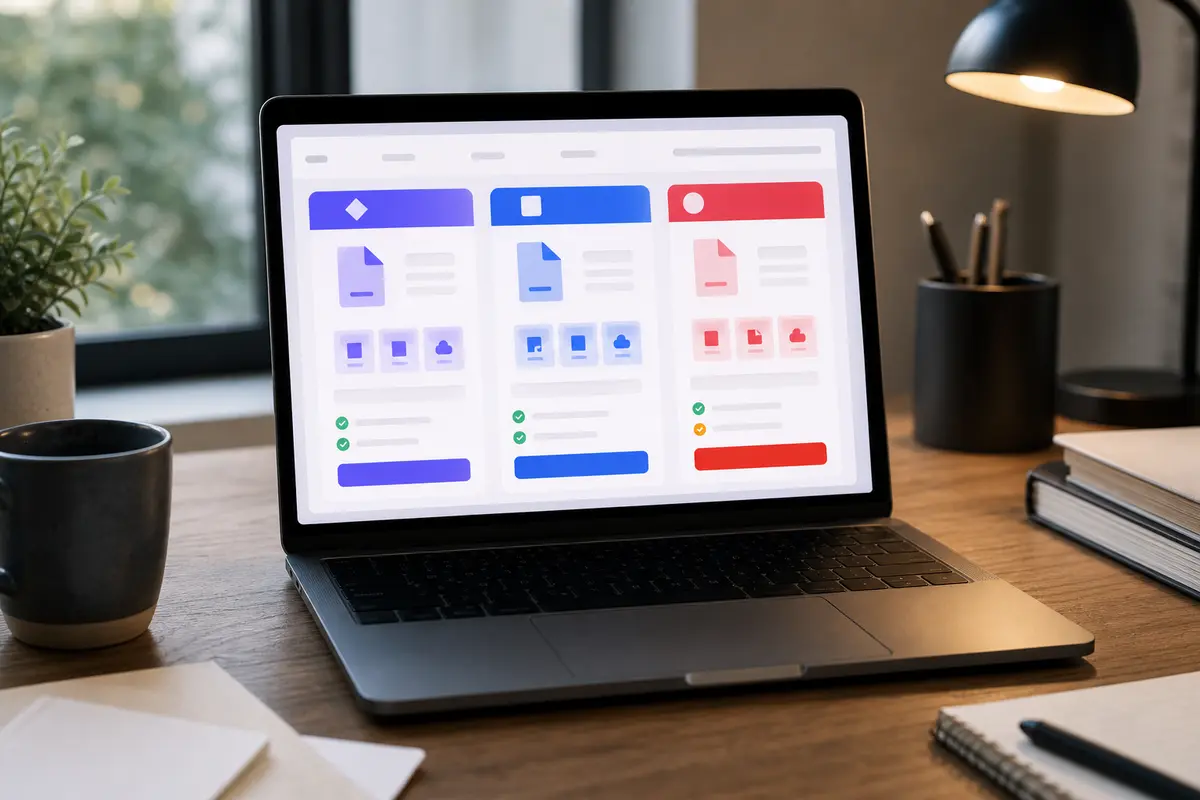
iFillPDF converts on EU infrastructure in Germany rather than on a US cloud, embeds the document fonts instead of substituting them, and offers PDF/A-3 archival output as a one-click alternative to a standard PDF. You can convert without an account; a free account is asked for at the download step. Try the Word to PDF tool directly.
Method 4 — Mac Pages
Pages (free on every Mac and iPad) opens .docx files natively and exports clean PDFs.
- Open the .docx in Pages (right-click > Open With > Pages).
- Click File > Export To > PDF.
- Choose Image Quality: Good (small file), Better, or Best (print-ready).
- Optional: tick Require password to open for encrypted PDFs.
- Click Next, name the file, and save.
Pages handles most Word layouts faithfully but may shift line breaks for documents using Calibri or Cambria (Microsoft's default fonts) if those fonts are not installed on your Mac. Install them via Microsoft 365 or substitute with Helvetica before exporting for critical documents.
Method 5 — LibreOffice CLI
For developers, sysadmins, or anyone converting hundreds of files, the command line is unbeatable.
libreoffice --headless --convert-to pdf *.docx
Run this in any folder containing .docx files. LibreOffice (free, open source) renders each one to PDF with no GUI, no upload, and no rate limit. Add --outdir /path/to/output to control destination, or pipe through find for recursive batches.
find . -name "*.docx" -exec libreoffice --headless --convert-to pdf --outdir ./pdfs {} \;
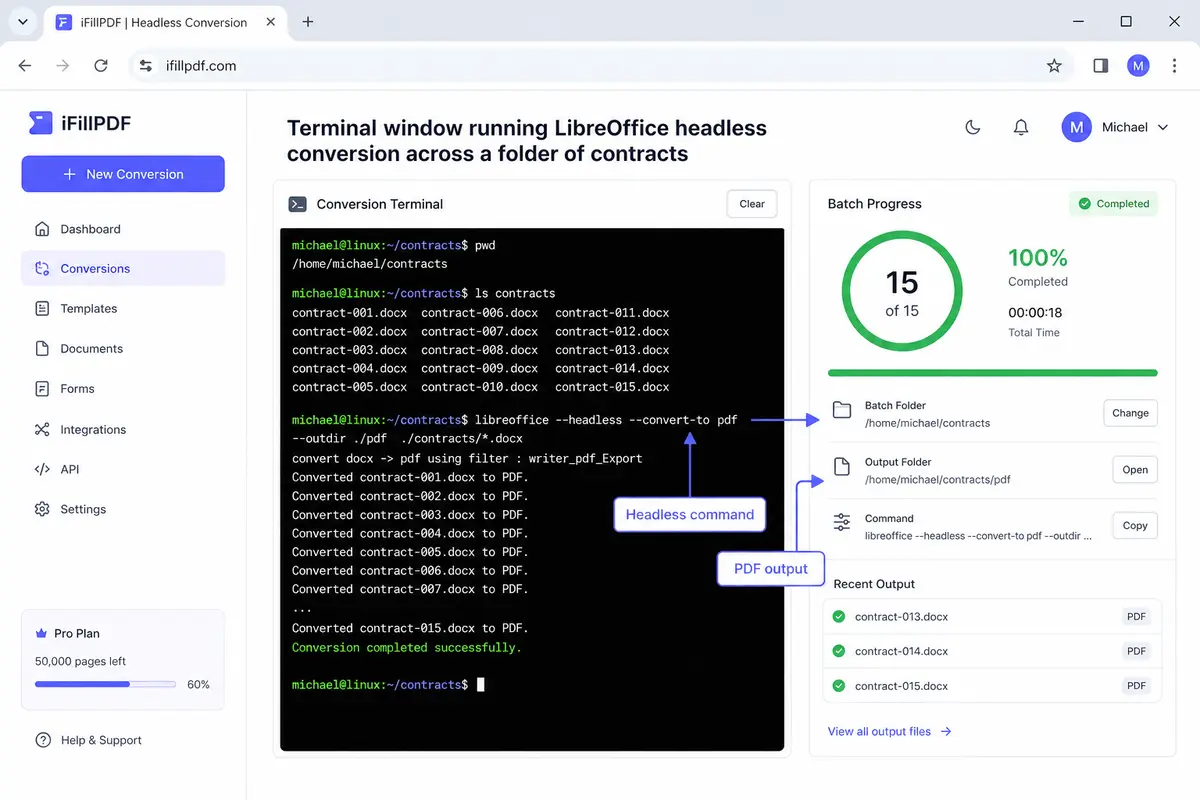
This is also the engine behind most server-side conversion APIs (including parts of iFillPDF's pipeline for non-DOCX edge cases). For Windows, use soffice.exe from the LibreOffice install directory instead of libreoffice.
Quality settings
The right export quality depends on the destination. Resumes need crisp text under 1 MB for ATS systems. Print contracts need embedded fonts and 300 DPI images. Email attachments should stay under 10 MB.
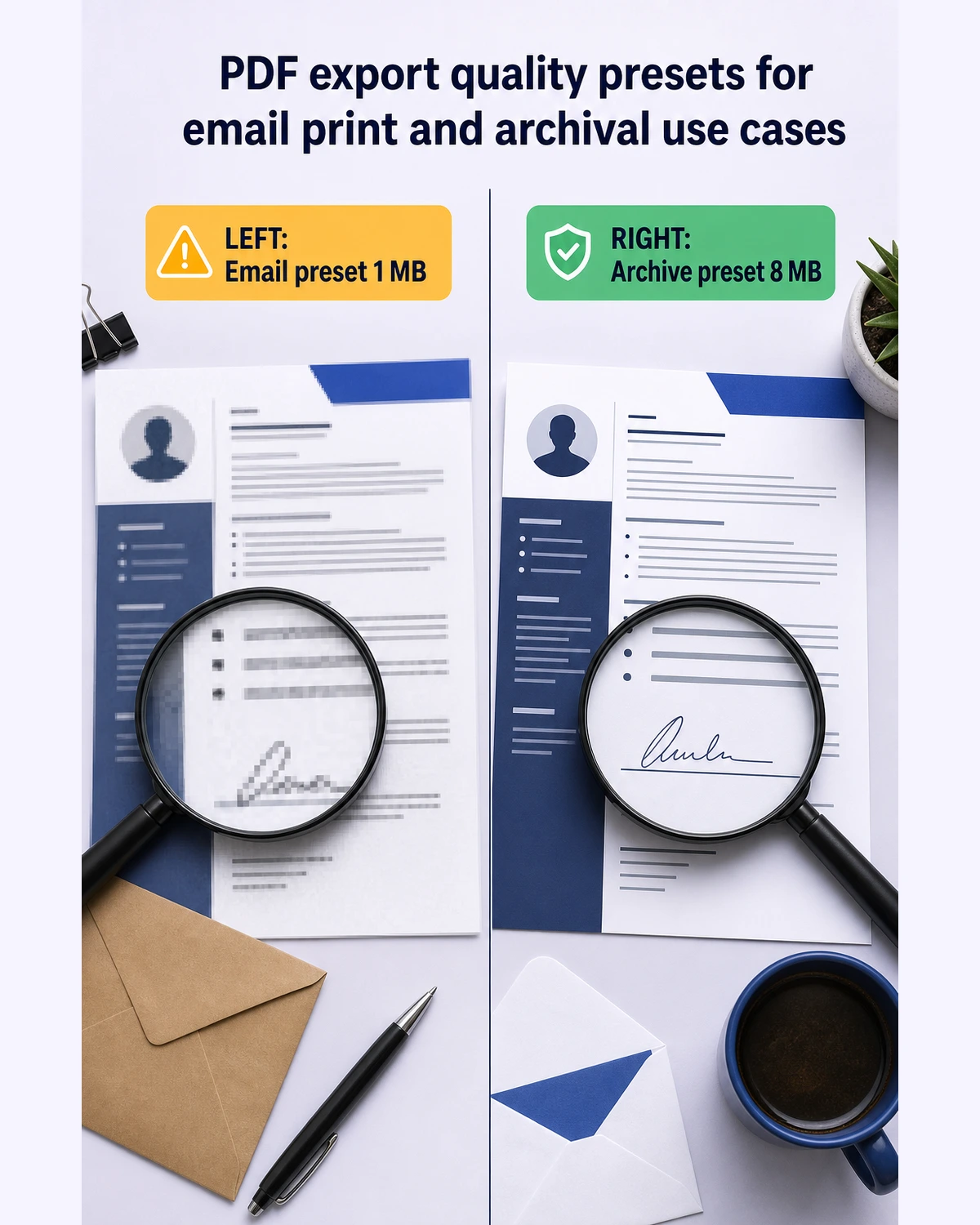
Three rules to remember: always embed fonts when sending to a printer or another country (avoids glyph substitution); always export to PDF/A for archival or legal storage (locks the rendering forever); always downsample images to 150 DPI for email (a large saving on file size, with no visible loss on screen).
FAQ
Does converting Word to PDF preserve hyperlinks and bookmarks? Yes when you use Microsoft Word, Google Docs, or iFillPDF. LibreOffice preserves hyperlinks reliably; bookmarks generated from heading styles work in all five methods listed above.
Can I convert a password-protected Word file to PDF? You must unlock the .docx first (open it with the password in Word, then Save As). Online converters cannot read encrypted DOCX files. Once unlocked, you can re-encrypt the resulting PDF with a new password during export.
Why does my PDF look different from the Word document? The most common causes are missing fonts (the converter substituted Calibri with Arial), unsupported Word features (SmartArt, equations from Office 2007), or DPI mismatch on embedded images. Use Microsoft Word's native export to eliminate all three issues.
Is online conversion safe for confidential documents? Use only converters that delete files after a defined window (most do, between 1 and 5 hours) and whose jurisdiction you accept — iFillPDF processes on EU infrastructure under the GDPR, for instance. For NDA-grade material, stick to offline methods 1, 4, and 5.
Can I convert PDF back to Word later? Yes. The reverse operation is well supported; see our guide on converting PDF to Word for free and the dedicated PDF to Word tool. Note that complex layouts may require manual cleanup after the round trip.
Convert your Word document now
Pick the method that matches your context: Microsoft Word for perfect fidelity, Google Docs for quick browser exports, LibreOffice CLI for batches, or iFillPDF for conversion that stays on EU infrastructure. Once your PDF is ready, you can also fill it, sign it, or merge multiple PDFs into one document, all in the same browser tab.