TL;DR — PNG is a lossless raster format that preserves transparency, making it the best choice when converting PDFs containing logos, diagrams, or screenshots that need a transparent background — unlike JPG, which is compressed and always opaque. We compare 5 PDF to PNG converters (iFillPDF, Smallpdf, iLovePDF, PDF24, ImageMagick) on DPI ceiling, transparency, batch export, and privacy. Designers and developers should prefer high-DPI (300+) PNG with alpha channel; everyone else can stick to 150 DPI for screen use.
Converting a PDF to PNG sounds trivial — until you discover that many free tools flatten transparency, cap the DPI, or only export the first page. This guide compares the four reliable methods (online converters, macOS Preview, Adobe Acrobat Pro, and the ImageMagick CLI) and gives you a DPI cheat sheet so you stop guessing whether 72 or 600 is the right value.
PNG vs JPG: when to choose PNG for PDF conversion
PNG wins when you need lossless quality, sharp text, or a transparent background. JPG wins when file size matters more than fidelity. Concretely:
- PNG (Portable Network Graphics): lossless compression, supports alpha channel (transparency), produces noticeably larger files, ideal for logos, screenshots, diagrams, UI mockups, archival.
- JPG (JPEG): lossy compression, no transparency (always white or black background), much smaller files, ideal for photographs, social media uploads, email attachments.
If your PDF page contains a logo on a transparent background, a vector diagram, or any text you want to remain crisp at 100% zoom — pick PNG. If it's a scanned photo destined for WhatsApp, convert PDF to JPG instead.
Method 1 — Online converters (iFillPDF, Smallpdf, iLovePDF, PDF24, ImageMagick)
Six tools, six dimensions that actually matter for production work:
| Tool | Free | Max DPI | Transparent BG | Batch all pages | Max file size | EU hosting |
|---|---|---|---|---|---|---|
| iFillPDF | Yes (no signup) | 300 DPI | Yes (alpha channel) | Yes (one PNG per page) | 100 MB | Yes (Frankfurt) |
| Smallpdf | 2/day free | 300 DPI | No (white BG) | Pro only | 5 GB (Pro) | Switzerland |
| iLovePDF | Yes (with limits) | 300 DPI | No | Yes | 200 MB (Premium) | Spain |
| PDF24 | Yes | 300 DPI | Partial | Yes (ZIP) | 100 MB | Germany |
| Adobe Acrobat online | 2 conversions free | 200 DPI | No | Pro only | 100 MB | US-first |
| ImageMagick (CLI) | Yes (open source) | Unlimited | Yes | Yes (script) | System RAM | Local |
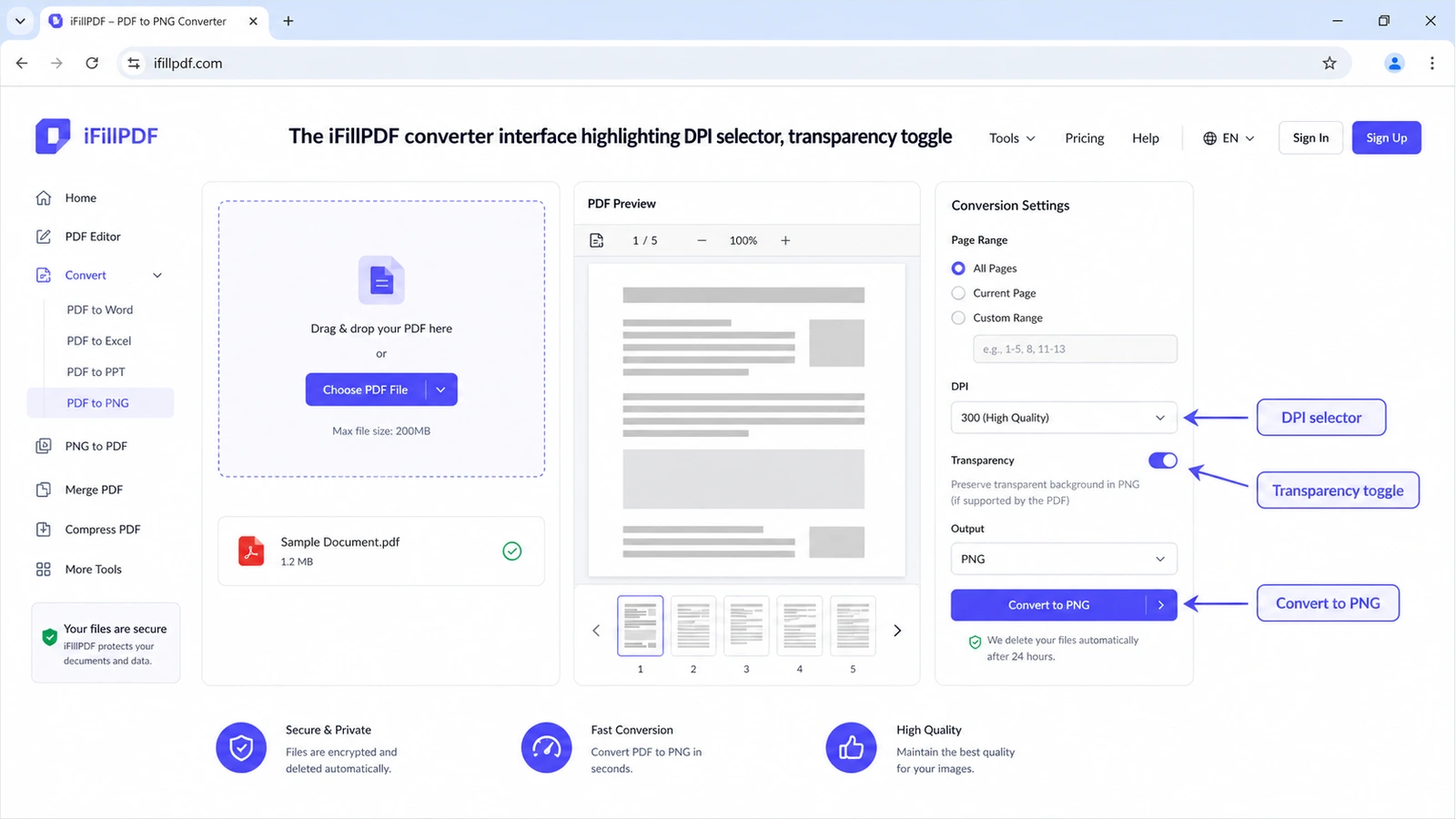
iFillPDF runs the conversion client-side in your browser with pdf.js — your PDF never leaves the device. That is also why there is no signup and no watermark on this tool: no server does the work, and EU-Frankfurt hosting only matters for the rest of your workflow, not for this file.
Method 2 — Mac Preview Export
macOS Preview can export a PDF page as PNG in two clicks, but the resolution it actually applies is limited and there is no transparency option. Path:
- Open the PDF in Preview
File → Export…(orCmd+Shift+S)- Format dropdown → PNG
- Set Resolution to 300 (Preview does not honour the value on every PDF)
- Click Save
Preview only exports the currently displayed page — there is no built-in "all pages" option. For multi-page batches, use a different method or AppleScript automation.
Method 3 — Adobe Acrobat Pro
Adobe Acrobat Pro DC (paid subscription) exports PDF to PNG via File → Export To → Image → PNG. You get DPI control (72/96/150/300/600), monochrome/grayscale/color depth, and per-page or all-pages export.
Limitations:
- No batch processing across multiple PDFs without an Action Wizard script
- Transparency is preserved only if the source PDF was created with transparent objects (most aren't)
- Subscription required for the desktop app — the free online version caps at 2 conversions per 24 hours
For occasional users, a subscription is hard to justify against a free alternative.
Method 4 — ImageMagick CLI
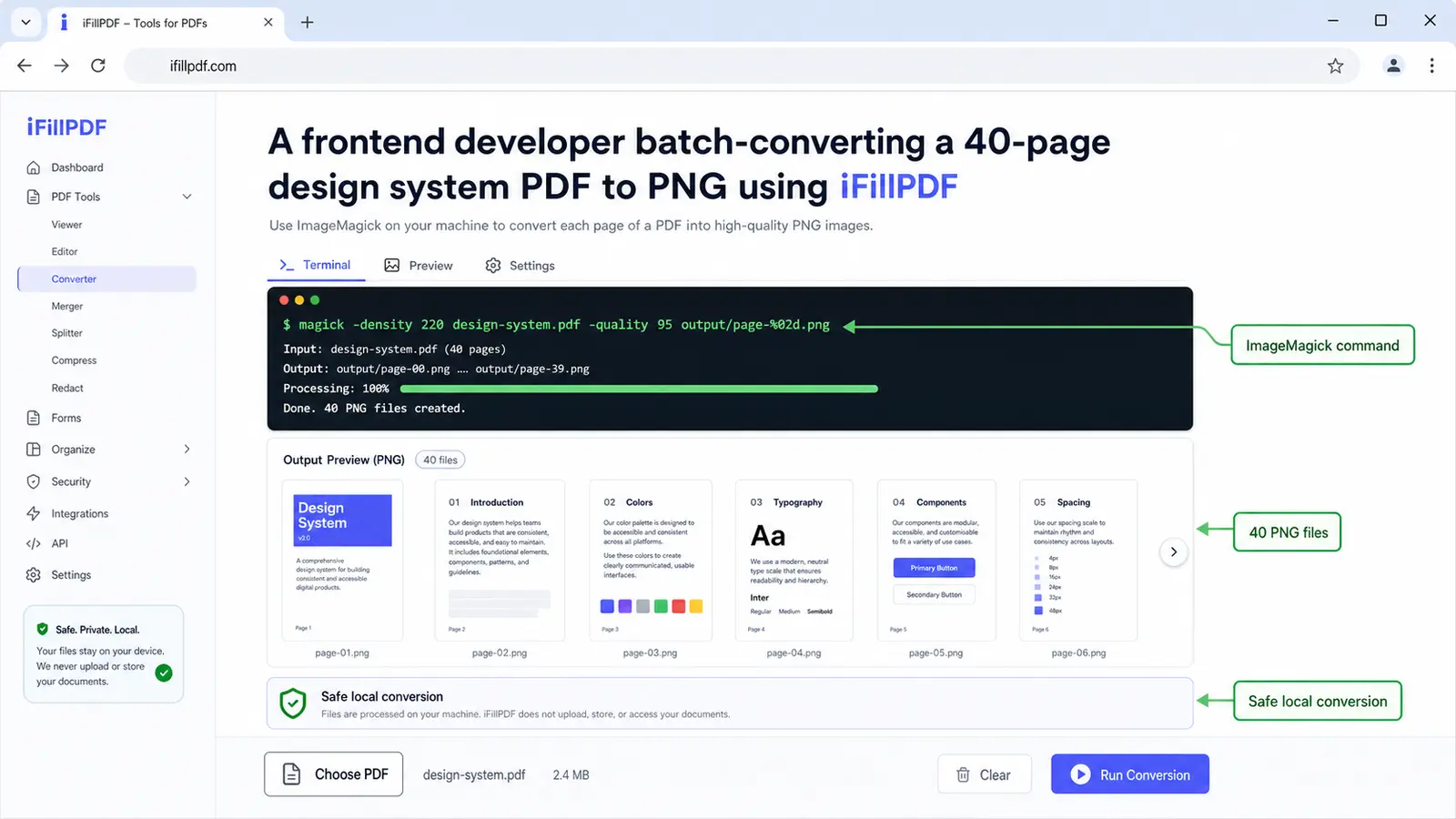
For developers, designers, or anyone needing full control, ImageMagick (open source, MacOS/Linux/Windows) gives you the most options. Install via Homebrew (brew install imagemagick) then:
magick -density 300 input.pdf output.png
That single command produces one PNG per page (output-0.png, output-1.png, …) at 300 DPI with full alpha channel preservation. Useful flags:
# Force transparent background and 600 DPI
magick -density 600 -background none input.pdf output.png

# Specific page only (page 3, zero-indexed = 2)
magick -density 300 input.pdf[2] page-3.png

# Resize after rasterization (useful for thumbnails)
magick -density 300 input.pdf -resize 1200x output.png
The catch: ImageMagick relies on Ghostscript under the hood for PDF parsing, and you may hit a "not authorized 'PDF'" error on fresh installs — fix by editing /etc/ImageMagick-7/policy.xml and removing the PDF restriction line.
DPI guide: 72 / 150 / 300 / 600
DPI (dots per inch) controls how many pixels each PDF inch becomes — pick based on the destination, not personal preference. Here's the cheat sheet:
- 72 DPI — legacy web standard. Use for retina-unaware websites or email signatures. Avoid in 2026.
- 150 DPI — modern screen and Retina displays. Good for blog images, social media, in-app preview thumbnails.
- 300 DPI — print quality (magazines, business cards, brochures). The default for any physical output.
- 600 DPI — archival, large-format printing (posters, signage), or when you need to crop and upscale a region. Files balloon: a multi-page PDF at 600 DPI can run to hundreds of megabytes in PNG.
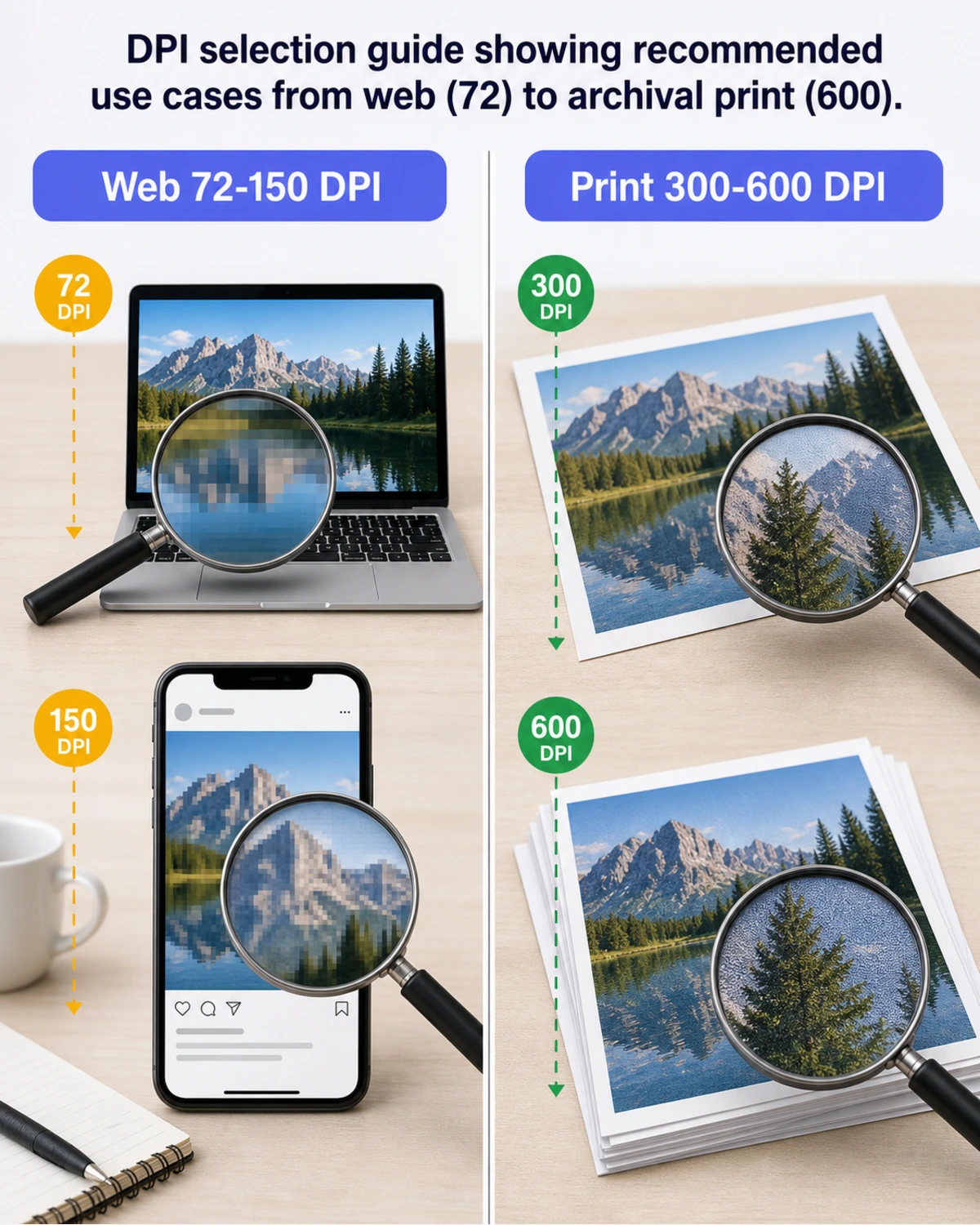
When in doubt, 300 DPI is the safe default — sharp on screen, ready for print, file sizes stay manageable.
FAQ
How do I convert a PDF to PNG with a transparent background?
Use a tool that preserves the alpha channel: iFillPDF (toggle "Transparent background"), ImageMagick with the -background none flag, or Adobe Acrobat Pro if your source PDF already contains transparent objects. Smallpdf, iLovePDF and Preview flatten the page onto a white background.
How do I convert each PDF page to a separate PNG?
Online tools export one PNG per page — iFillPDF downloads them one by one, PDF24 bundles them into a ZIP. ImageMagick does it natively — magick -density 300 in.pdf out.png produces out-0.png, out-1.png, etc. Adobe Acrobat Pro requires choosing "All pages" in the Export dialog.
What's the best DPI for printing PDF pages as PNG? 300 DPI for standard print (flyers, A4 documents, business cards). Bump to 600 DPI for posters or large-format output. Anything below 200 DPI will look pixelated when printed.
How do I convert PDF to PNG on Mac for free? Three options: macOS Preview (built-in, one page at a time, limited resolution), iFillPDF (browser-based, up to 300 DPI, transparent background), or ImageMagick via Homebrew (CLI, unlimited DPI). For multi-page batches with transparency, iFillPDF is the fastest no-install option.
Can I convert PDF to PNG on iPhone or Android mobile? Yes — open iFillPDF in Safari or Chrome on mobile, add the PDF, the conversion runs in your browser and the images download to your Files/Downloads folder. No app install, no signup. Native apps like Adobe Scan also work but require account creation.
Convert your PDF to PNG now — free, transparent, up to 300 DPI
Skip the signup walls and DPI ceilings. Open iFillPDF's PDF to PNG converter, drop your file, pick 150 or 300 DPI, toggle transparency if you need an alpha channel, and download one PNG per page. The whole process runs client-side in your browser — your PDF never touches our servers.
While you're here, you might also need to fill a PDF before converting it, add a signature, convert PDF to Word for editing, or compress a heavy PDF before upload. The client-side tools share the same no-signup, no-upload model; the AI ones (fill, sign) run on EU-Frankfurt servers with a free account.