The fastest way to convert a PDF to JPG in 2026 is to drop the file into a browser tool that lets you choose the resolution, exports each page as a separate image, and never asks for an email. Below: how to pick the right DPI, when JPG beats PNG, and a head-to-head of six widely used converters.
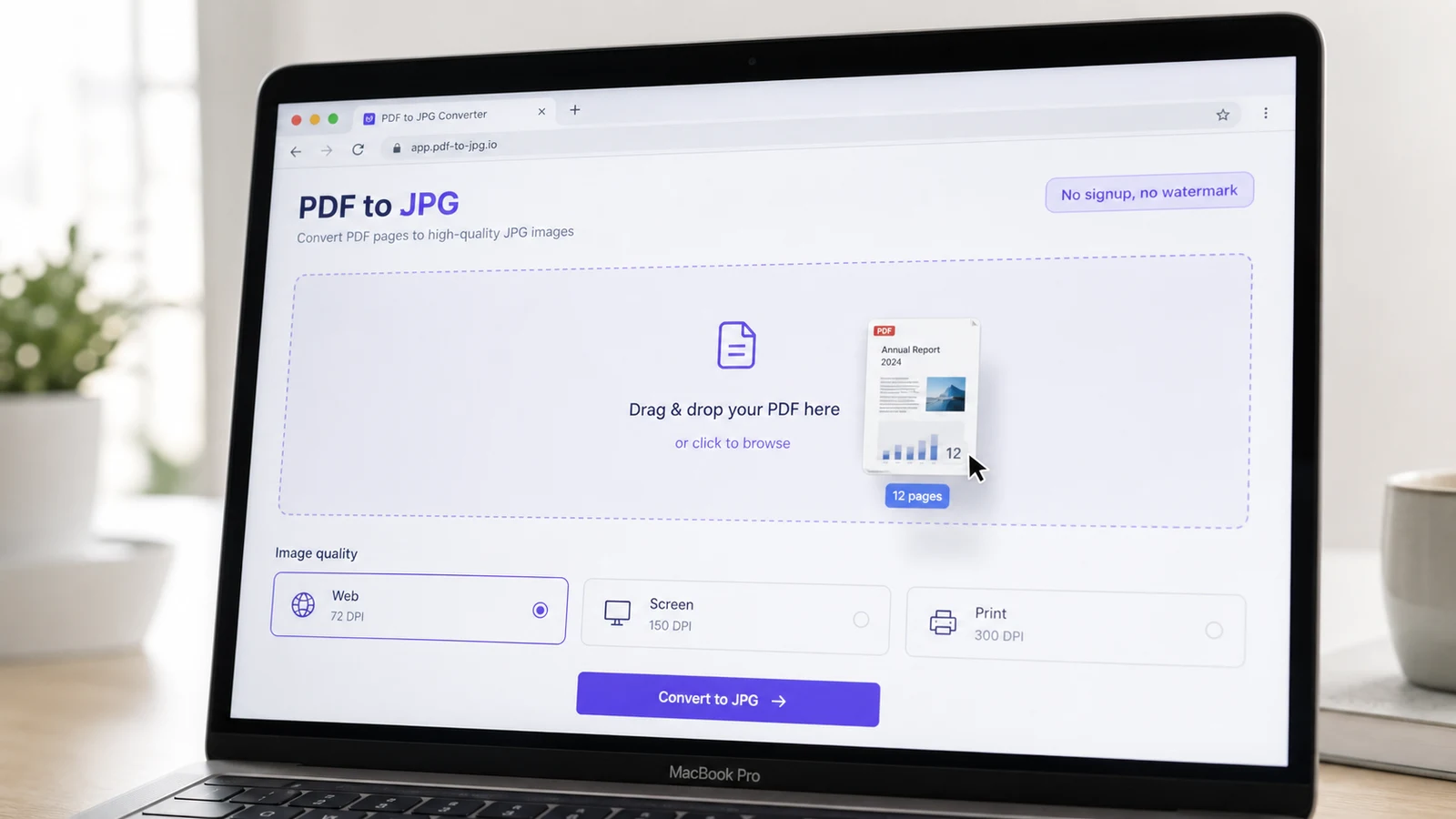
You need JPGs because Slack chokes on PDFs, your CMS only takes images, or a designer asked for one page out of a 40-page brochure. The conversion should take seconds — but most tools watermark, force a signup wall, or down-sample until the text turns to mush. This guide picks the right converter, explains the DPI dial nobody bothers to expose, and flags when JPG is the wrong format altogether.
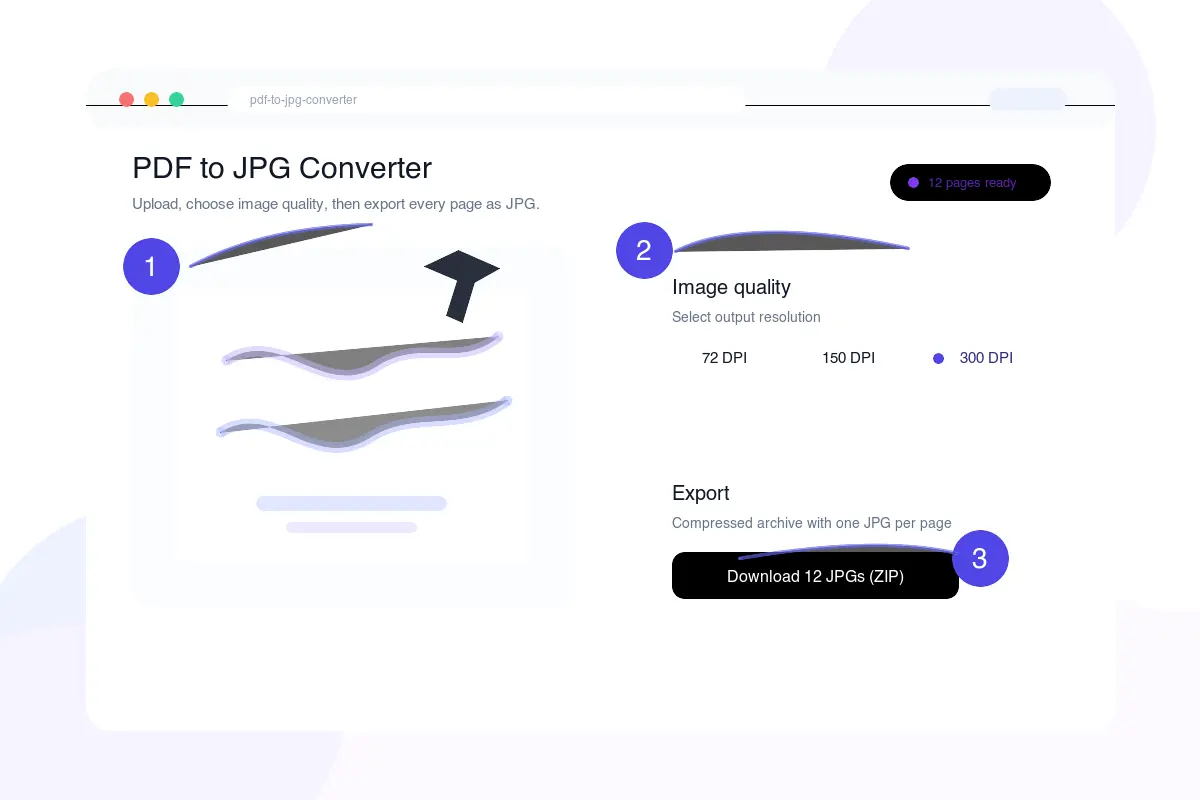
How to convert PDF to JPG online in three steps
Drop the PDF, pick a DPI preset, download one JPG per page. A browser tool handles a short document in seconds. No installation, no plugin, no Acrobat license.
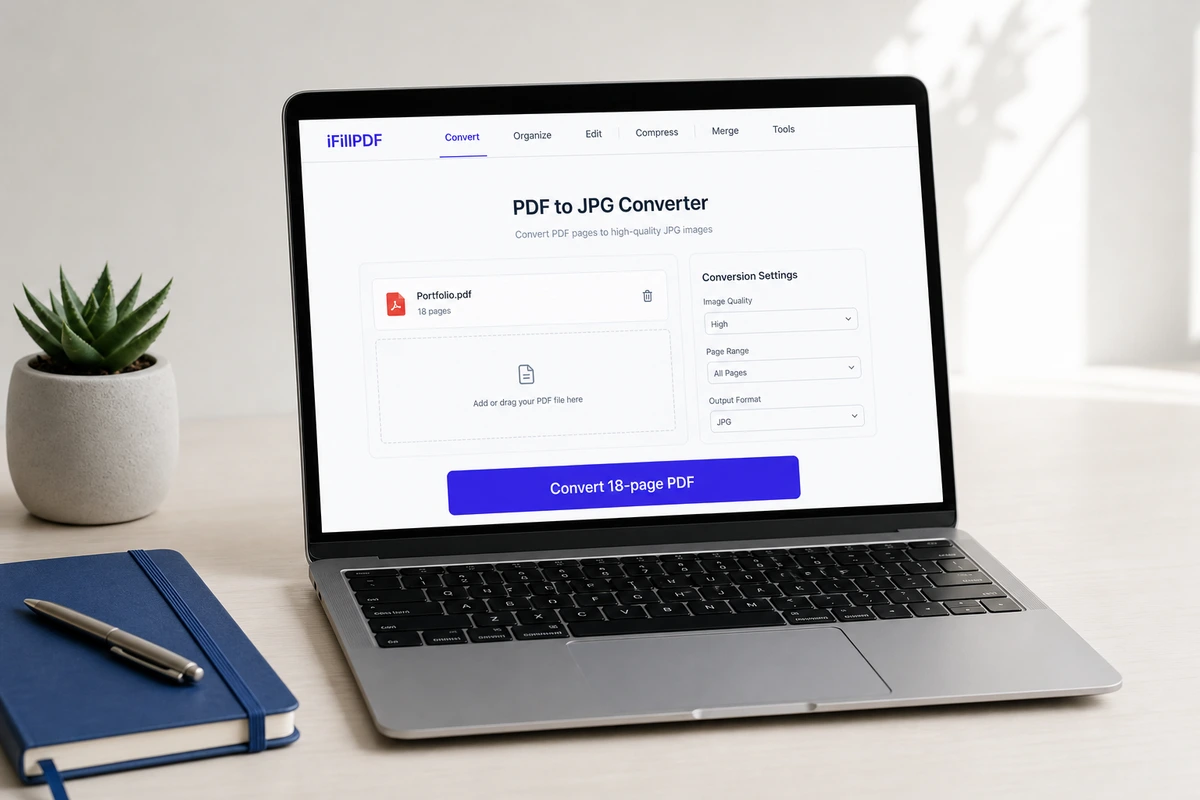
The full flow on iFillPDF's PDF to JPG converter (or any equivalent SaaS):
- Open the tool in any browser — Chrome, Safari, Firefox, Edge.
- Drag and drop the PDF (up to 100 MB).
- Pick a quality preset —
Web 72 DPI,Screen 150 DPI(the default) orPrint 300 DPI, plus a JPEG quality slider. - Click Convert and download the images — one JPG per page, named
document-page-01.jpgand so on.
Tools that run client-side (the conversion happens in your browser via WebAssembly) never upload the file — useful when the PDF is a contract, a medical scan, or anything you do not want sitting on someone else's hard drive.
What DPI should you choose for PDF to JPG conversion
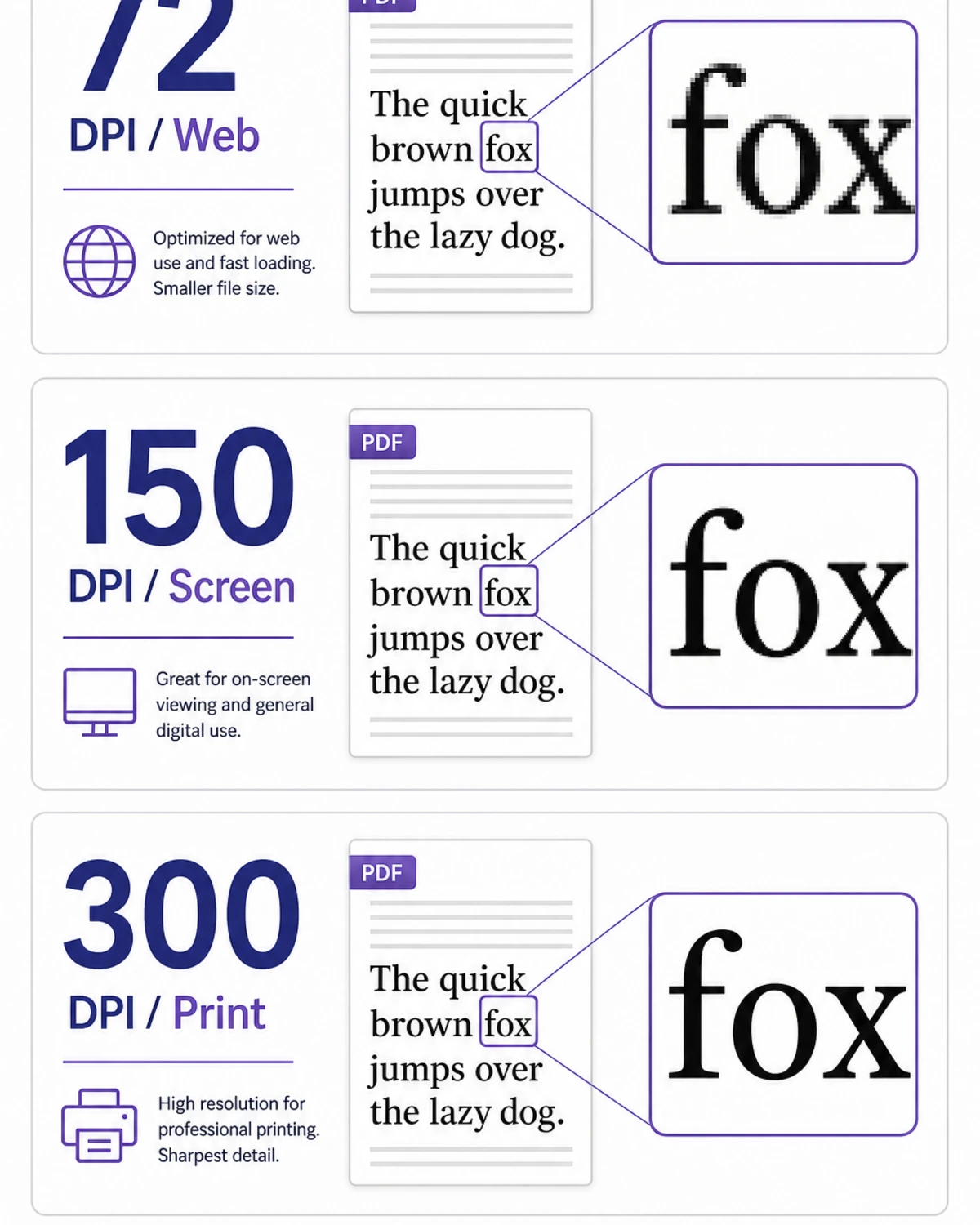
Pick 72 DPI for web embeds, 150 DPI for screen reading, 300 DPI for print, and 600 DPI only for archival or zoomed-in detail work. The defaults baked into most tools are too low — anything under 150 DPI will look blurry on a Retina display.
DPI (dots per inch) controls how many pixels each PDF inch becomes when rasterised. The PDF itself is vector-based, so the converter has to pick a density. Pick wrong and either the file is huge for nothing, or the type goes soft. Reference grid used by US print shops and ISO 12647 (offset printing standard):
| Use case | DPI | Page size 8.5×11" | Typical file size (color) | When to use |
|---|---|---|---|---|
| Web thumbnail | 72 | 612×792 px | 80–150 KB | Page previews, social posts |
| Screen reading / Slack | 150 | 1275×1650 px | 250–500 KB | Most everyday sharing |
| Retina display / blog hero | 200 | 1700×2200 px | 450–900 KB | High-DPI laptops and tablets |
| Print standard (ISO 12647) | 300 | 2550×3300 px | 1–2.5 MB | Brochures, magazines, business cards |
| Archival / large format | 600 | 5100×6600 px | 4–10 MB | Posters, museum-quality prints |
Print shops and imaging guides converge on the same split: 300 dpi for print quality, 150 dpi for digital use. If your tool exposes a JPEG quality slider, the sweet spot is 80–90 %: above 95 % adds bytes without visible improvement, below 75 % introduces visible compression artefacts in the type.
JPG vs PNG vs WebP: when to use what
Use JPG for photographs, scanned documents, and anything heading to print. Use PNG when you need a transparent background or pixel-perfect screenshots. Use WebP when filesize matters more than universal compatibility.
A PDF can hold any mix of vector text, raster photos, and embedded fonts — a JPG can only hold raster pixels with lossy compression. Picking the wrong target format is the single most common reason converted images look bad.
| Format | Compression | Transparency | Best for | Avoid for |
|---|---|---|---|---|
| JPG / JPEG | Lossy | No | Photos, scanned pages, print | Logos, screenshots, line art |
| PNG | Lossless | Yes (alpha) | Screenshots, logos, charts | Multi-page PDFs (huge files) |
| WebP | Both | Yes | Web hero images, responsive sites | Email, legacy CMS, print workflows |
| TIFF | Lossless | Yes | Archival, pre-press, OCR pipelines | Web sharing |
JPG and JPEG are the same format — JPEG is the ISO/IEC 10918-1 spec, JPG is the Windows-era three-letter extension. Renaming .jpeg to .jpg changes nothing in the bytes. PNG is genuinely different: it has a transparent alpha channel — pick it whenever the PDF page has a transparent background you want to preserve in a webpage or a Keynote slide.
Best PDF to JPG converters compared in 2026
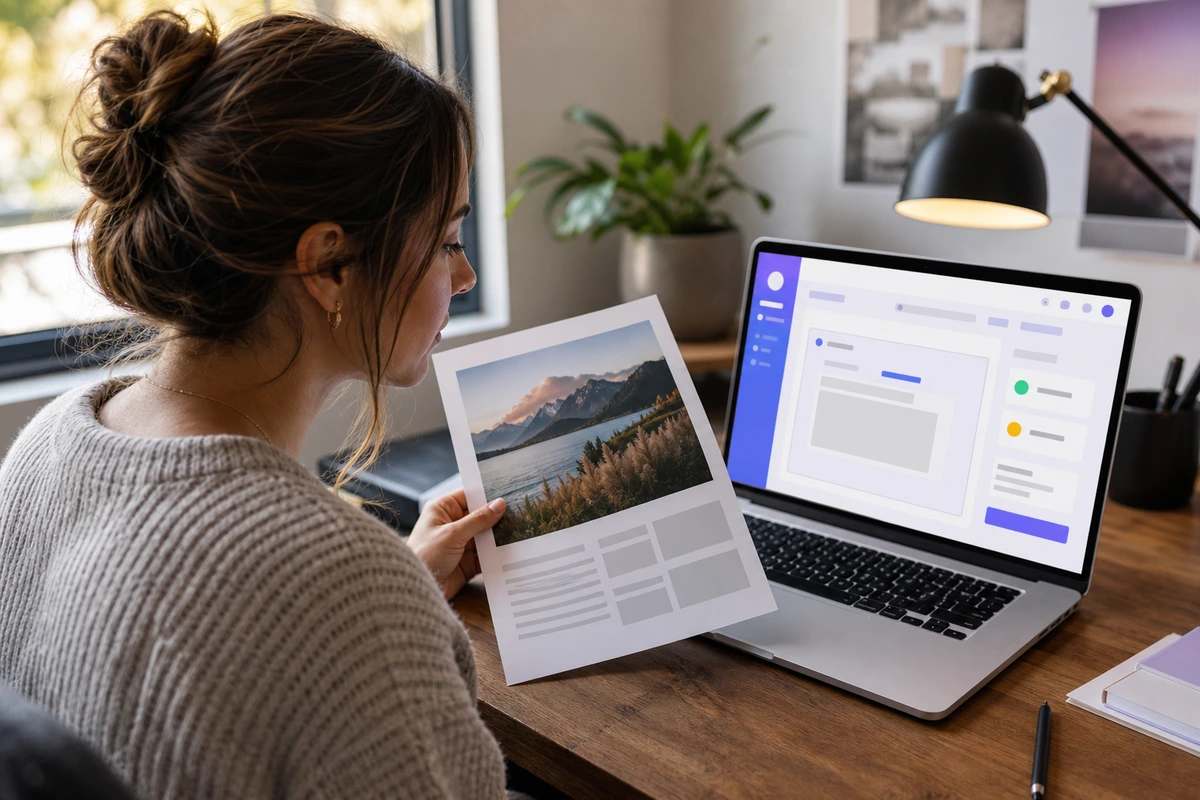
For a one-off conversion, any of the major web tools will work; the differences are in watermarks, batch limits, where the file is processed, and whether you can pick a custom DPI. Each line below states a capability you can check on the vendor's own tool page:
| Tool | Free tier | DPI control | Where files are processed | Notable |
|---|---|---|---|---|
| iFillPDF | Unlimited, no signup | 72 / 150 / 300 | Client-side, in the browser | No upload, no watermark |
| Adobe Acrobat online | 2/day before signup | No DPI choice | Adobe US/EU servers | Signup required past the free tier |
| Smallpdf | 2 tasks/hour | Two presets | Smallpdf servers (Switzerland) | Batch on a paid plan |
| iLovePDF | Yes, with Recaptcha | Three presets | iLovePDF servers (Spain/EU) | Batch up to 25 files |
| Canva | With Canva account | Fixed | Canva US servers | Account required |
| CloudConvert | 25 min/day free | Fully custom (any DPI) | API + EU servers | Public API |
The two real differentiators are client-side processing (the file never leaves your browser) and server location (EU vs US matters for healthcare, legal, and any document covered by GDPR).
Convert specific pages or every page of a PDF
Most converters export every page as a separate JPG by default. To convert just one page, either type a range in the tool's "pages" field, or split the PDF first. A 200-page PDF will produce 200 images unless you intervene.
- All pages, named sequentially — the default:
name-page-01.jpgthroughname-page-N.jpg. For slide decks, scanned books, brochures. - A single page or range — most tools accept
3or1-5,12in a "pages" field. - Merge pages into one tall JPG — niche but useful for long recipes or comics. Look for a "stitch" toggle.
The reverse workflow uses a JPG to PDF converter to merge JPGs back into a trimmed PDF.
Privacy and file safety when converting PDFs
A PDF can hold anything from a coupon to a medical record. Before uploading to a free converter, check three things: where the file is processed, how long it is retained, and whether the vendor sells data. EU-hosted, client-side tools are the safest default for sensitive documents.
Four signals that matter:
- Client-side processing — conversion runs in your browser via WebAssembly; the file is never transmitted. Verifiable in DevTools' Network tab.
- Server location — for files that do leave your machine, EU servers (Frankfurt, Dublin, Paris) sit under GDPR; US servers do not.
- Retention — look for "deleted after 1 hour" or "deleted immediately after download". Some free tools keep uploads 24-48 hours for "abuse detection".
- No third-party trackers on the upload page — no Google Analytics, Meta Pixel, or ad network on file submit.
For anything under HIPAA, GDPR Article 9, attorney-client privilege, or NDA, the safe default is a client-side tool. iFillPDF converts PDF to JPG in the browser: the file is never uploaded, whatever its size, up to the 100 MB the page accepts.
FAQ
How do I convert a PDF to JPG with high quality? Pick a converter that exposes a DPI control and set it to 300 DPI for print or 200 DPI for high-DPI screens. If the tool only offers a quality slider, set it to 90 %. The same source PDF produces a sharp result at 300 DPI and a fuzzy one at 72 DPI — the converter is rasterising vector text into pixels and you control the density.
Why is my converted JPG blurry? Three causes: (1) the converter ran at a low default DPI like 72 or 96 — switch to 300; (2) the source PDF is a low-resolution scan and no converter can recover detail that was never captured; (3) JPEG quality is below 75 %. Always export from the original PDF, never from a previous JPG.
Can I convert each PDF page to a separate JPG file? Yes — the default for every major tool. A 12-page PDF produces 12 named JPGs. For a single combined image, look for a "stitch" toggle (CloudConvert).
Is converting PDF to JPG free and safe? Free, yes — every major converter has a free tier. Safe depends on the file: for non-sensitive documents, any reputable web tool is fine. For contracts or anything covered by GDPR/HIPAA, pick a client-side tool or one with EU-hosted servers and sub-hour deletion. Avoid tools that require an email signup to download.
Should I convert to JPG or PNG for transparent backgrounds? PNG. JPG does not support transparency — every JPG has a solid background, usually white. If your PDF page has a transparent background you want to keep (a logo, a website overlay), choose PNG.
Does PDF to JPG conversion work the same on Mac and Windows? Yes — browser-based converters are platform-neutral. macOS users have a built-in alternative (Preview → File → Export → JPEG), but it processes one page at a time; for batch 300 DPI jobs, a web tool is faster.
Ready to convert? Try the iFillPDF PDF to JPG converter — free, no signup, resolutions up to 300 DPI, every page exported in one click. The matching JPG to PDF tool, PDF to Word converter, PDF compressor, PDF signer and AI form filler live in the same browser-based, EU-hosted toolkit.