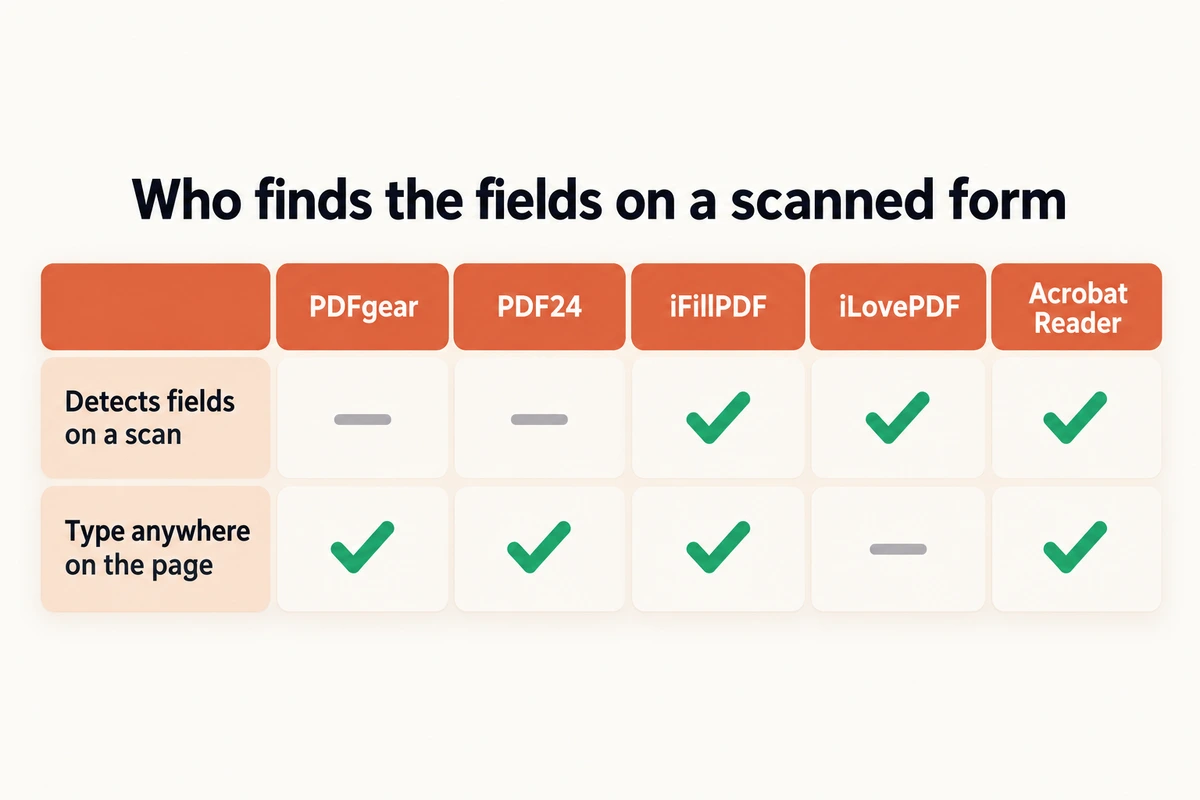
TL;DR: For a scanned or flat PDF form, the question is whether the tool finds the empty fields for you. PDFgear and PDF24 are capable free editors, but on a scan their guides describe placing each text box by hand. Adobe Acrobat Reader's Fill & Sign, iLovePDF's PDF Forms and iFillPDF offer automatic detection; iFillPDF works on the page image without a text-recognition step, also finds signature fields, and runs free in any browser, including on a phone, with no account until you download.
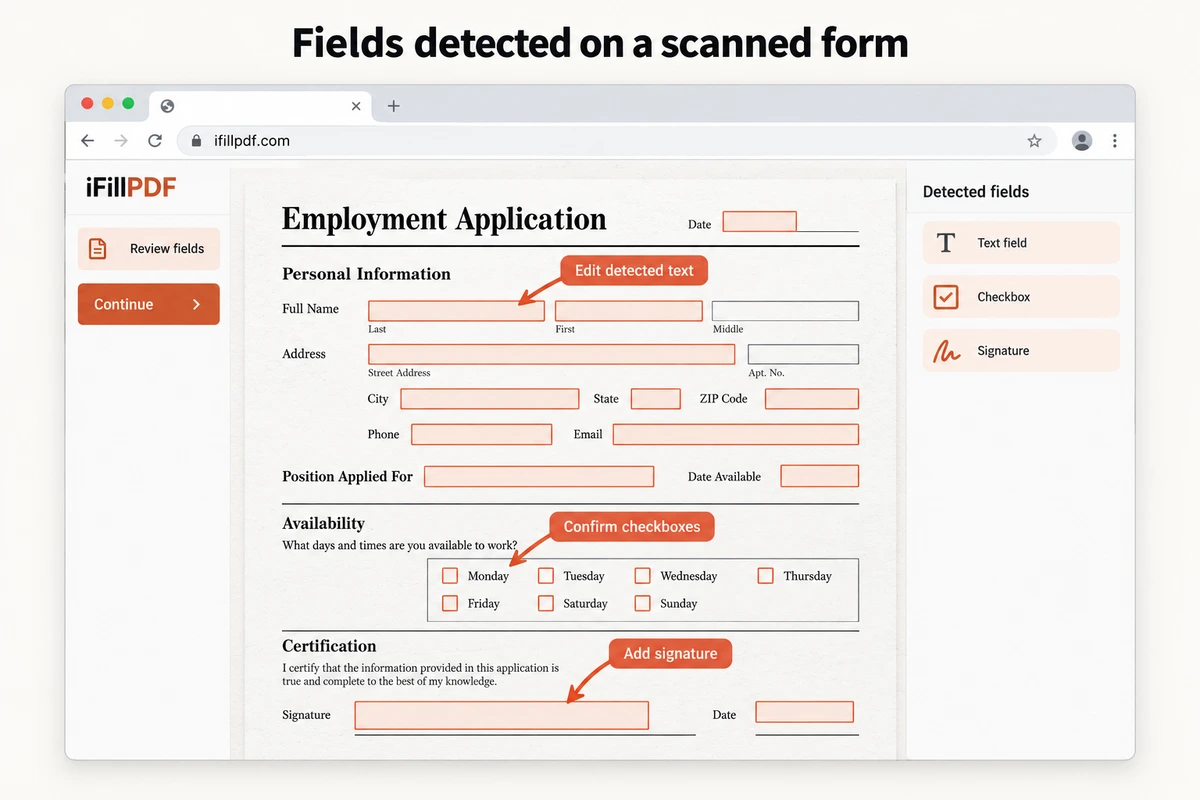
iFillPDF finds the text fields, checkboxes and signature boxes on a scanned or flattened PDF by running a computer-vision model on the page image, so it works on forms that have no text layer and no built-in fields.
Full disclosure: iFillPDF is our product. Every competitor fact below was checked on the vendor's own website or help pages on October 18, 2026, and the sources are named in each section. Where a vendor page says nothing about a feature, the table says "not documented" rather than guessing.
Why scanned forms are a different problem
A fillable PDF (an AcroForm) carries real input fields inside the file. Any viewer, from Chrome to PDFgear to PDF24, finds them and lets you type. A scanned or flattened form carries none: it is an image of a page, so the lines and boxes are pixels with nothing behind them.
That leaves two ways to fill it:
- Place every entry by hand. Pick a text tool, click above each line, type, nudge the box into place, repeat for each checkbox and the signature.
- Let the tool detect the fields. Software looks at the page, finds the blank lines, boxes and signature areas, and puts a ready-to-type field on each one.
OCR is often mentioned here, and it solves a different problem. OCR reads the printed words on the scan and makes them searchable. It does not create a single input field. PDF24 describes its OCR tool as a way to "recognize text via OCR and create searchable PDF files", which is accurate and useful, but a searchable scan is still a form you fill by hand.
Comparison table: filling a scanned form
Checked on October 18, 2026, on each vendor's site. "Not documented" means the vendor's own pages describe only a manual method.
| PDFgear | PDF24 | iFillPDF | Acrobat Reader (Fill & Sign) | iLovePDF (PDF Forms) | |
|---|---|---|---|---|---|
| Detects empty fields on a flat or scanned form | Not documented (manual text tool) | Not documented (manual "Make PDF fillable") | Supported: text fields, checkboxes, signature fields, read from the page image | Supported: text, comb fields, checkboxes, radio buttons | Supported: "Detect automatically" offered for scanned or flattened PDFs, after a text-recognition step |
| Type anywhere on a flat page | Supported | Supported ("Fill out PDF") | Supported | Supported | Not checked |
| OCR to searchable text | Supported | Supported ("PDF OCR") | Not covered in this comparison | Not covered in this comparison | Not covered in this comparison |
| Runs in the browser, no install | Supported (online filler) | Supported | Supported | Partial (Acrobat online; Reader is a desktop app) | Supported |
| Native apps | Windows, macOS, iOS, Android | Windows | iOS | Windows, macOS, mobile | Not checked |
| Account to fill | Not required (online filler) | Not required | Not required | Not checked | Not checked |
| Account to download | Not required (online filler) | Not required | Free account (email code) | Not checked | Not checked |
| Watermark on free output | None (online filler) | None | Small watermark, removable with a one-off payment | Not checked | Not checked |
| Cost of automatic detection | Not applicable | Not applicable | Free, including guests | Free in Reader's Fill & Sign | Premium subscription (per iLovePDF's announcement) |
| Stated file handling | Not checked | Files deleted from the server after one hour | Stored in the EU (Frankfurt) | Not checked | Files deleted after 2 hours |
PDFgear: native apps everywhere, manual boxes on scans
PDFgear is free on Windows, macOS, iOS and Android, and its online form filler is advertised as free, with no signup and no watermark. For forms that already have fields, it fills them like any good viewer.
For flat forms, PDFgear's own Mac user guide calls them non-interactive forms, "basically flat documents that work like scanned paper", and tells you to use the Fill & Sign tab: "Add text anywhere on the page using the Text tool." You then pick check marks, crosses or other symbols from the toolbar for the boxes. PDFgear's iPhone guide describes the same approach: select the text tool and tap the empty area. None of the PDFgear guides we read mention automatic field detection.
Where PDFgear wins: true native desktop apps on macOS and Windows, offline work, built-in OCR, and no watermark. If you fill the same fillable PDFs on a Mac every week, it is hard to beat at zero cost.
Sources checked: pdfgear.com Mac user guide "Fill a PDF", "How to Fill Out a PDF on iPhone", "How to Add Text to a Scanned Document".
PDF24: the free toolbox, manual fields on scans
PDF24 Tools, made by Geek Software in Berlin, is a large free suite on the web and on Windows. Its "Fill out PDF" tool lets you "type your answers into any PDF form, mark boxes with a cross, insert a signature image", with "no registration required", and PDF24 states that files are deleted from its server after one hour. The suite is free and funded by advertising.
To turn a flat form into a fillable one, PDF24 offers "Make PDF fillable". Its page describes a manual editor: you "add form fields with a mouse click, freely position them, and configure their properties." Neither page mentions scanned PDFs or automatic field detection.
Where PDF24 wins: the widest set of free tools here (merge, compress, OCR, sign, verify signatures, flatten), no account at any step, a clear one-hour deletion rule, and an offline Windows app. For a one-off fillable form, it does the job with nothing to sign up for.
Sources checked: tools.pdf24.org "All tools", "Fill out PDF", "Make PDF fillable".
iFillPDF: field detection on the page image
iFillPDF is built for one job: filling and signing forms, including the ones that arrive as scans. When you upload a PDF, a computer-vision detector reads each page as an image and places text fields, checkboxes and signature fields on the blanks it finds, followed by a verification pass. Because it works from the image, it handles scans and flattened PDFs that have no text layer.
Standard detection is free for everyone, including guests without an account. A paid option, AI Deep Detect, adds a Google Gemini model that names the fields, assigns them to the right party and suggests pre-filled values; standard detection covers the scanned-form case on its own.
Guests can upload, detect, fill, sign, erase printed text and edit without an account. Downloading requires a free account created with an email code. Free downloads carry a small watermark, and a one-off lifetime payment removes it; the price varies by country. iFillPDF runs in desktop and mobile browsers and has an iOS app. Documents are stored in the EU, in Frankfurt.
The honest trade-offs: an account is needed to download, free downloads are watermarked, and the suite is narrower than PDF24's. Detection is a starting point too: review the placed fields and add any it missed with a click.
Adobe Acrobat Reader: the reference
Adobe documents the same capability in its free Reader. Its help page for Fill & Sign says flat forms are "documents with no interactive fields, such as a paper form or a PDF not optimized for filling", and that the Fill & Sign tool "automatically detects the form fields like text fields, comb fields, checkboxes, and radio buttons." Adobe's own tutorial shows the detection by hovering over a flat form. Where detection misses a field, you can add text and symbols manually anywhere on the page.
Adobe also notes that a new Fill & Sign experience is being tested and may not be available to all users, and the free Reader is a desktop install. If you already have Reader, try Fill & Sign on your scan before anything else.
Sources checked: helpx.adobe.com "Fill and sign PDF forms" (Reader and Acrobat), adobe.com "Fill and sign a PDF form" tutorial.
iLovePDF, Sejda and Smallpdf in brief
iLovePDF's PDF Forms page says it can "automatically create fillable PDFs or fill PDF forms with editable and interactive text fields, checkboxes, radio buttons, and lists." When the uploaded file has no fillable fields, the tool shows a "Recognising text..." step, then explains that "it may be a scanned or a flattened PDF" and offers two options: "Detect automatically" or "Edit/add manually". That makes it a field detector for scans too. iLovePDF's announcement of the tool says "Detect with AI is part of the standard Premium subscription", and for scans with non-selectable text it suggests running OCR first.
Sejda offers a free forms editor with an "Auto-detect fields" button. Its page states that "editing scanned documents is not supported", while adding new text, images and annotations still works, and it lists a free tier of "documents up to 200 pages or 50 MB and 3 tasks per hour." We count Sejda's detection as partial for scans because Sejda does not document how the button behaves on a scanned page.
Smallpdf's form-filling guide says that "even if your PDF wasn't created as a fillable form, you can still type text, add checkmarks, and insert dates." The guide describes placing those entries yourself and mentions no automatic field detection.
Sources checked: ilovepdf.com "PDF Forms" and its blog announcement "PDF Forms: fill, edit and detect fillable PDFs with AI"; sejda.com "PDF forms"; smallpdf.com blog "PDF filler".
How to fill a scanned PDF form with iFillPDF
- Open the free PDF filler in any browser, on desktop or phone.
- Drop your scanned or flattened PDF. Detection starts on its own and places text fields, checkboxes and signature fields on the page.
- Check the placed fields. Click to add one where a box was missed, or delete one you do not need.
- Type your answers, tick the boxes and draw or type your signature in the signature field.
- Use the erase tool if you need to remove printed text, such as an old date, before writing over it.
- Click download and create a free account with the email code. The filled PDF downloads with a small watermark, which a one-off payment removes.
For the full walkthrough, including photo scans and multi-page forms, read how to fill a scanned PDF form.
Filling a scan by hand in PDFgear or PDF24
If you prefer to stay in PDFgear or PDF24, the manual method works on any scan:
- Open the scan in PDFgear (Fill & Sign tab, Text tool) or in PDF24's "Fill out PDF".
- Click just above each line and type. Match the font size to the printed labels so the entries look aligned.
- Mark each checkbox with the cross or check symbol.
- Add your signature as an image or drawing.
- Save the PDF and zoom in on every page to confirm nothing shifted.
Plan on placing one box per field. On a one-page form that is a few minutes; on a multi-page application it is where field detection saves the most time.
Which one to pick
- Your form already has fillable fields: use any of them. PDF24 and PDFgear are free with no watermark.
- You fill forms on a Mac or Android phone and want a native app: PDFgear.
- You want the widest free toolbox with no account and one-hour file deletion: PDF24.
- You have Adobe Reader installed and the form is a flat scan: try Reader's Fill & Sign first.
- You already use iLovePDF for other tasks and the form is a flat scan: try its PDF Forms "Detect automatically" option.
- Your form is a scan or flattened PDF and you want the fields found on the page image, signature boxes included, in any browser or on your phone, with no account until download: iFillPDF.
For a broader look at free editors beyond form filling, see our best free PDF editor comparison. If you need searchable text rather than fields, PDF24 and PDFgear both offer OCR, and our free OCR guide covers the options. To make a form fillable for other people to complete, read the fillable PDF form creator guide.
FAQ
Which free tool automatically detects the empty fields in a scanned PDF?
Three of the tools compared here offer it. Adobe Acrobat Reader's Fill & Sign is documented as detecting text fields, comb fields, checkboxes and radio buttons on flat forms. iLovePDF's PDF Forms tool offers a "Detect automatically" option when a file has no fillable fields, after a text-recognition step; its announcement places this AI detection in the Premium subscription. iFillPDF runs a computer-vision model on the page image, with no text layer needed, to find text fields, checkboxes and signature fields in the browser, free for guests until download. PDFgear and PDF24 document a manual method: you place text boxes or form fields yourself.
Which is better, PDFgear or PDF24?
It depends on how you work. PDFgear has native apps for Windows, macOS, iOS and Android plus a free online filler, and works offline on desktop. PDF24 runs in the browser and on Windows, offers the wider set of free tools, needs no registration and deletes uploaded files after one hour. For a form that already has fillable fields, both work and both are free. For a flat scan, both rely on you placing text boxes by hand.
Is PDF24 trustworthy?
Here is what can be checked: PDF24 Tools is made by Geek Software GmbH in Berlin, its pages say files are processed on servers in Germany and deleted from the server after one hour, and no registration is needed. The suite is free and funded by advertising. For very sensitive files, its offline Windows app keeps documents on your own computer.
Is PDFgear as good as Adobe?
For everyday filling of forms that already have fields, PDFgear covers the basics at no cost, with native desktop and mobile apps, OCR and no watermark. On flat or scanned forms the two differ: Adobe documents automatic field detection in Reader's Fill & Sign, while PDFgear's guides describe placing text with the Text tool. We did not compare Acrobat Pro's paid features.
PDFgear vs iLovePDF: which one detects fields on a scanned PDF?
iLovePDF's PDF Forms tool documents it: when a file has no fillable fields, it suggests the file may be a scanned or flattened PDF and offers "Detect automatically" or "Edit/add manually". PDFgear's guides describe a manual Text tool for flat forms; PDFgear's strengths are native apps and offline work. iLovePDF's announcement says the AI detection is part of its Premium subscription.
Does OCR make a scanned form fillable?
No. OCR turns the printed words on a scan into searchable, selectable text. It does not create input fields. To get fields on a scan you either add them by hand (PDF24 Make PDF fillable, PDFgear form tools) or use a tool that detects them, such as Acrobat Reader's Fill & Sign, iLovePDF's PDF Forms or iFillPDF.
Is iFillPDF free?
Uploading, field detection, filling, signing and editing are free for everyone, including guests without an account. Downloading requires a free account created with an email code, and free downloads carry a small watermark. A one-off payment removes the watermark; the price depends on your country.
Can I fill a scanned PDF form on my phone?
Yes. PDFgear and Acrobat have mobile apps, PDF24 works in a mobile browser, and iFillPDF runs in mobile browsers and has an iOS app, with the same field detection as on desktop.
Where does iFillPDF store my documents?
iFillPDF stores documents in the EU, in Frankfurt, Germany. Standard field detection is free. The optional paid AI Deep Detect feature sends the document to a Google Gemini model to name fields and pre-fill them, so use standard detection if that matters for your file.
Competitor features were checked on each vendor's own pages on October 18, 2026, and free tiers in this category change often; re-check before you rely on a limit. We received no payment or affiliate commission from any product mentioned. iFillPDF is our product, and its conditions (an account to download, a watermark on free downloads) are stated in the same terms as everyone else's.