TL;DR — There are two very different jobs hiding behind "fillable PDF form creator". (1) Filling an existing flat PDF (scan, contract, government form). (2) Building a brand-new interactive form from scratch with AcroForm fields. The fastest path in 2026 is AI auto-detect on an existing PDF (iFillPDF, free account); the most flexible is a drag-and-drop builder (Jotform, DocFly); the most complete implementation of the AcroForm spec remains Adobe Acrobat Pro, on a paid subscription.
What "fillable PDF" actually means
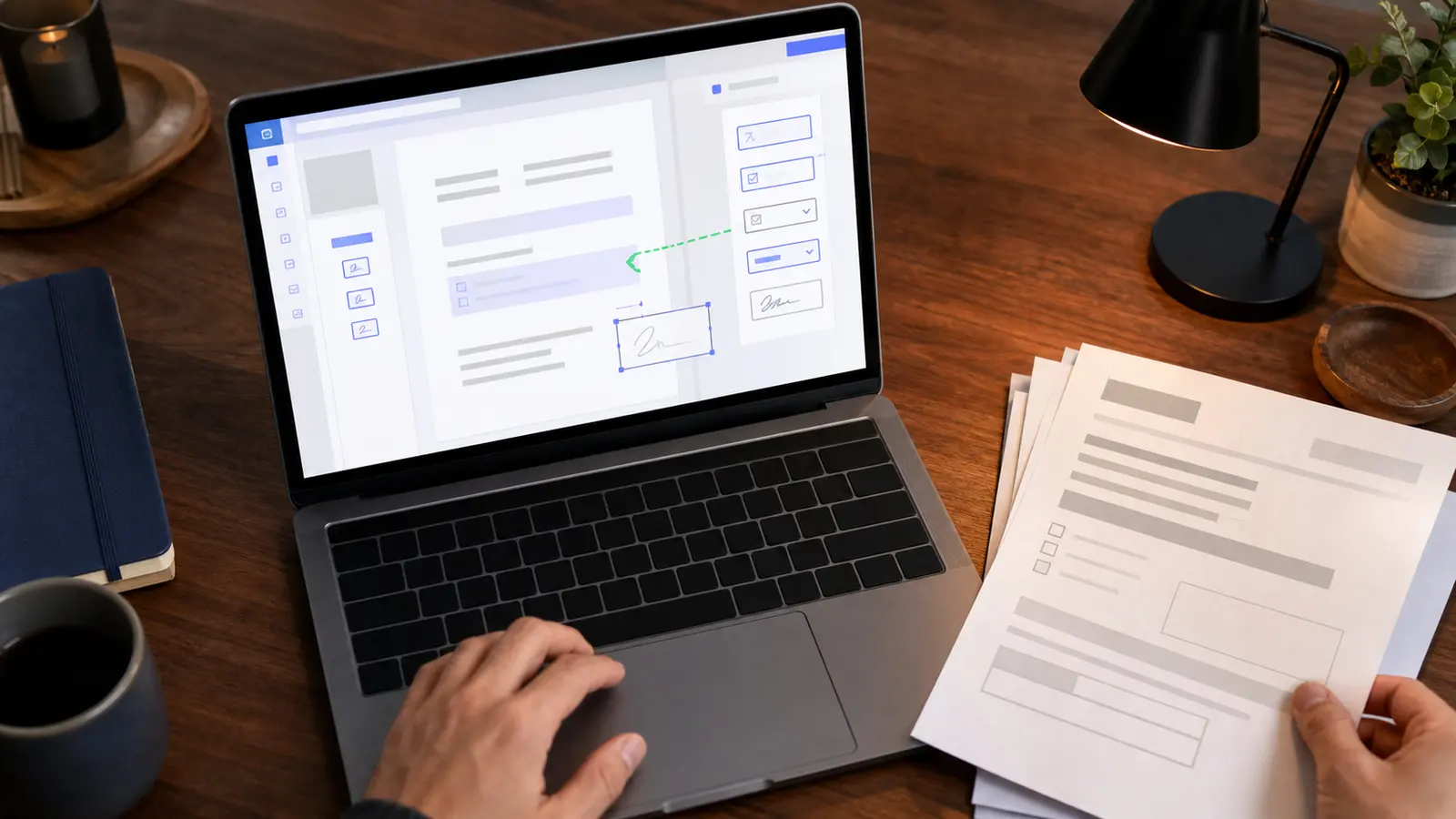
A fillable PDF is a PDF that contains interactive form fields — text boxes, checkboxes, radio buttons, dropdowns, signature fields — defined by the AcroForm specification (ISO 32000-2:2020, Part 12). When you open the file in any compliant reader (Acrobat Reader, Preview, Chrome, Firefox), those fields accept input, validate it, and let you save or export the data.
This is different from a flat PDF (a scan, an export from Word) where text is part of the page image. Flat PDFs can be filled by overlaying text — that's what most "fill PDF online" tools do — but they aren't true fillable forms until you add AcroForm fields.
The job-to-be-done splits in three:
- Convert an existing flat PDF into a fillable one (most common — HR, admin, legal templates already exist as flat PDFs).
- Build a fillable PDF from scratch (rare — usually faster to start from a Word doc and export).
- Fill a fillable PDF that someone sent you (just open it in any reader; no creator needed).
The rest of this guide focuses on the first two.
Method 1 — Adobe Acrobat Pro
Direct answer: Adobe Acrobat Pro is the reference implementation of AcroForm. It is a paid subscription, and it covers the parts of ISO 32000-2 that most alternatives leave out: JavaScript actions, calculated fields, and digital signatures with EU eIDAS-qualified certificates.
The workflow: open any PDF, click Tools → Prepare Form, and Acrobat auto-detects fields based on visual cues (lines, boxes, labels). You can then drag-and-drop any field type, add validation rules, and distribute via Adobe Sign.
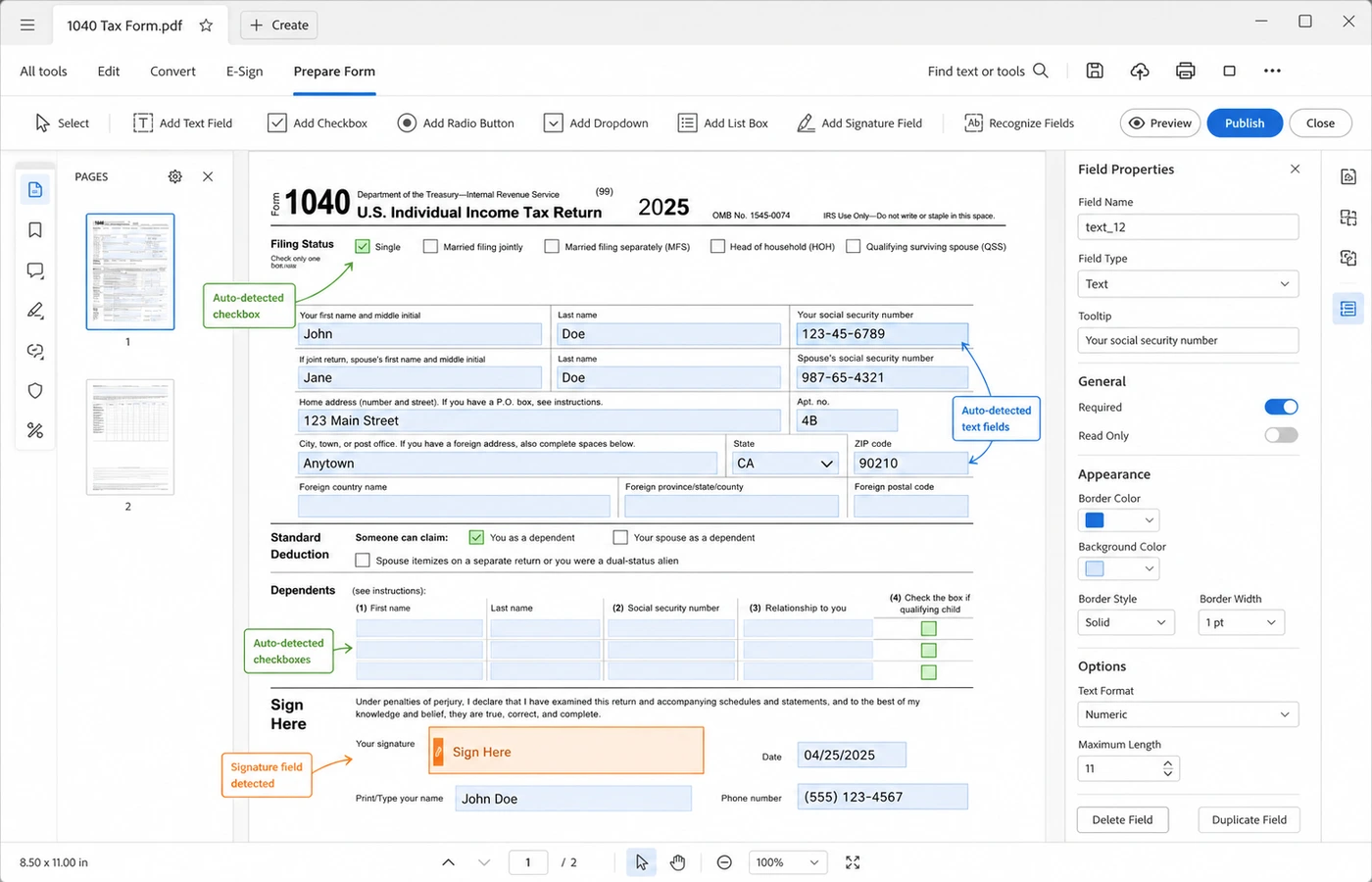
When to use it: large enterprise, finance, government, anything that requires JavaScript validation, calculated fields (totals, tax math), or qualified digital signatures.
When to skip it: if your only need is "convert this PDF into something my customers can fill and sign", a full Acrobat subscription is overkill — see Methods 2 and 3.
Method 2 — Free online builders (Jotform, iFillPDF, DocFly, PDFescape)
Direct answer: Six free or freemium online tools cover most fillable-PDF needs in 2026 with no install. Here's how they compare on the criteria that actually matter:
| Tool | Free tier | No signup | AI auto-detect fields | Signature field | Distribution link | EU hosting |
|---|---|---|---|---|---|---|
| iFillPDF | Yes (watermark on export) | Partial (account to download) | Yes | Yes | Yes | Yes (Frankfurt) |
| Jotform | 5 forms / 100 submissions | No | No | Yes | Yes | Optional (paid) |
| DocFly | 3 docs / month | No | No | Yes | No | No (US) |
| PDFescape | 10 MB / 100 pages | Yes | No | Partial | No | No (US) |
| Sejda | 3 tasks / hour | Yes | No | Yes | No | No (US) |
| PDF24 | Unlimited | Yes | No | Partial | No | Yes (Germany) |
How to choose in 30 seconds:
- You need it once, no signup, EU privacy → iFillPDF or PDF24.
- You need recurring submissions and analytics → Jotform.
- You need to ship it to a non-technical client to sign → iFillPDF (shareable signing link, no account needed on their side).
- You need a basic field-by-field builder for a one-off → Sejda or DocFly.
Method 3 — AI auto-detect from existing PDF
Direct answer: This is the 2026 shortcut. Instead of manually placing 40 text boxes on a 4-page form, you upload the flat PDF and an AI model scans the document, identifies labels (Name, Date of birth, Signature), draws field boundaries, and outputs a true AcroForm PDF. iFillPDF does this in a single pass on a typical 1–4 page form; the analysis runs on EU servers and your document is never used to train models.
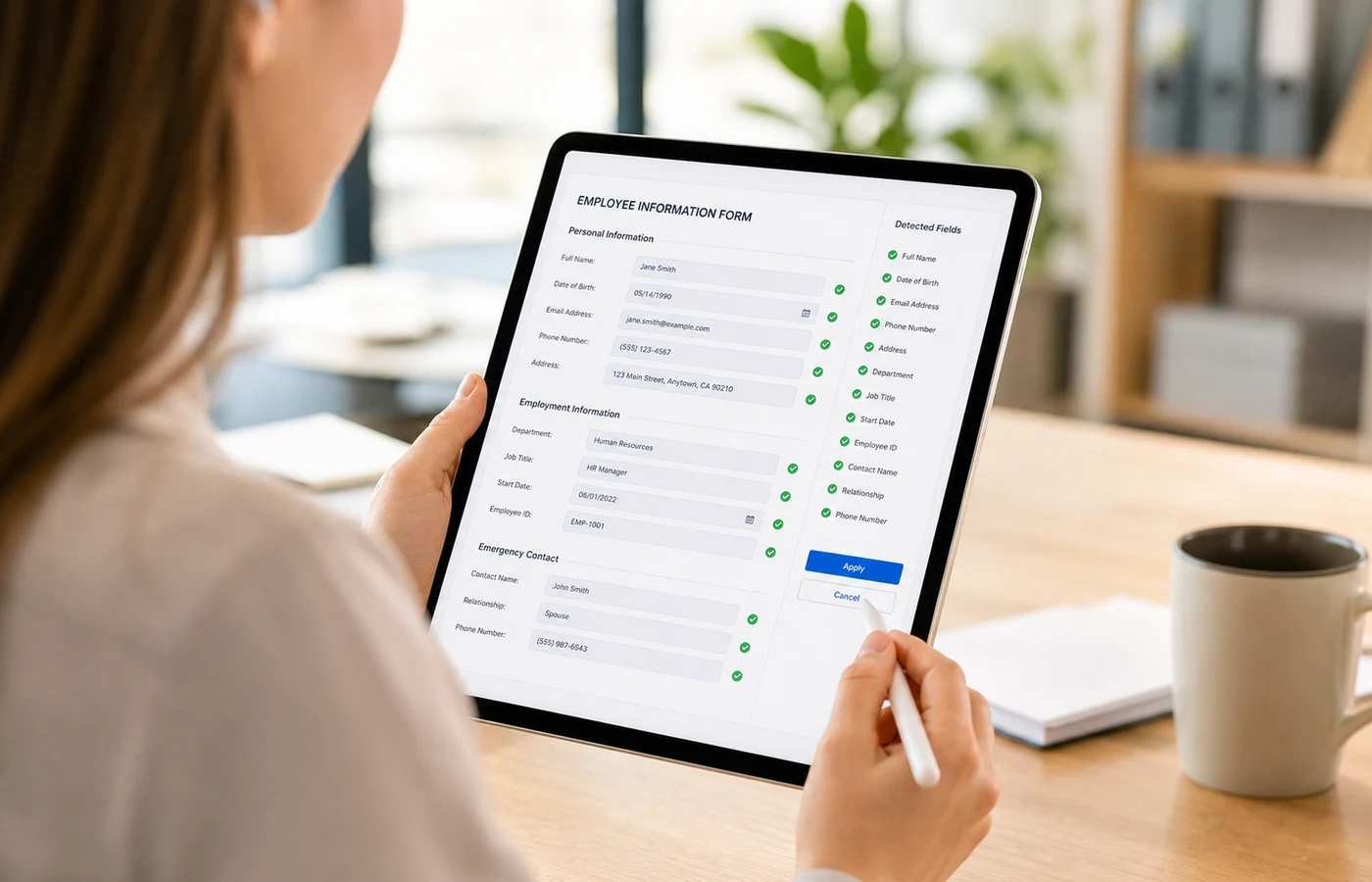
The workflow on iFillPDF:
- Drop your flat PDF on the homepage — no account needed to start.
- AI scans labels and infers field types — text, date, checkbox, signature.
- Review and adjust in the visual editor (rare for clean PDFs).
- Sign in (free) to download the fillable PDF, or copy a shareable signing link to send to a client.
This works because modern vision-language models trained on form layouts identify labels reliably on cleanly typeset documents. Hand-drawn or poorly scanned forms still need manual cleanup. For a deeper dive on the editing side, see our edit-PDF guide; if you only need to fill a form someone sent you, jump straight to fill PDF.
Distribute your fillable PDF
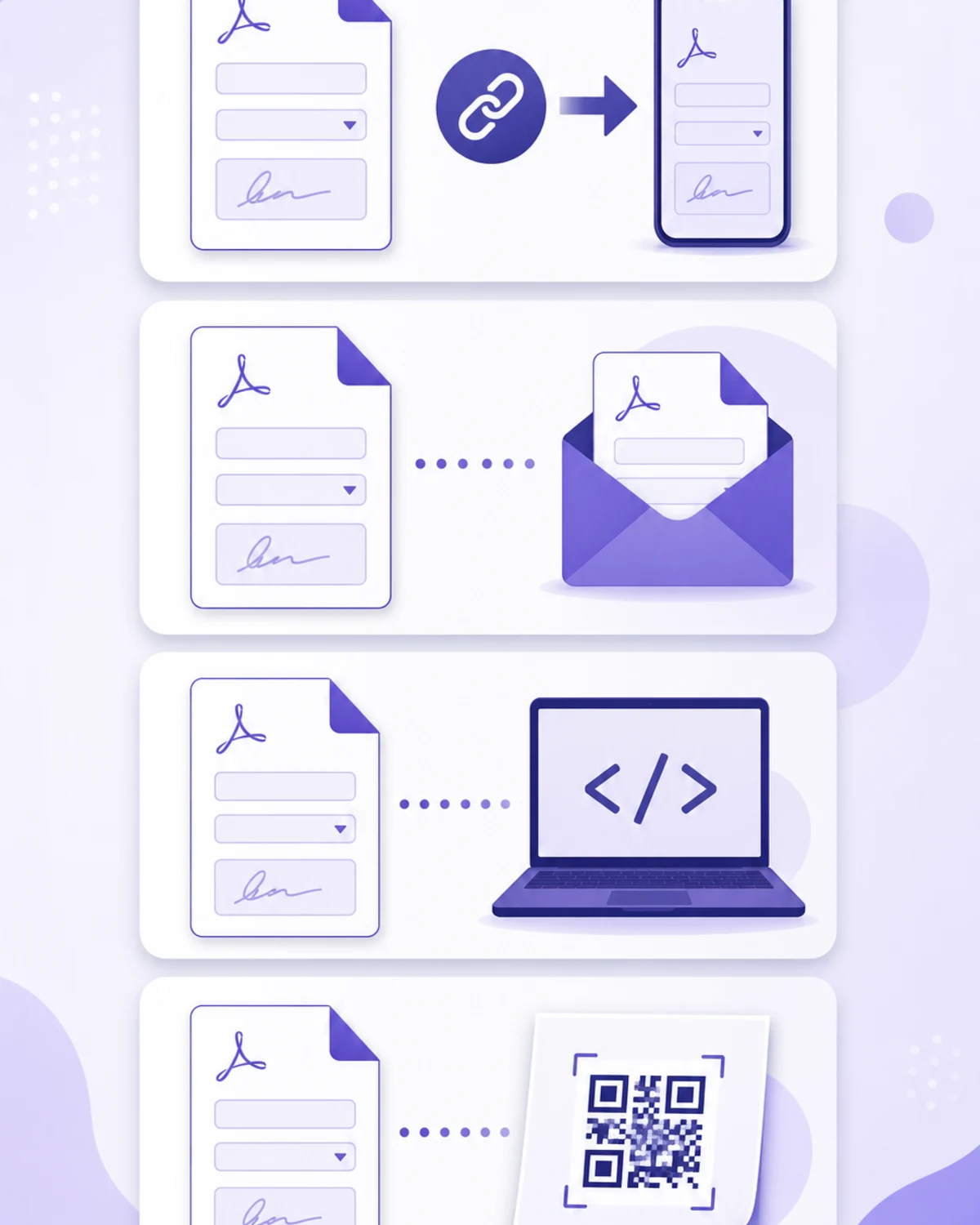
Once your form has AcroForm fields, distribution decides whether respondents actually complete it. Four common methods, ranked by friction:
- Shareable link — you send a URL, the recipient fills and signs in the browser, you receive the completed PDF. Lowest friction. Available on iFillPDF, Jotform.
- Email attachment — send the PDF, recipient opens in Acrobat Reader, fills, saves, sends back. Works everywhere but breaks on mobile if the reader app doesn't support AcroForm (rare in 2026).
- Embed on your website —
<iframe>an interactive PDF or use a form-as-a-service embed. Good for repeat submissions (job applications, support requests). - QR code — print on a flyer or at point-of-sale, scan opens the form on mobile. Useful for in-person events.
For multi-document workflows (merging several forms before sending, adding a signature page at the end), chain the steps in iFillPDF without leaving the browser.
FAQ
Is there a free fillable PDF creator with no signup? Yes. PDF24, Sejda and PDFescape all let you create or convert fillable PDFs without an account, each within its own size caps. On iFillPDF you build the form without an account and sign in — free — only when you download the result. PDF24 (German hosting) is the option with no per-file cap.
What is the difference between a fillable PDF and a Word form? A Word form (.docx with form controls) only opens correctly in Microsoft Word — it breaks in Pages, Google Docs, and on most mobile devices. A fillable PDF (AcroForm) opens identically in any compliant reader: Acrobat, Preview, Chrome, Firefox, mobile browsers. PDFs are also tamper-evident when signed; Word forms aren't.
How do I add a signature field to a PDF? In Adobe Acrobat Pro: Prepare Form → Add Signature Field. In iFillPDF: open the form editor, click "Add field" → "Signature". The field accepts drawn, typed, or uploaded signatures, and the resulting PDF embeds the signature with a timestamp. For eIDAS-qualified signatures, you need a certificate from a trusted EU provider.
How do I distribute a fillable PDF to clients? The lowest-friction method in 2026 is a shareable link: your client clicks, fills in the browser, signs, and you receive the completed PDF by email or webhook. iFillPDF and Jotform both support this. Avoid sending the PDF as an attachment if your client is on mobile and doesn't have a PDF editor installed.
What are the best mobile fillable PDF apps? Adobe Acrobat Reader (iOS/Android) reads and fills any AcroForm PDF for free; signing requires a paid Acrobat subscription. For creation on mobile, Jotform Mobile Forms and iFillPDF (mobile web) cover the basics. Native iOS Files app and Preview on macOS also support AcroForm fields out of the box.
Ready to build your first fillable PDF?
Stop manually placing form fields. Drop your existing PDF on iFillPDF and let AI auto-detect every field in one pass — no account needed to build the form, EU Frankfurt hosting, no AI training on your documents. When the form is ready, copy a shareable signing link and send it to your client.
Create a fillable PDF for free →