TL;DR — Converting PDF to Excel is harder than it looks because scanned PDFs require OCR while native PDFs only need a parser; pick the wrong tool and your numbers, decimals and merged cells turn into garbage. We compare 5 methods (Microsoft Excel Power Query, online converters like iLovePDF/Smallpdf/iFillPDF, Adobe Acrobat Pro, Tabula CLI, and AI-powered table detection). The best tool depends on your PDF type — native digital exports work in any tool, but scanned bank statements and invoices need an OCR-enabled converter with proper table reconstruction.
Why PDF-to-Excel is harder than it looks
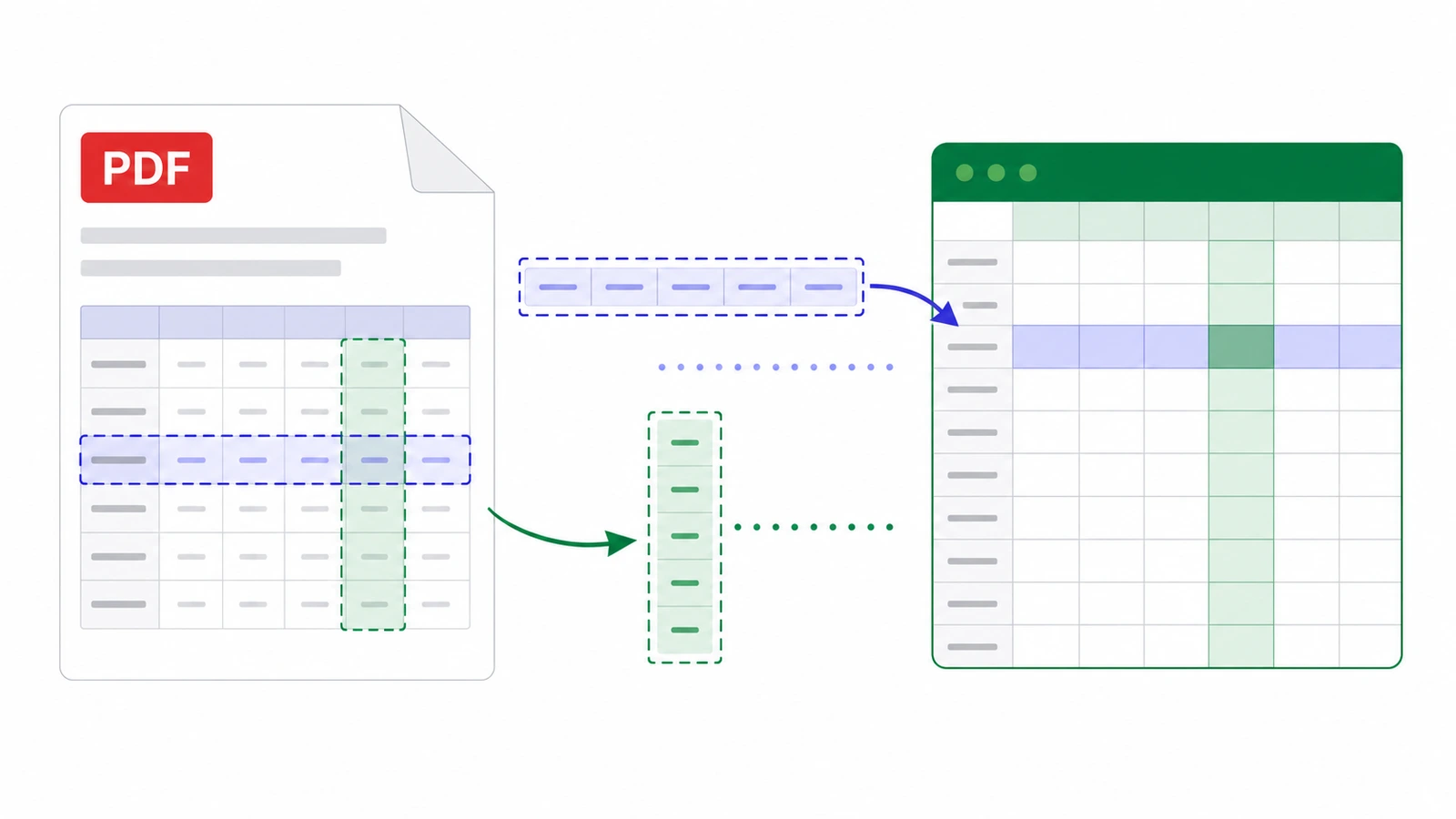
Most converters fail because PDF has no concept of "rows" or "columns" — it only has X/Y coordinates of text fragments. A converter must reverse-engineer the table structure from spatial positioning, then guess where cells start and end.
There are two completely different scenarios:
- Native (digital) PDFs — generated from Word, Excel, accounting software, or "Print to PDF". Text is selectable. Any decent converter can extract the table because the characters are already there.
- Scanned PDFs — pictures of paper documents (or photos taken by phone). Zero selectable text. You need OCR (Optical Character Recognition) to first transcribe the image into characters, then table detection to rebuild the grid.
If you try to convert a scanned bank statement with a non-OCR tool, you will get an empty spreadsheet or a single cell containing the entire page as one image. Always check whether your tool advertises OCR before paying for it.
Method 1 — Microsoft Excel direct import (Power Query)
Excel 2016+ has a built-in PDF importer via Power Query — free, offline, and effective on native PDFs with clean tables.
Steps: open Excel → Data tab → Get Data → From File → From PDF → select your PDF → the Navigator panel lists every detected table → preview and pick the ones you want → Load.
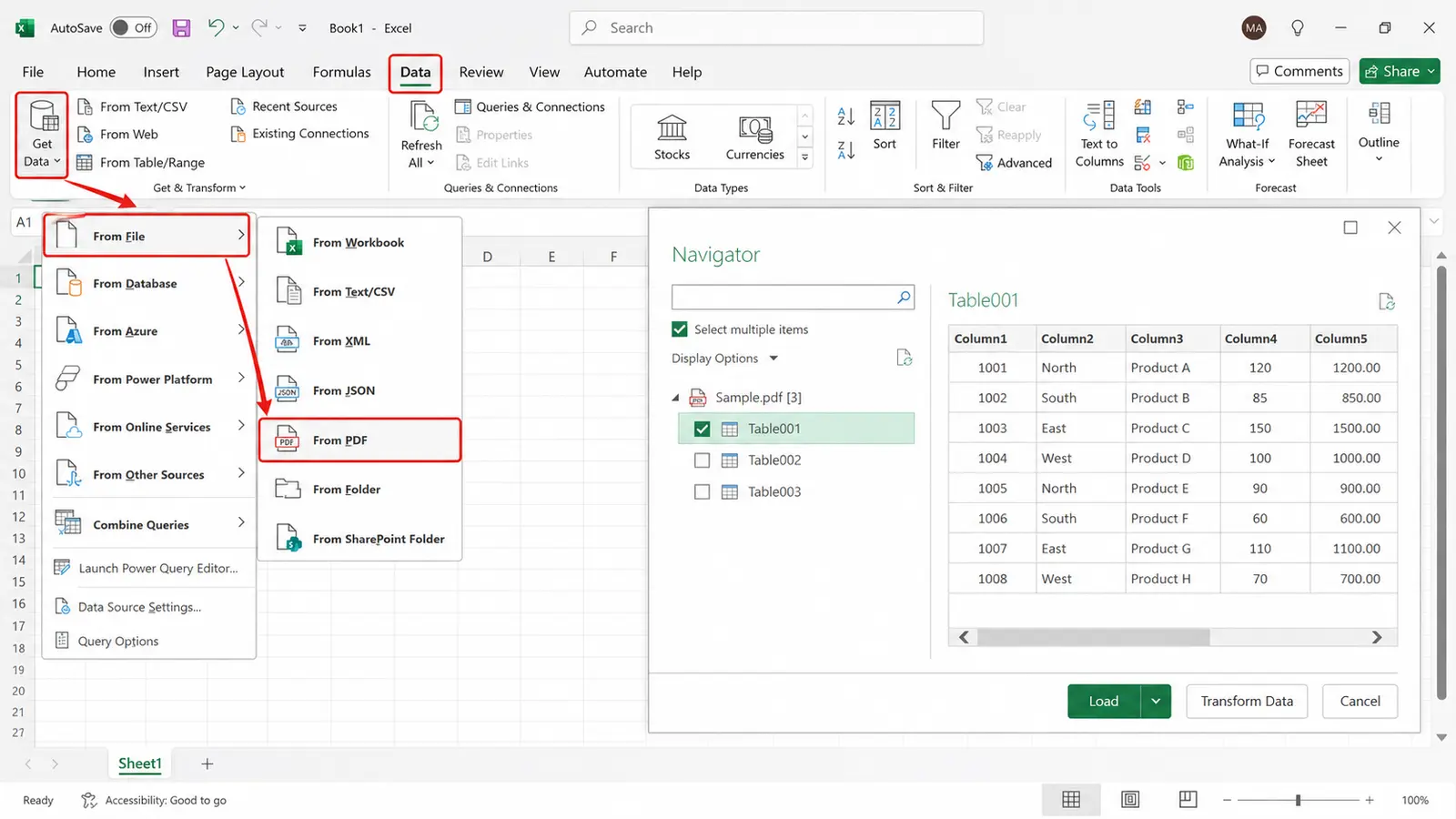
Pros: free with your Office license, no upload to a third-party server, refresh-on-update if the PDF changes. Cons: no OCR (fails on scans), and table detection struggles on complex layouts (merged cells, multi-line headers).
Method 2 — Online converters (iLovePDF, Smallpdf, iFillPDF)
Online tools are the fastest path for one-off conversions and the only realistic option for scanned PDFs without buying Adobe. Drag-and-drop your file, wait for the parse, download the .xlsx. Most offer OCR on paid tiers; a few include it free.
| Tool | Free tier | OCR for scans | Batch convert | Mobile | EU hosting |
|---|---|---|---|---|---|
| iFillPDF | Yes, free account (watermark on export) | Yes (AI table detection) | Yes | Yes | Yes (Frankfurt) |
| iLovePDF | Yes, limited | Premium only | Premium | Yes | Spain |
| Smallpdf | 2/day free | Premium only | Premium | Yes | Switzerland |
| Adobe Acrobat online | 1/day free | Yes | Premium | Yes | US/EU |
| CloudConvert | 25 min/day | Add-on credits | Yes | Yes | Germany |
| Nitro PDF | Yes, limited | Premium only | Premium | Partial | US |
Every cell above states a published capability, not a quality score: extraction quality varies far more with the source document than with the tool.
iFillPDF's PDF to Excel converter runs AI-based table detection that reconstructs merged cells and multi-line headers correctly, with OCR included on the free tier, a free account to download, and EU Frankfurt hosting for GDPR-sensitive data.
Method 3 — Adobe Acrobat Pro
Adobe Acrobat Pro is the most established option for complex documents, but it is a paid subscription that only makes sense if you convert PDFs regularly.
Open the PDF in Acrobat → right-side panel Export PDF → choose Spreadsheet → Microsoft Excel Workbook → click Convert. Acrobat detects tables, runs OCR automatically on scans (a paid feature called "Recognize Text"), and lets you export individual tables or the whole document.

Best for: accounting firms, financial analysts, anyone with a recurring batch of complex tabular PDFs (multi-page bank statements, audit reports, compliance documents).
Method 4 — Tabula (open-source CLI)
Tabula is a free, open-source command-line tool that extracts native PDF tables programmatically — a fit for developers building data pipelines.
Install via brew install tabula-java (Mac) or download the JAR from tabula.technology. Then:
java -jar tabula.jar -p all -o output.csv input.pdf
Flags worth knowing: -p all extracts every page, -a lets you specify a bounding box in points (-a top,left,bottom,right), -l forces lattice mode for tables with visible borders, -t forces stream mode for tables without borders. Output is CSV; open it in Excel or pipe it into pandas/R.
Limitations: no OCR (use Tesseract upstream for scanned PDFs), no GUI for non-developers, requires Java 8+.
Best practices for accurate conversion
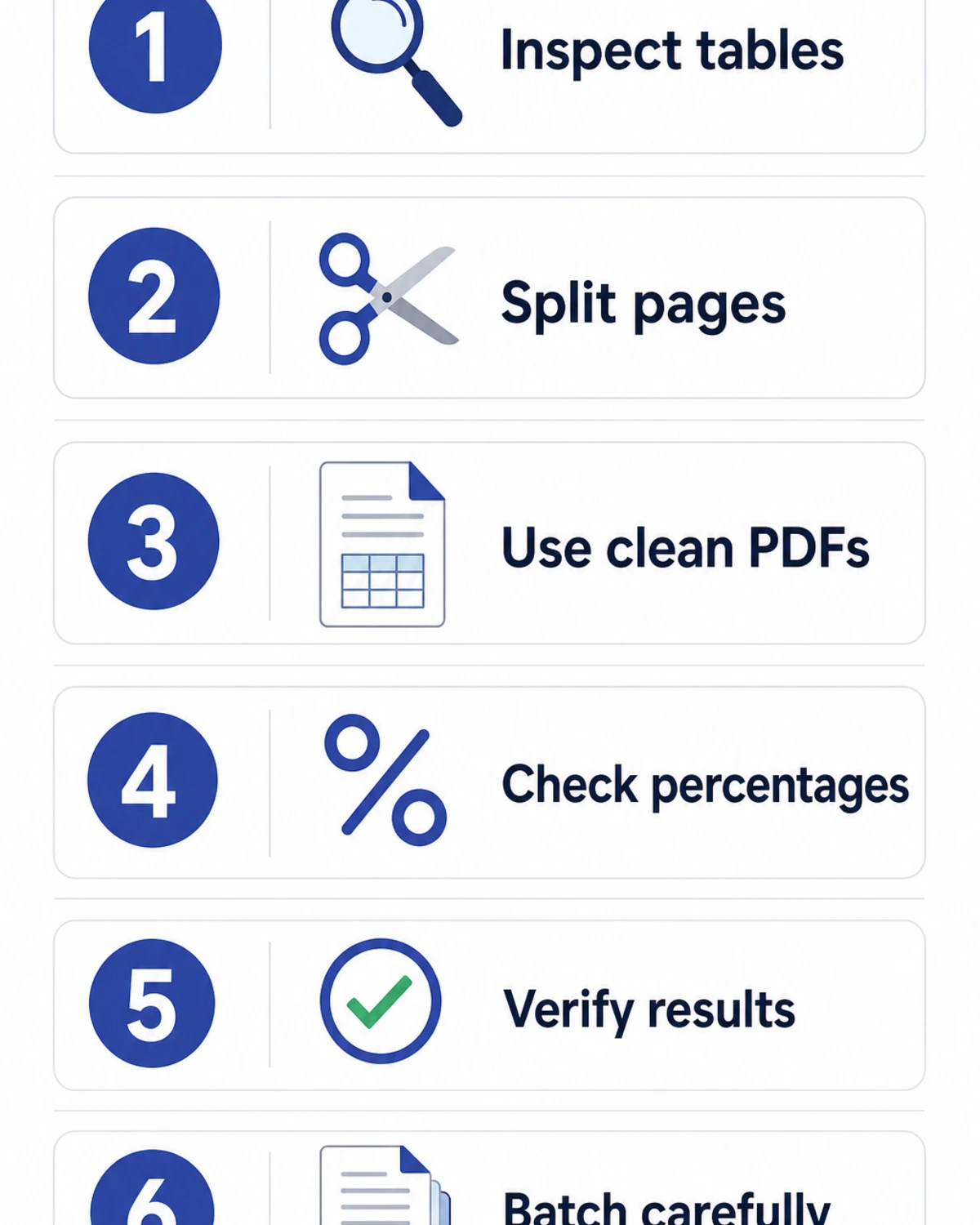
- Identify your PDF type first — open it and try to select text. If you can highlight characters, it's native. If your cursor draws a box, it's scanned and you need OCR.
- Crop before converting — if your PDF has logos, footers or repeated headers on every page, crop them out first with a PDF editor. Less noise = better table detection.
- One table per page works best — multi-table pages confuse most converters. Split if you can.
- Check decimal separators — European PDFs use
1.234,56and American ones use1,234.56. Wrong locale = numbers parsed as text. Set Excel's regional settings to match your source. - Verify totals — always sum the first and last column after import and compare to the PDF. If totals don't match, OCR misread digits (common: 0/O, 1/l, 5/S, 8/B).
- Batch large jobs — for 10+ files, use a tool with batch upload (iFillPDF, CloudConvert, Adobe Pro) instead of converting one-by-one.
FAQ
How do I convert a bank statement PDF to Excel? If your bank statement is downloaded directly from your online banking portal, it's a native PDF — open it in Excel via Data > Get Data > From PDF (Power Query) or upload to iFillPDF's PDF to Excel tool. If it's a scanned paper statement, you need OCR — Adobe Acrobat Pro or iFillPDF (free OCR) will work. Always verify the closing balance matches after conversion.
How do I convert a PDF table to Excel without losing the format? Use a tool that preserves table structure (merged cells, multi-line headers, alignment). iFillPDF's AI table detection and Adobe Acrobat Pro both reconstruct merged cells correctly. Power Query in Excel handles simple tables well but flattens merged cells into the top-left value. After conversion, fix decimal separators (Excel Data > Text to Columns) and apply number formatting.
Can I OCR a scanned PDF and convert it to Excel in one step? Yes — modern converters do both at once. iFillPDF runs OCR automatically on detected scanned pages before extracting tables. Adobe Acrobat Pro does the same via "Recognize Text". For higher accuracy on poor-quality scans, OCR the PDF first (saving an OCR'd version), then convert to Excel — this lets you proofread the text before table extraction amplifies any errors.
How do I batch convert multiple PDFs to Excel?
Use a tool with multi-file upload. iFillPDF supports batch convert on the free tier, CloudConvert offers it within their daily quota, and Adobe Acrobat Pro has Action Wizard for desktop batch jobs. For 100+ files, script it with Tabula (for f in *.pdf; do java -jar tabula.jar -o "${f%.pdf}.csv" "$f"; done).
Free vs paid PDF to Excel converters — what's the real difference? Free tiers usually cap file size and daily volume, and lock OCR behind a paywall. Paid plans unlock unlimited conversions, OCR for scans, batch processing and priority queues. iFillPDF is one of the few that offers OCR and batch on the free tier — free account, EU-hosted, with a small watermark on free exports. If you convert several PDFs a week, a paid plan is worth the time it saves.
Convert your first PDF to Excel in 30 seconds
Skip the comparison shopping — drag your PDF onto iFillPDF's PDF to Excel converter, wait a few seconds, and download a clean .xlsx with table structure preserved. Free with an account, OCR included for scans, EU-hosted. Need to go the other way? Try PDF to Word, fill a PDF form, or add a signature.