TL;DR — Five reliable ways to extract pages from a PDF: Chrome's print-to-PDF, macOS Preview, online tools (iFillPDF, Smallpdf, iLovePDF, Sejda), the qpdf command line, and Adobe Acrobat Pro. "Extract" means copying selected pages into a new PDF while leaving the original intact — different from "split", which divides one file into several. Pick the browser for 1-3 pages, an online tool for batch jobs or page-range syntax like 3,5,7-10, and qpdf if you're a developer scripting it.
Extract vs split: what's the difference
Extracting copies one or more chosen pages into a new PDF and leaves the original file unchanged. Splitting takes a single PDF and divides it into multiple files, usually one per page or per range. If you only need pages 5 to 8 from a 200-page contract, you want extraction. If you need to break a 50-page report into 50 individual files, you want splitting. Most online tools combine the two under the same UI, but the intent matters because the output differs: extraction = one new file, split = many files. If you need the latter, jump to our split PDF guide.
Method 1 — Chrome print-to-PDF (page range)
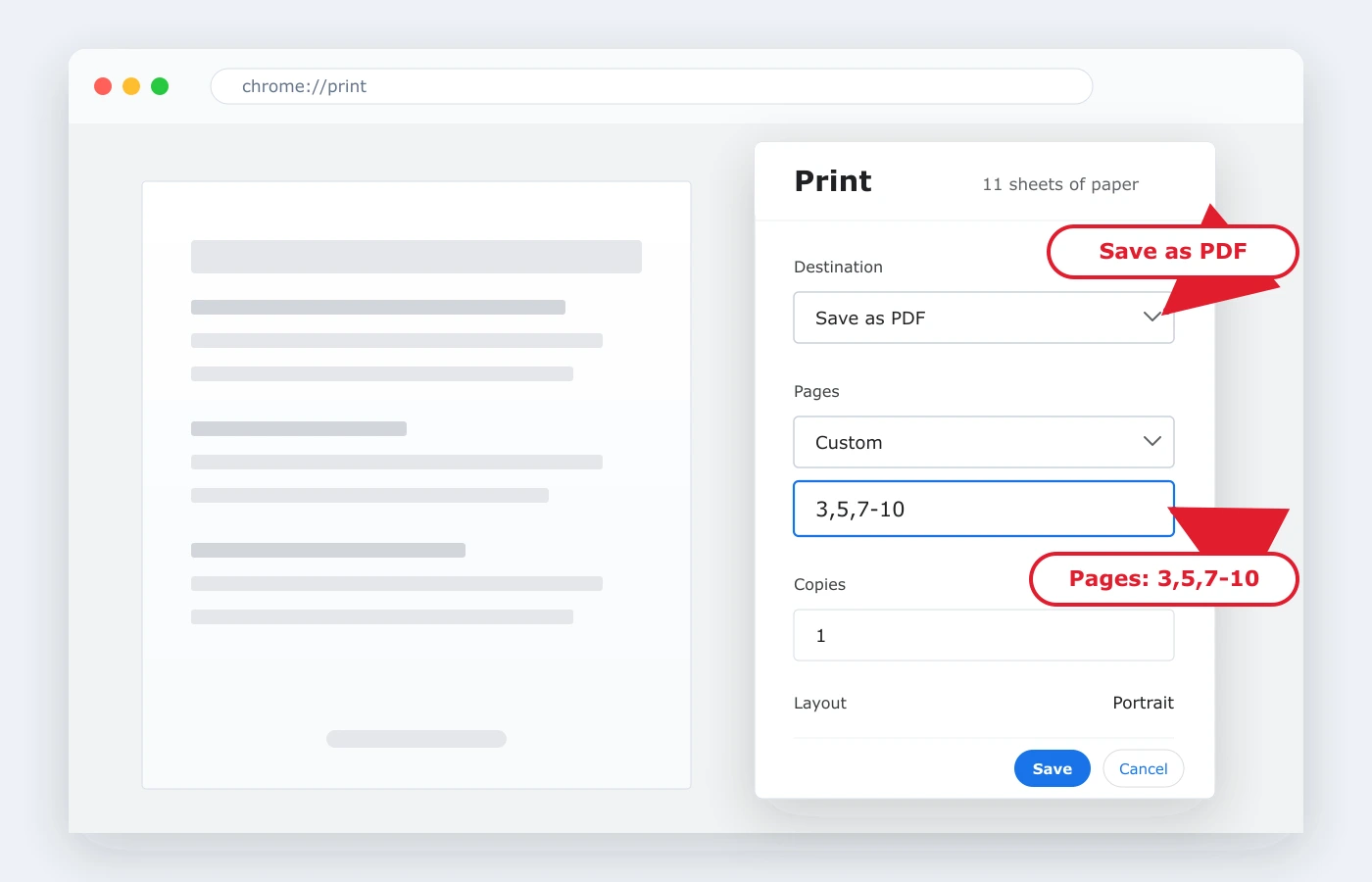
Open the PDF in Chrome (drag the file into a tab), press Ctrl+P (or Cmd+P on Mac), set Destination to Save as PDF, then in the Pages field type a range like 3-7 or a custom selection like 1,4,9-12. Click Save. That's it — no extension, no upload, no account. The file stays on your machine. The downside: Chrome flattens form fields and may reduce text crispness for scanned PDFs, so don't use this if the original contains fillable forms you want to preserve. For form work, use iFillPDF's fill PDF tool instead.
Method 2 — Mac Preview
On macOS, open the PDF in Preview, show the sidebar (View > Thumbnails), then Cmd+click to select the pages you want. Open the Tools menu, choose Show Sidebar if not already visible, then drag the selected thumbnails out of the sidebar onto your Desktop — Preview creates a new PDF containing only those pages. Alternative: select the pages, choose File > Print, then in the print dialog click the PDF dropdown at the bottom-left and pick Save as PDF. Preview preserves form fields and signatures better than Chrome's print engine, which makes it the best macOS-native choice for legal or scanned documents.
Method 3 — Online tools (iFillPDF, Smallpdf, iLovePDF, Sejda)
When you need a precise page-range syntax, batch processing across multiple files, or extraction on a phone, an online tool wins. Drag the PDF in, type the range you want (most accept syntax like 3,5,7-10), and download the new PDF. Below is a side-by-side comparison of six widely used tools on the features that decide the job.
| Tool | Free tier | Page-range syntax | Batch (multi-file) | Mobile-friendly | EU hosting | Signup required |
|---|---|---|---|---|---|---|
| iFillPDF | Unlimited | Yes (e.g. 3,5,7-10) |
One file at a time | Yes | Yes (Frankfurt) | No |
| Smallpdf | Capped free tier | Click thumbnails | Paid tier | Yes | Switzerland | For Pro |
| iLovePDF | Limited | Range slider | Yes | Yes | Spain | Optional |
| Sejda | Capped free tier | Yes (typed) | Yes | Limited | Belgium | No |
| PDF24 | Unlimited | Click thumbnails | Yes | Yes | Germany | No |
| Adobe online | Capped free tier | Click thumbnails | Paid tier | Yes | US | Yes |
iFillPDF processes files client-side in your browser — your PDF never leaves your machine even though the page is served from the cloud, and a very large file simply takes longer because the work happens on your own hardware. You also get a live preview as you type the range, so you can verify you're keeping the right pages before downloading.

Method 4 — qpdf CLI
For developers, system admins, or anyone scripting PDF workflows, qpdf is the cleanest option. Install it via Homebrew (brew install qpdf), apt (sudo apt install qpdf), or Chocolatey (choco install qpdf), then run:
qpdf --pages input.pdf 3,5,7-10 -- output.pdf
The double-dash -- is required and separates the page selection from the output file. You can chain multiple inputs (qpdf --pages file1.pdf 1-3 file2.pdf 5 -- merged.pdf), reverse pages with the r prefix (r1-r3 for the last three), or use z for the final page. qpdf is open source, scriptable, and never sends data anywhere — perfect for batch jobs, CI pipelines, or sensitive documents. Pair it with merge-pdf on the command line for a full local toolkit.
Method 5 — Adobe Acrobat Pro
If you already pay for Acrobat Pro, open the PDF, click Tools in the right rail, choose Organize Pages, then Extract. Select pages by clicking thumbnails or typing a range, decide whether to delete the extracted pages from the original or extract each as its own file, then click Extract. Acrobat preserves form fields, annotations, bookmarks, and digital signatures — which is why it remains the gold standard for legal and compliance work. For a one-off extraction, however, the subscription is hard to justify against the free options above.
Comparison: which method to pick
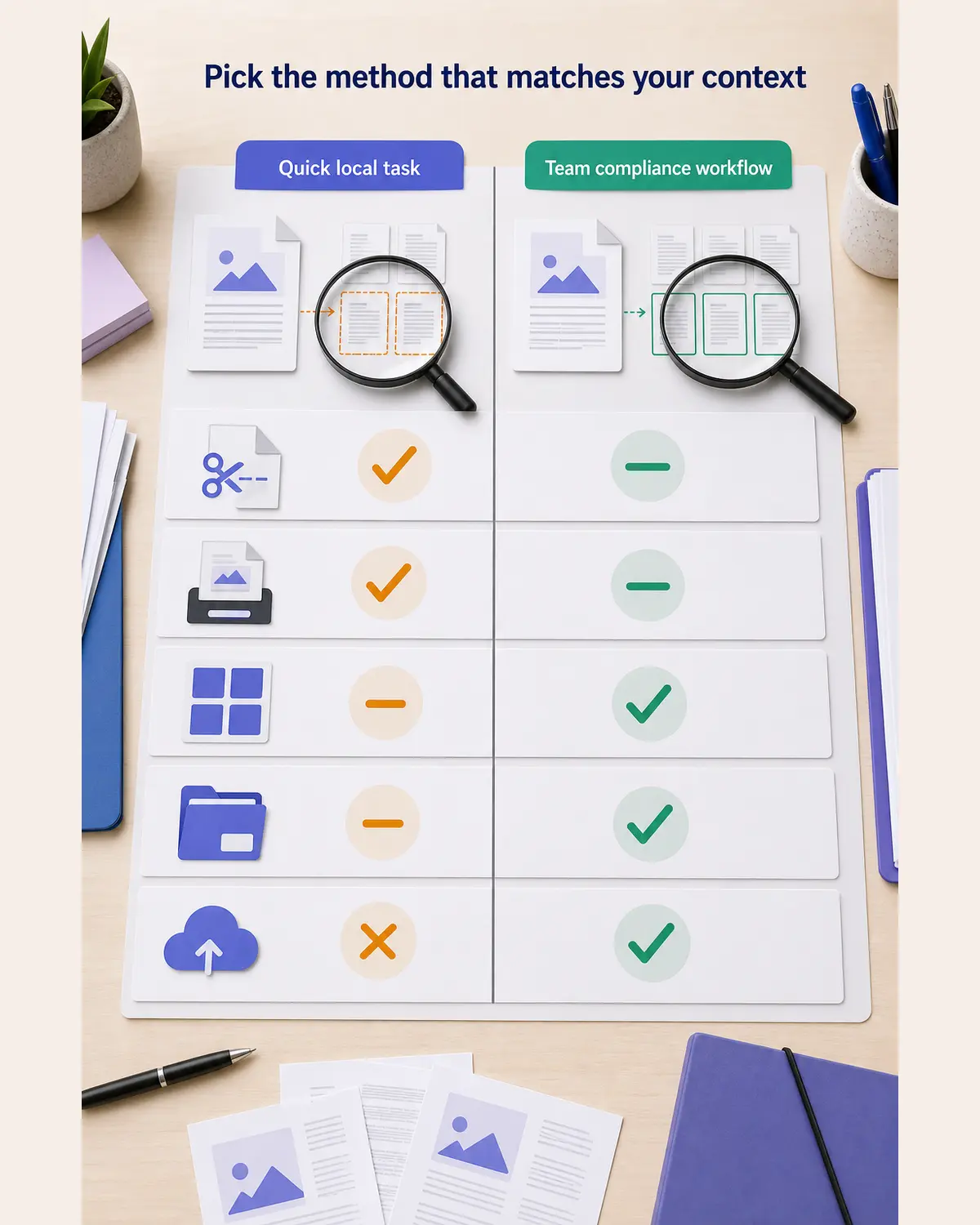
Quick decision rule: 1-3 pages, no forms involved → Chrome. macOS user with thumbnails to drag → Preview. Need a specific syntax like 3,5,7-10 or working from a phone → online tool (iFillPDF for client-side privacy). Scripting or batch automation → qpdf. Legal documents with signatures and form fields → Adobe Acrobat Pro.
FAQ
Can I extract pages from a PDF without Adobe?
Yes — the four other methods above (Chrome, macOS Preview, online tools, qpdf) all extract pages without needing Adobe Acrobat. Chrome and Preview are pre-installed on most machines, online tools work in any browser including mobile, and qpdf is free open source.
How do I extract a specific page range like 5-10?
In Chrome's print dialog, type 5-10 in the Pages field. In qpdf, run qpdf --pages input.pdf 5-10 -- output.pdf. On iFillPDF and Sejda, type the range directly. On iLovePDF and Smallpdf, drag the range slider or click thumbnails 5 through 10.
How do I extract a single page?
Same workflow as a range — just specify a single number. qpdf --pages input.pdf 7 -- output.pdf gives you only page 7. In Chrome's print dialog, type 7. On iFillPDF, type 7 in the pages-to-keep field and download the preview.
Can I extract pages from a PDF on iPhone? Yes. The native Files app lets you preview a PDF and tap the share icon to print, then pinch-out on the print preview to save selected pages as a new PDF. For more control, open the PDF in Safari and use a mobile-friendly online tool like iFillPDF or Sejda — both work from iOS without an app install.
What's the difference between extract and split? Extracting copies chosen pages into one new PDF and leaves the original alone. Splitting takes one PDF and produces multiple output files (often one per page or per range). Most tools blend both in their UI, but the output differs: extract = 1 new file, split = many files.
Ready to extract?
Drop your PDF into iFillPDF, type the page range you want (3,5,7-10 works), preview the result, and download in under 30 seconds. No signup, no upload to a third-party server, EU-hosted infrastructure. Then compress the result, sign it, or merge it with another file — all in the same browser tab.