TL;DR — Five free ways to delete pages from a PDF in 2026: (1) Chrome's print dialog with a page-range exclude trick, (2) macOS Preview sidebar drag-out, (3) an online tool like iFillPDF, Smallpdf, iLovePDF, PDF24 or Sejda, (4) the qpdf command-line for batch jobs, and (5) Adobe Acrobat Pro. For one-off cleanups choose Preview (Mac) or Chrome (Windows); for repeated jobs across many files use qpdf; for the best balance of speed, privacy and zero install, use a client-side online tool that accepts a typed page range like 4,9 or 1-3,7-12.
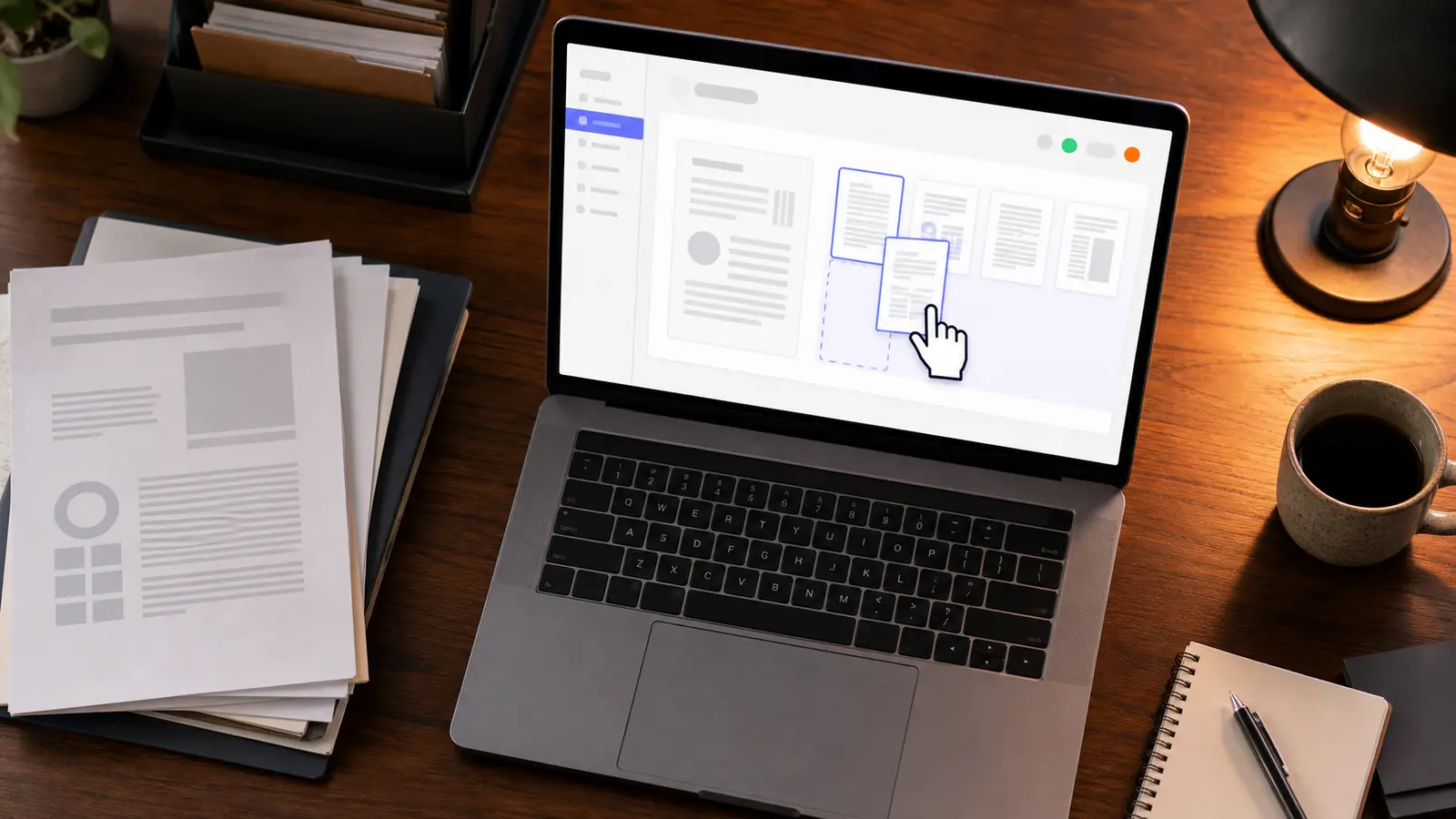
Delete vs extract: what's the difference
Deleting pages means you remove specific pages and keep the rest of the document intact (a 12-page contract minus pages 4 and 9 becomes a clean 10-page file). Extracting pages does the opposite: you save selected pages into a brand-new file while the original stays untouched. If you want to share only the signature page of a 200-page report, that's extraction (see our guide on extract pages from PDF). If you want to drop the blank scanner pages from an invoice batch, that's deletion. Most online tools support both — the button you click is the only difference.
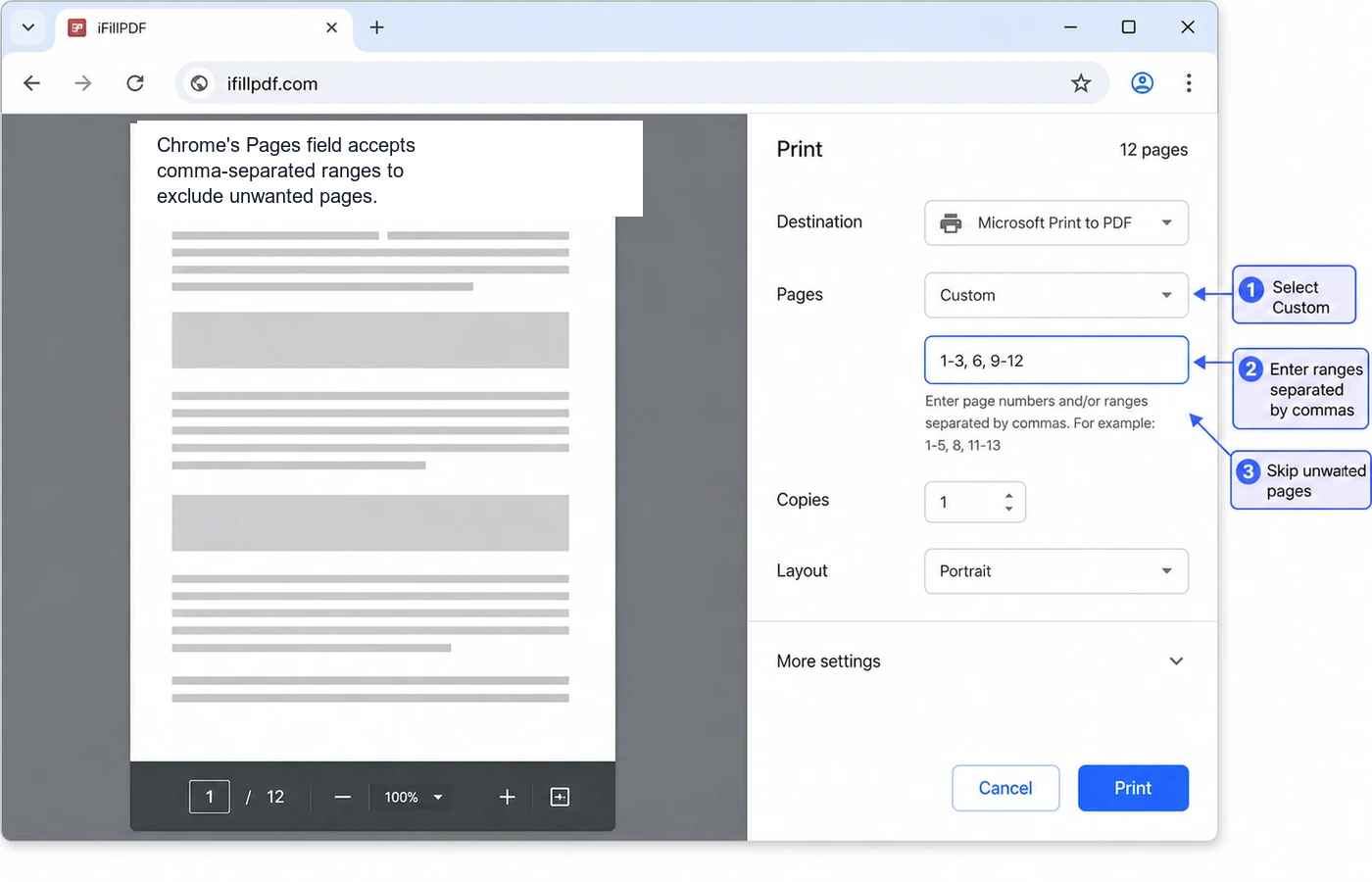
Method 1 — Chrome print-to-PDF (page-range exclude)
Open the PDF in Chrome, hit Ctrl+P (Cmd+P on Mac), set Destination to "Save as PDF" and use the Pages field to type the ranges you want to keep. To delete pages 4 and 9 from a 12-page file, type 1-3,5-8,10-12. Click Save and you get a fresh PDF without those pages. Works on every desktop OS and requires zero install; on very long documents the print preview is the part that gets slow. The only catch: form fields, annotations and digital signatures are flattened during the print, so use this for static documents only.
Method 2 — Mac Preview (sidebar drag-out)
Open the PDF in Preview, show the sidebar (View → Thumbnails or Cmd+Option+2), select the page thumbnails you want to remove, then press Delete. That's it — File → Save (or Cmd+S) writes the change back to the same file, or use File → Export as PDF to keep the original intact. Multi-select with Cmd-click for non-contiguous pages or Shift-click for ranges. Path: /Applications/Preview.app. Preview preserves form fields, annotations and most signatures, which makes it the cleanest free option on macOS.
Method 3 — Online tools (iFillPDF, Smallpdf, iLovePDF, PDF24, Sejda)
Drag your PDF into a browser-based tool, click the trash icon on the page thumbnails you want to remove, and download. The five most reliable options in 2026 are compared below. iFillPDF runs the deletion entirely in your browser (no upload needed) and takes a typed page range such as 4,9 or 1-3,7-12, with a live preview of what is left.
| Tool | Free | Page-range syntax | Batch | Mobile | EU hosting |
|---|---|---|---|---|---|
| iFillPDF | Unlimited | Yes (4,9 · 1-3,7-12) | One file at a time | Yes | Frankfurt |
| Smallpdf | Capped free tier | Click only | Paid tier | Yes | Switzerland |
| iLovePDF | Free tier | Click only | Yes | Yes | Spain |
| PDF24 | Unlimited | Yes | Yes | Limited | Germany |
| Sejda | Capped free tier | Yes (intervals) | Yes | Yes | Netherlands |
Signup is the other thing to check: iFillPDF, PDF24 and Sejda let you delete pages without creating an account; Smallpdf prompts for one after a couple of free actions; iLovePDF asks for sign-in beyond its daily quota.

Method 4 — qpdf CLI (advanced)
Install qpdf (brew install qpdf on Mac, apt install qpdf on Linux, Chocolatey on Windows) and run a single command to delete or keep arbitrary page ranges. The syntax is intentionally inverted — you specify the pages you want to keep, not delete:
qpdf --pages input.pdf 1-3,7-end -- output.pdf
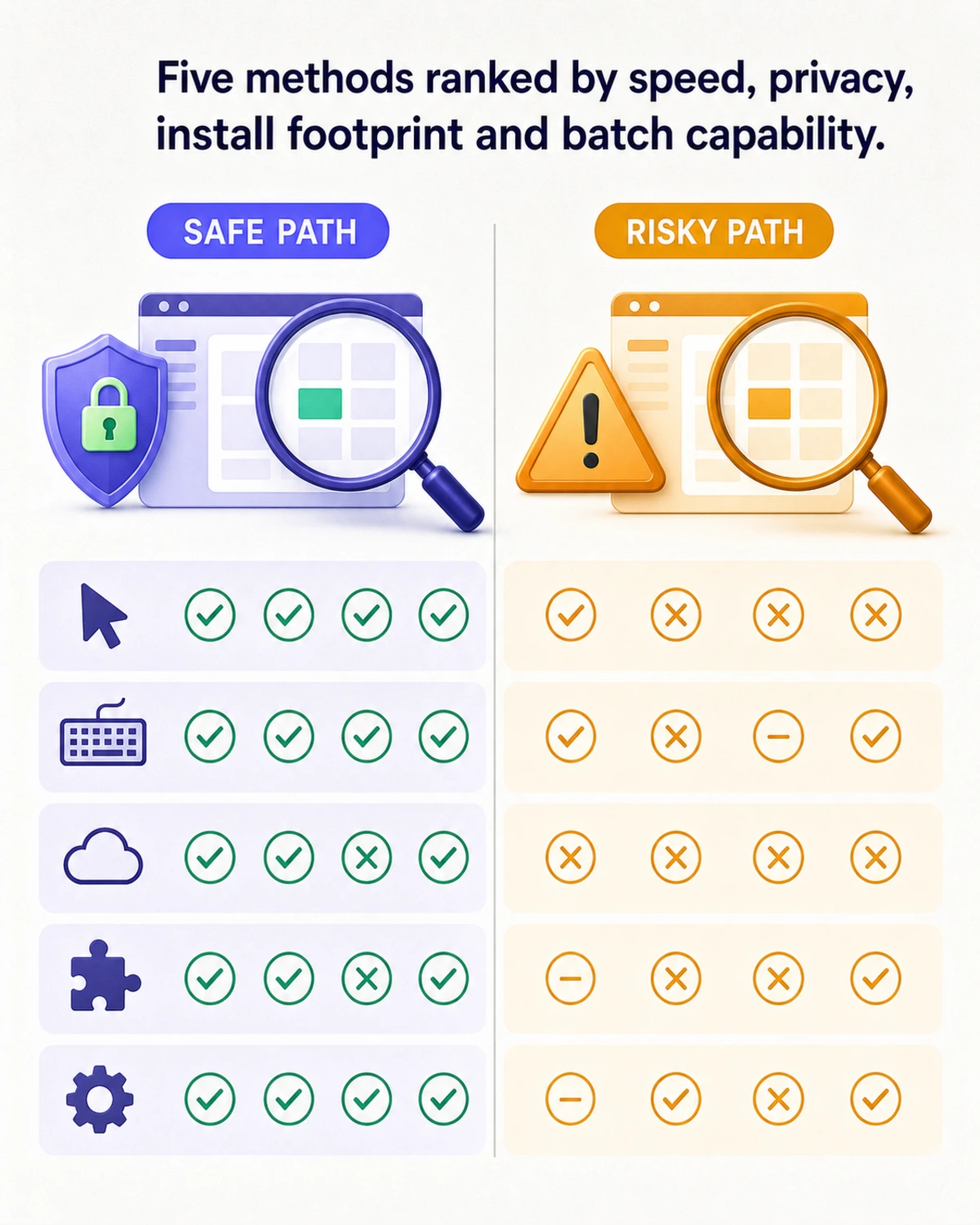
That command keeps pages 1-3 and 7 through the last page, effectively deleting pages 4-6. To process 200 invoices in one shot, wrap it in a shell loop: for f in *.pdf; do qpdf --pages "$f" 1-3,7-end -- "clean-$f"; done. qpdf preserves form fields, signatures and metadata exactly — it's the only free method that survives audit trails. Compare workflows side by side:
Method 5 — Adobe Acrobat Pro
Acrobat Pro DC opens any PDF and offers Tools → Organize Pages → Delete with a thumbnail grid. Click the page, hit the trash icon, save. It's the gold standard for documents with complex form fields, layered signatures or redactions, and it's the only option that natively edits incremental-save signed PDFs without breaking the signature chain. For one-off deletions Adobe is overkill; for legal teams handling certified documents daily it's still the safest path. Acrobat Standard also includes page deletion if you don't need OCR or advanced editing.
FAQ
Can I delete a page from a PDF without Adobe? Yes — Chrome's print dialog (Method 1), Mac Preview (Method 2) and any browser-based tool like iFillPDF split all delete pages for free with no Adobe install required.
What's the easiest free way to remove blank pages? Scan the thumbnails, note the page numbers that are blank, then type them as a range — in iFillPDF the preview updates as you type, so you can check the result before downloading. PDF24 offers an automatic blank-page detection if you would rather not look page by page. On a short file, a manual sweep in Mac Preview is just as fast.
How do I delete a page from a PDF on iPhone? Open the PDF in the Files app, tap the share icon, choose Markup, then tap the page thumbnail and select Delete. Recent iOS versions support this natively. For a typed page range instead of tap-by-tap, use iFillPDF in Safari — it works fully on mobile.
Can I batch-delete the same page across multiple PDFs? For several files at once, qpdf with a shell loop (Method 4) is the reliable route; PDF24 also offers a batch mode in the browser. Adobe Acrobat Pro's Actions wizard automates it for licensed users. Browser tools that take one file at a time — iFillPDF among them — mean repeating the same range file by file.
Can deleted pages be restored? Only if you kept the original file. PDF deletion rewrites the document structure and discards the removed page objects entirely. Always keep an untouched copy before processing — or use Preview's "Export as PDF" to write a new file rather than overwriting.
Pick the right method and ship faster
For a one-off cleanup on Mac, Preview wins. On Windows, Chrome's print dialog is the fastest zero-install path. For repeated jobs, automation, or signed documents, qpdf and Acrobat Pro are the durable choices. For everything in between — fast, free, no signup, typed page ranges like 1-3,7-12 and client-side processing — try iFillPDF's split tool, then chain it with merge, fill, sign or compress to finish your document workflow in one tab.