TL;DR — Flattening a PDF merges every interactive layer (form fields, annotations, signatures, comments, stamps) into the page itself, producing a static, read-only document that prints, archives and shares the same way on every viewer. The fastest free path is iFillPDF's editor: drag the file in, then export — there is no separate flatten button to hunt for, the export is flattened by default, EU-hosted (Frankfurt), and it keeps the text layer searchable instead of rasterising the page.
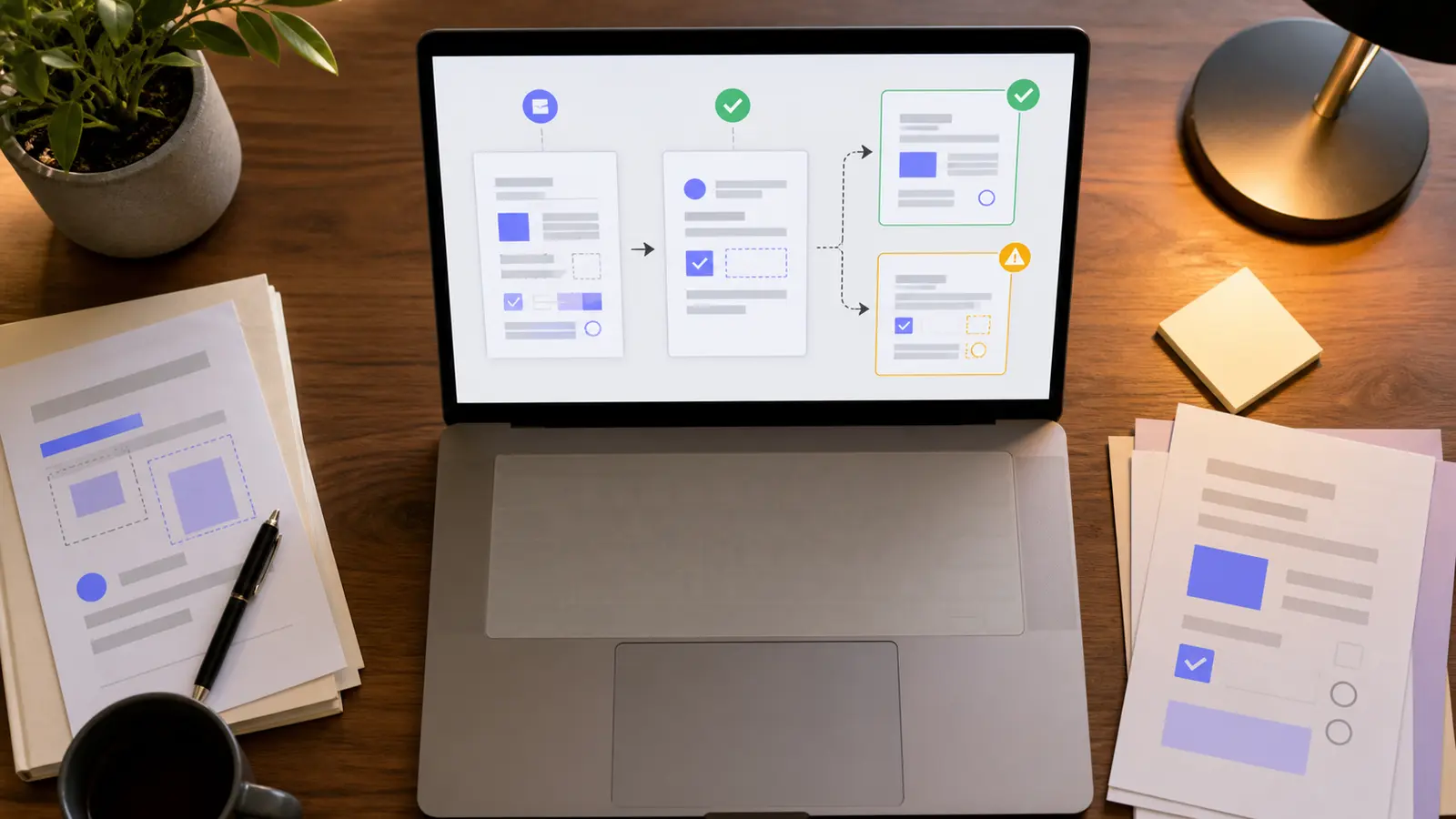
You filled a PDF, signed it, added a few sticky notes — and the recipient opens it to find empty fields or shifted text. That is the flattening problem. Until a PDF is flattened, every form field, annotation and signature is a separate object that any viewer can move, edit or accidentally clear. Below: what flattening actually does, when you need it, and the five fastest ways to do it in 2026 — from a browser tool to a one-line CLI for batch jobs.
What "flatten" really means (and why agencies require it)
A standard PDF is a stack of layers: the page content, an interactive form layer (AcroForm or XFA), an annotations layer (highlights, comments, stamps, freehand drawings) and often a digital signature layer. Flattening collapses all of those into the page graphics. Result: the visual stays identical, but nothing is editable any more — checkboxes can't be unchecked, text fields can't be retyped, signatures can't be removed.
Government agencies (NIH, USCIS, French CAF, Spanish SEPE), courts and most enterprise procurement portals reject non-flattened PDFs because interactive layers can render differently across Adobe Reader, Preview, Foxit and browser viewers — a checkbox marked "yes" in Acrobat may appear blank in Chrome. Flattening removes that ambiguity.
Common reasons to flatten:
- Submitting tax forms, visa applications, grant proposals (NIH explicitly requires flattened PDFs for Commons uploads).
- Sharing signed contracts where you want to prove the signature can't be silently swapped.
- Sending a filled form to a client who shouldn't be able to edit your answers.
- Printing — flattened PDFs print pixel-identical on every printer driver.
- Long-term archiving (PDF/A compliance often implies flattened content).
Method 1 — Online tools (fastest, no install)
Five widely used free online flatteners in 2026:
| Tool | Free limit | Signup | Processing | Keeps text searchable | Hosting |
|---|---|---|---|---|---|
| iFillPDF | Unlimited (watermark on free export) | Account to download | Server (EU) | Yes | EU — Frankfurt |
| Smallpdf | 2/day | No (limited) | Server | Yes | Switzerland |
| Sejda | 3 tasks/hour, 200 pages | No | Server (auto-deleted 2h) | Yes | US/EU |
| PDFescape | 10 MB / 100 pages | No | Server | Partial (rasterises forms) | US |
| PDF24 Tools | Unlimited | No | Server | Yes | Germany |
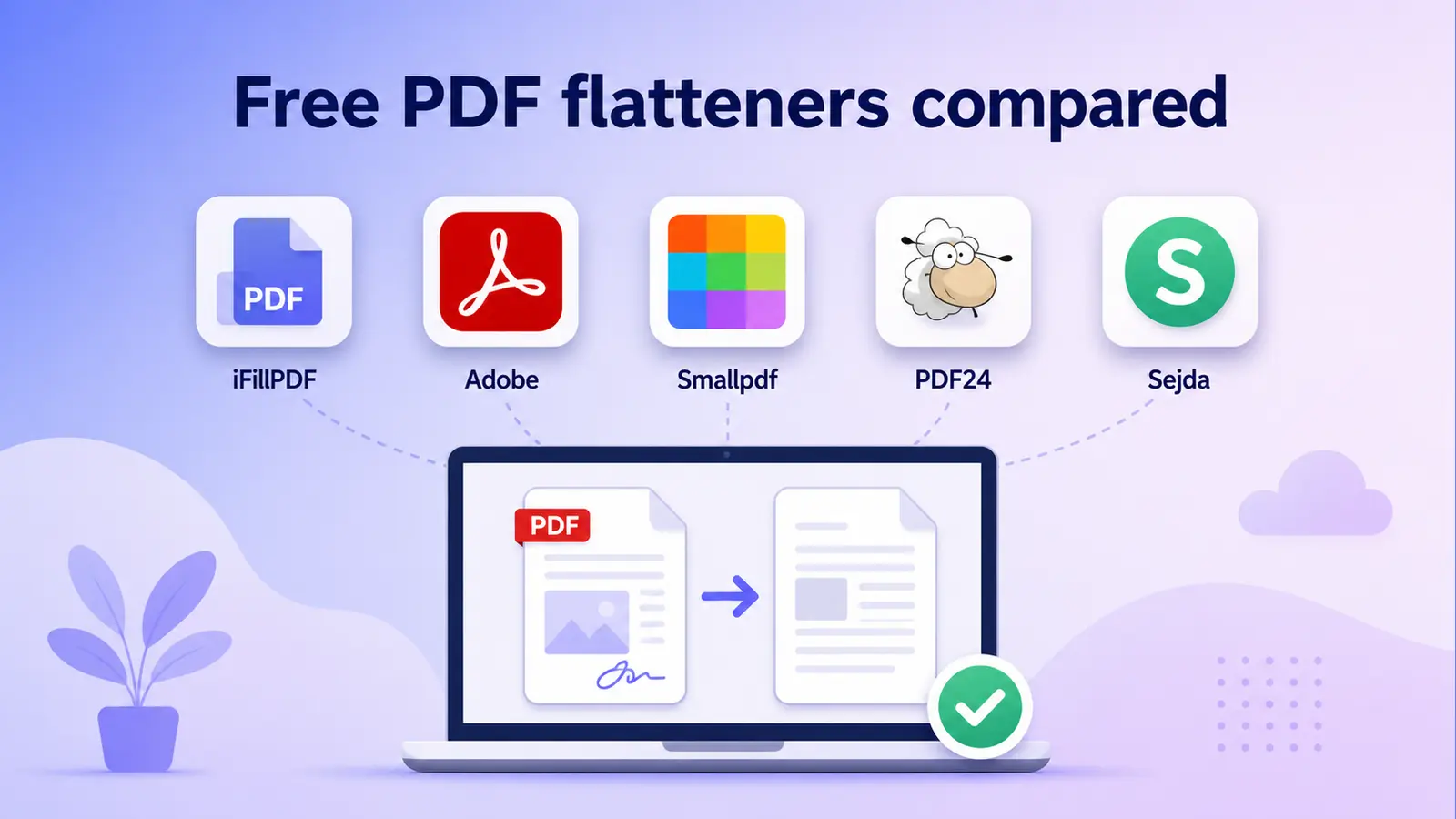
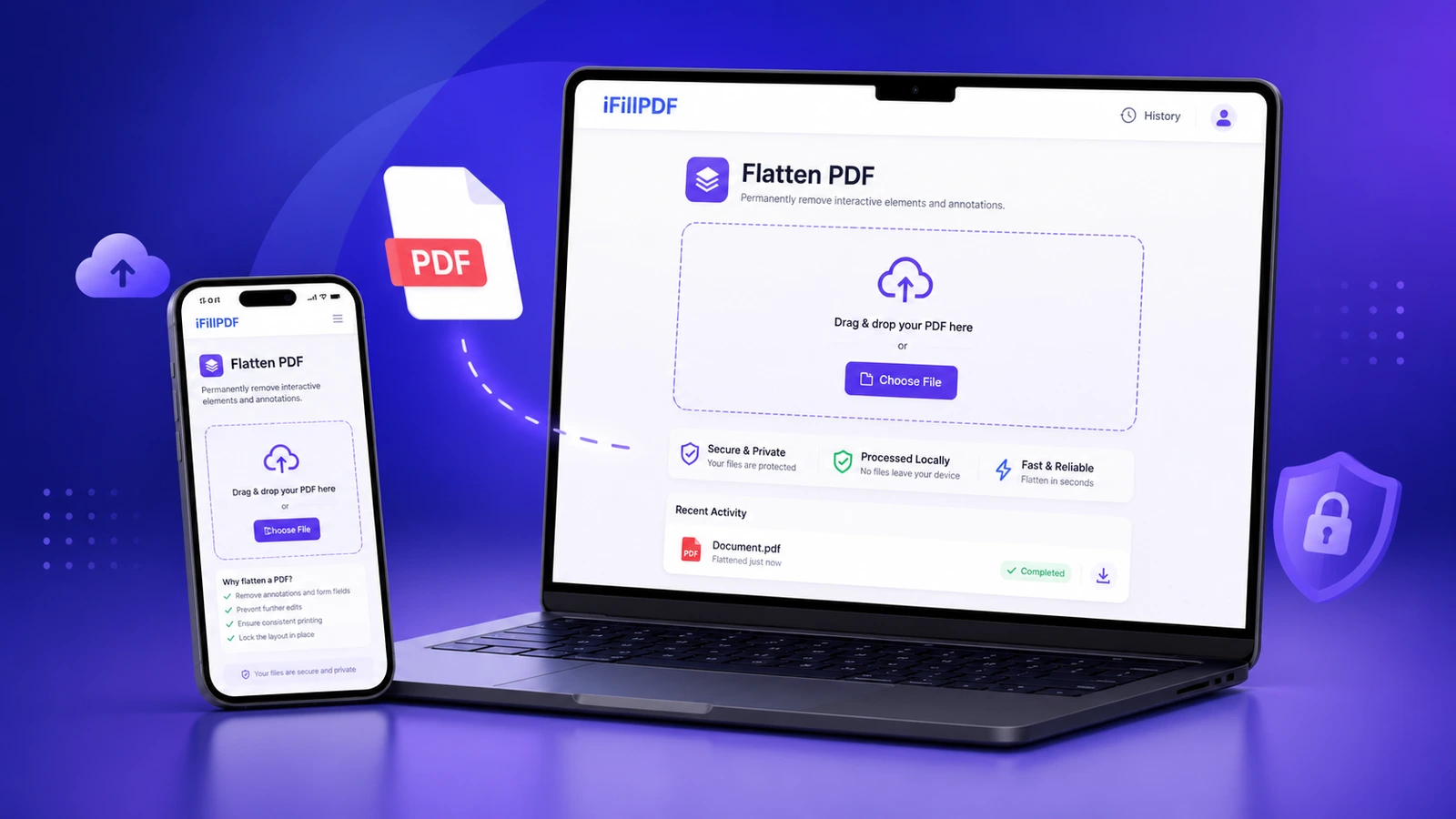
What separates iFillPDF's editor: there is no dedicated "flatten" button to find. You open the document, fill or annotate it if needed, then export — and the exported file is flattened by default. Processing stays on EU servers in Frankfurt, which matters for HR documents, medical forms or signed contracts you'd rather not send to a US server. Form fields, annotations and drawn signatures are baked into the page in that same pass.
If you also need to fill the form before flattening, do both in one shot with Fill PDF, then flatten. Adding a signature first? Use Sign PDF and flatten after — the signature image becomes part of the page graphics and can no longer be removed.
Method 2 — Adobe Acrobat (Pro only)
Acrobat Pro has two flattening paths depending on what you need to lock down.
For form fields and annotations:
- Open the PDF in Acrobat Pro.
- Tools → Print Production → Preflight.
- In the Preflight dialog, search for "flatten" and pick the Flatten annotations and form fields profile.
- Click Analyze and Fix, save the file under a new name.
For transparency, layers and hidden content (a heavier flatten):
- File → Save As Other → Optimized PDF.
- In the PDF Optimizer, check Discard Hidden Layer Content and Flatten Visible Layers and Discard User Data.
- Save.
Acrobat Standard does NOT include Preflight — you only get the Optimizer route, which doesn't reliably flatten signature widgets. If you're on Standard or Reader, use an online tool or qpdf instead.
Caveat: Acrobat's flatten can rasterise very small text, breaking searchability. Always re-open the output and Ctrl+F a known word to verify.
Method 3 — qpdf CLI (best for batch and CI/CD)
For developers, sysadmins or anyone flattening more than ten files: install qpdf, a free open-source PDF toolkit (Homebrew, apt, Chocolatey).
# Single file — flattens form fields and annotations
qpdf --flatten-annotations=all in.pdf out.pdf

# Also generate appearances for form fields before flattening
qpdf --generate-appearances --flatten-annotations=all in.pdf out.pdf

# Batch a folder
for f in *.pdf; do
  qpdf --generate-appearances --flatten-annotations=all "$f" "flat_$f"
done
The --flatten-annotations=all flag handles every annotation type (highlights, stamps, sticky notes, freehand). Add --generate-appearances first when the source PDF has form fields filled programmatically (jsPDF, pdf-lib, FPDF) — without it, qpdf may flatten empty-looking fields because the appearance stream isn't generated yet.
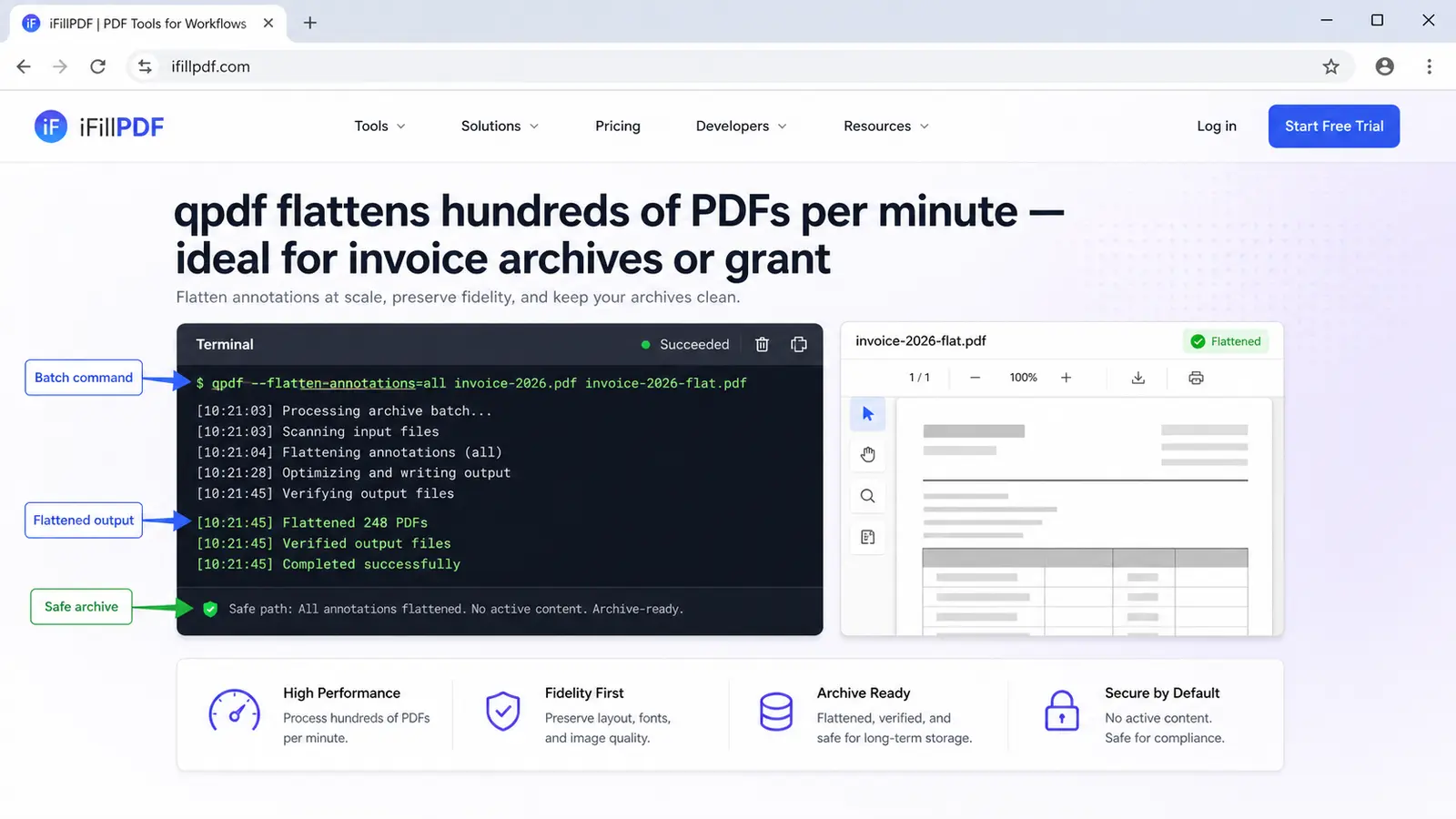
qpdf sits under a large number of server-side PDF pipelines. Output is byte-for-byte deterministic, which makes it ideal for legal archives where you need reproducible hashes.
For Python users, pikepdf (a qpdf wrapper) exposes the same flag: pdf.save("out.pdf", linearize=True) after pdf.flatten_annotations().
Method 4 — Mac Preview re-print (zero install, lossy)
The Mac trick everyone shares but few document properly:
- Open the PDF in Preview (default).
- File → Print (Cmd + P).
- In the bottom-left dropdown, choose Save as PDF (NOT Export — Export keeps the form layer).
- Save.
This works because the print pipeline rasterises every interactive element into the page. Downsides: text becomes a single image layer (Ctrl+F won't find anything), file size usually grows, and quality drops on retina screens. Use only for one-off documents where searchability doesn't matter, or when you're on a borrowed Mac with no internet.
Better Mac alternative: install qpdf via brew install qpdf and use Method 3 — preserves searchable text.
Pre-flatten checklist (do this once, save hours)
Before you flatten, run through this checklist. Flattening is irreversible — there is no "unflatten" button anywhere in the PDF spec.
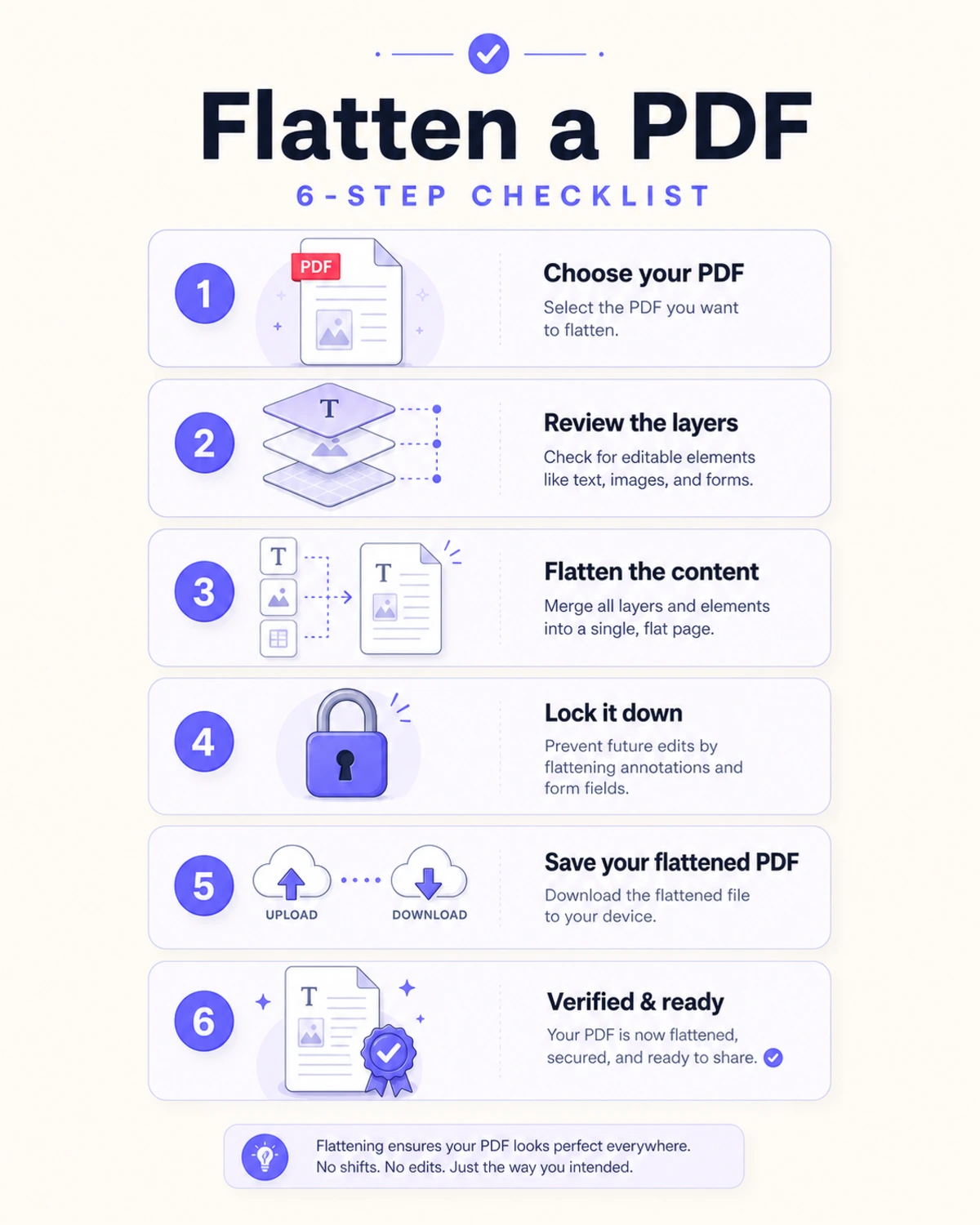
- Make a copy. Keep the editable original in a
_source/folder. You will need it the day someone asks for a correction. - Fill every field. Empty fields stay empty after flattening — there's no second chance.
- Sign last. Add your eIDAS-compliant signature AFTER all fields are filled but BEFORE you flatten.
- Check on two viewers. Open the unflattened version in both Acrobat and Chrome. If a checkbox shows differently, flatten.
- Verify text is searchable. Ctrl+F a word from the body. If it returns zero hits, your tool rasterised the page — try a different method.
- Compare file sizes. A flattened PDF should stay close to the size of the original. A file several times heavier means the tool rasterised the page; switch tools.
Frequently asked questions
Can I unflatten a PDF? No. Flattening discards the interactive object tree; the only recovery is restoring from your backup or asking the sender for the original.
Does flattening reduce file size? Usually no. Flattening removes interactive metadata but adds rendered pixels for stamps and signatures. Expect a small change either way. To shrink, run a separate compression pass after flattening.
Will a flattened PDF still print correctly? Yes — that is one of the main reasons to flatten. Print drivers receive a single graphics layer with no surprises.
Does flattening invalidate digital signatures? Cryptographic signatures (PAdES, eIDAS qualified) become visible-only — the signature image stays but the cryptographic verification chain is broken. For legally binding signed PDFs, do NOT flatten; the signature itself already locks the document. Flatten only handwritten/image signatures.
Can I flatten only some pages? No native PDF tool supports partial flattening. Workaround: split the PDF, flatten the pages you need, then merge them back.
Is flattening the same as locking with a password? No. Password protection prevents opening or editing; flattening removes the editable structure. They're complementary — use both for high-stakes documents.
Why does my flattened PDF look fuzzy? Your tool rasterised the page at screen resolution. Use iFillPDF, qpdf or Acrobat Pro instead — they preserve vector content and only flatten the interactive overlay.
Lock your PDF in 10 seconds
Stop sending PDFs that recipients can edit by accident. Drag your file into iFillPDF's editor and export it — the export is flattened by default, keeps the text layer searchable, and bakes in form fields, annotations and drawn signatures in one pass. A free account is needed to download, free exports carry a small footer watermark, and processing is EU-hosted in Frankfurt.
Need to do more before locking? Fill the form and add your signature first, then flatten. Working with multi-document submissions? Merge them into one file before the final flatten pass — agencies prefer a single sealed PDF over a folder of individually flattened pages.