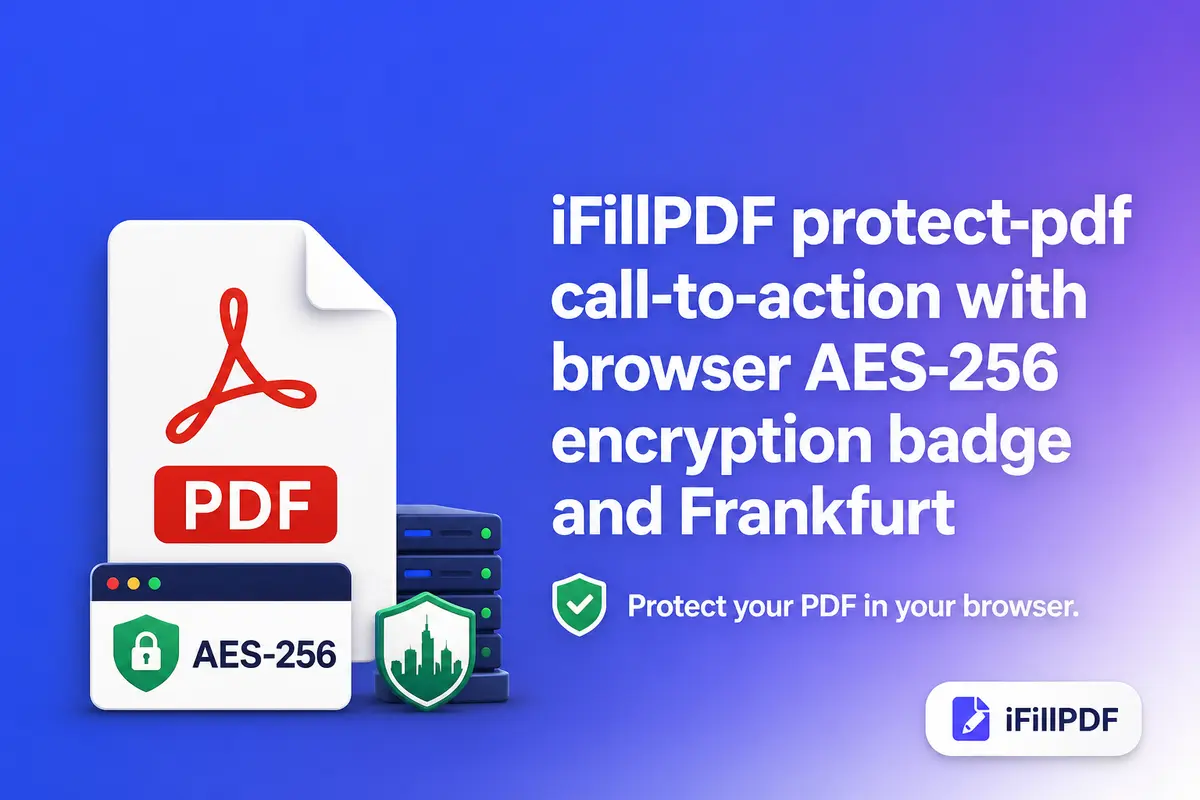
TL;DR — Five proven methods let you password-protect a PDF: online tools (iFillPDF, Smallpdf, iLovePDF), Mac Preview, Adobe Acrobat Pro, qpdf CLI, or LibreOffice. Use AES-256 encryption (the standard since PDF 2.0 / ISO 32000-2:2020) and set both a user password (open) and owner password (edit/print) for maximum control. Native PDF encryption beats ZIP password because it survives email forwarding and stays bound to the file regardless of where it travels.
User-password vs owner-password (the two layers)
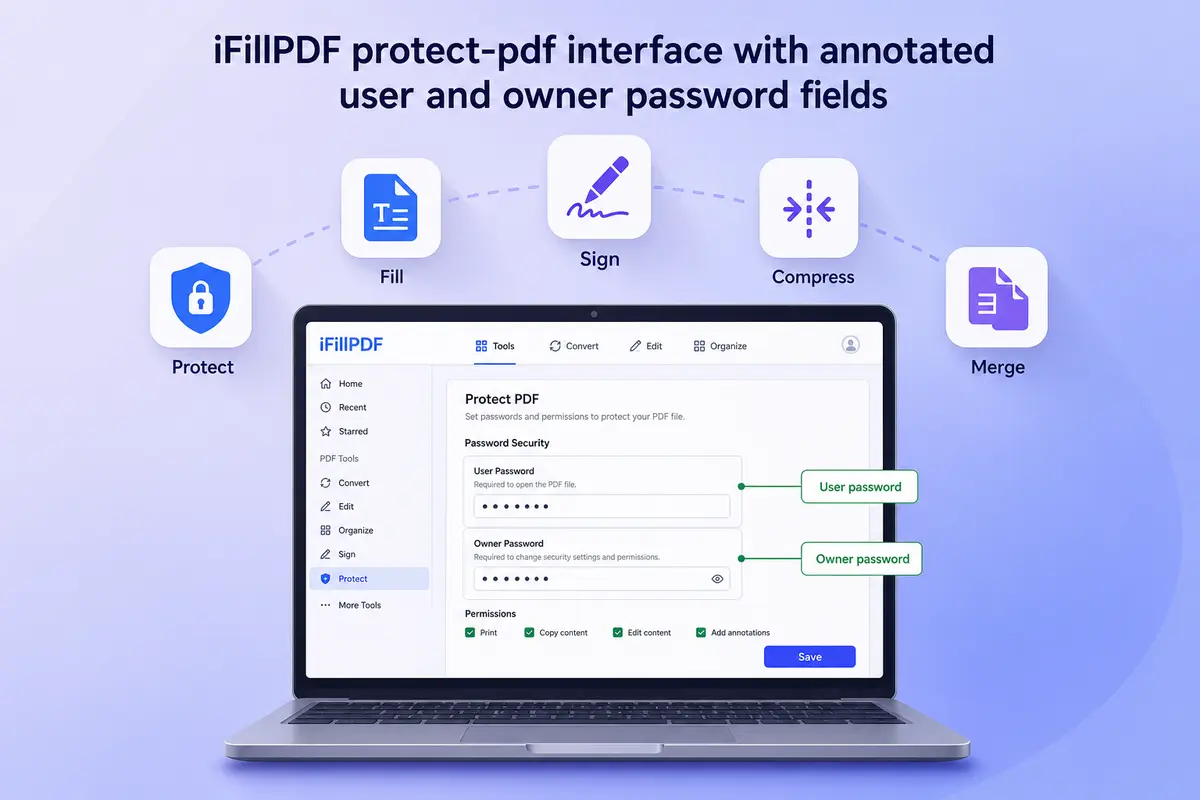
PDF specification ISO 32000-2:2020 (Part 7, Encryption) defines two distinct passwords on every encrypted PDF. The user password (also called the open password) blocks the document from being opened at all — without it, the file is unreadable ciphertext. The owner password (also called the permissions password) lets the file open freely but restricts what readers can do: print, copy text, edit annotations, fill forms, or extract pages. Most legal and HR teams should set both: the user password for confidentiality, the owner password to prevent recipients from re-saving an edited copy. Setting only the owner password is weak — most modern PDF readers honor the restriction, but qpdf, pdftk, or even Mac Preview can strip it in seconds.
Method 1 — Online tools (iFillPDF, Smallpdf, iLovePDF, PDF24, Sejda)
Six mainstream online protectors compared on the criteria that matter for a 2026 workflow:
| Tool | Free tier | AES-256 | Both passwords | Batch | Signup | EU hosting |
|---|---|---|---|---|---|---|
| iFillPDF | Yes | Yes (default) | One password (open + permissions) | No | No | Frankfurt |
| Smallpdf | 2 files/day | Yes | Yes | Pro only | Yes | Switzerland |
| iLovePDF | 3 files/day | Yes | Yes | Premium | Yes | Spain |
| PDF24 | Yes | AES-128 default | Yes | No | No | Germany |
| Sejda | 3 tasks/hour | Yes | Yes | Pro only | Optional | Netherlands |
| Adobe Online | 2 files/month | Yes | Yes | No | Yes | USA |
iFillPDF runs the encryption client-side in the browser, so the unencrypted PDF never leaves your laptop — useful for medical records, NDAs, or financial statements covered by GDPR Article 32. The output uses AES-256 by default, with a single password covering both opening and permissions: one secret to remember and to pass on. If you need distinct user and owner passwords, use qpdf (Method 4) or Acrobat Pro. Try it at /en/tools/password-protect-pdf.
Method 2 — Mac Preview (built-in, AES-128 only)
macOS Preview password-protects PDFs without any third-party software, but it's locked to AES-128, not AES-256. Path: open the PDF, choose File > Export, click the Permissions button (bottom-left of the Export dialog), then check "Require password to open document." You can also independently restrict copying, printing, and edits with a separate owner password in the same panel. Click Apply, then Save.
Caveat: Preview's encryption metadata uses the older PDF 1.7 spec (ISO 32000-1:2008). Compliant for most uses, but if your security policy mandates AES-256 (FIPS 140-2 Annex A), use Method 3, 4, or iFillPDF instead.
Method 3 — Adobe Acrobat Pro
Acrobat Pro is the paid desktop reference for PDF encryption. Open the PDF, click Tools > Protect, then Encrypt > Encrypt with Password. Acrobat asks whether the password applies to opening, editing, or both, and lets you pick the encryption level (128-bit RC4, 128-bit AES, or 256-bit AES — always pick the last). You can additionally set permissions (printing low/high res, content extraction for accessibility, form filling, signing, page extraction).
Use case: legal teams that already pay for Acrobat for advanced redaction or Bates numbering. For one-off protection, a subscription is heavy versus a free online or CLI tool.
Method 4 — qpdf CLI
qpdf is an open-source command-line PDF library, available on macOS (brew install qpdf), Linux (apt install qpdf), and Windows (Chocolatey or pre-built binary). The exact command for AES-256 encryption with both passwords:
qpdf --encrypt USERPWD OWNERPWD 256 -- input.pdf output.pdf
Replace USERPWD with the open password and OWNERPWD with the permissions password. The 256 flag activates AES-256. To restrict printing: add --print=none before the --. To allow form filling but not editing: --modify=form. qpdf is the right pick for batch jobs (for f in *.pdf; do qpdf --encrypt ...), CI/CD pipelines, or scripting against folders of contracts.
Method 5 — LibreOffice (free desktop)
LibreOffice Draw or Writer can export any document to a password-protected PDF. Open the file, choose File > Export As > Export as PDF, switch to the Security tab, click Set Passwords, and enter both an "Open password" and a "Permissions password." Current LibreOffice versions default to AES-256. Free, cross-platform, and entirely offline — a strong fit for users who already use LibreOffice for invoices or letters.
Strong password practices (NIST SP 800-63B)
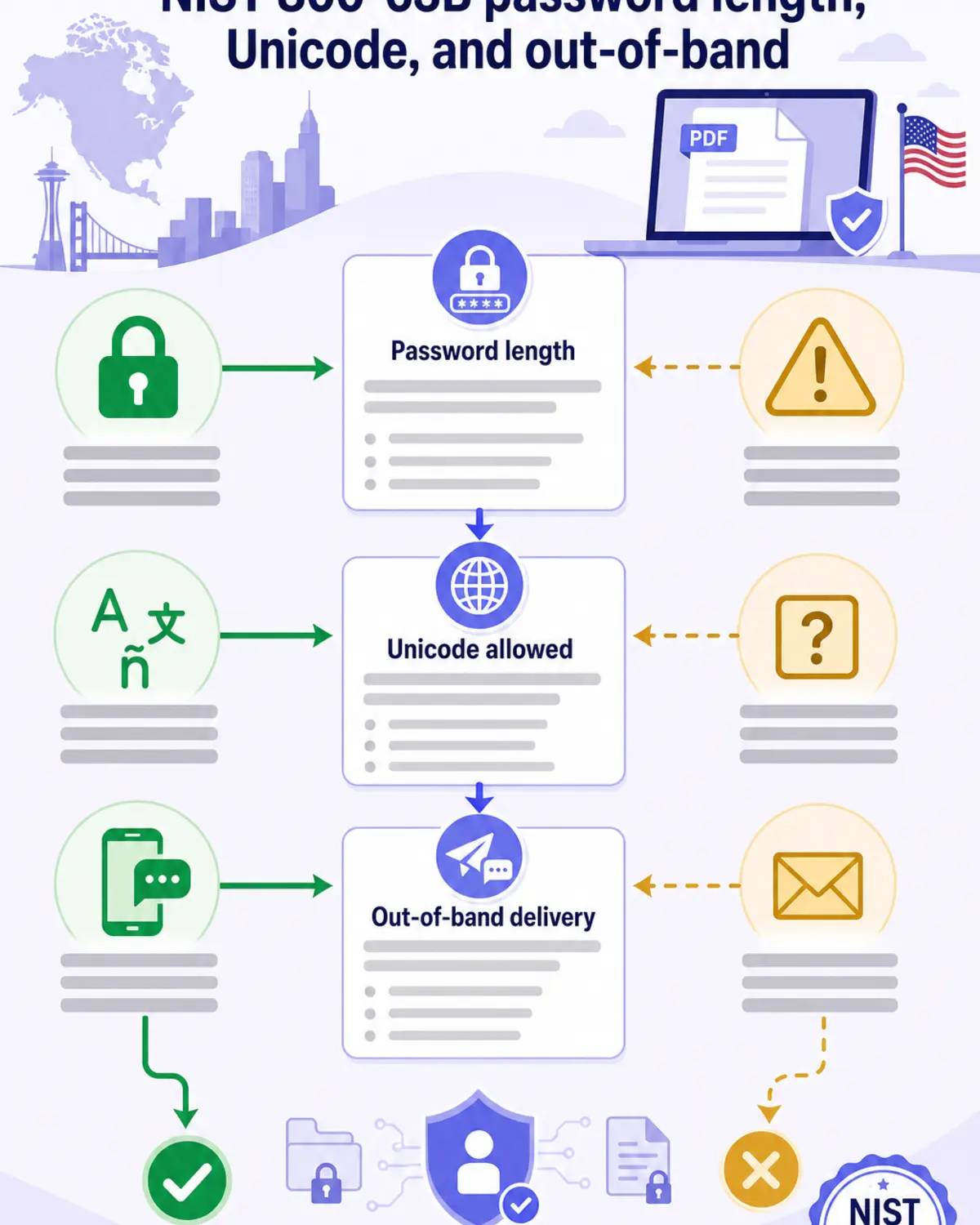
NIST Special Publication 800-63B (Digital Identity Guidelines) sets the password rules that apply just as well to PDF passwords:
- Length over complexity: minimum 12 characters, target 15+. A 16-character random passphrase resists brute-force longer than an 8-character "Aa1!" mix.
- Allow spaces and Unicode: PDF readers since 2017 (PDF 2.0) accept full Unicode passwords; use phrases like
Coffee-meets-Mountain-2026rather thanCm2026!. - No periodic rotation: don't pre-rotate PDF passwords; rotate only on suspected compromise.
- Block known-leaked passwords: check your password against haveibeenpwned.com Pwned Passwords API before sending.
- Send password out-of-band: never paste the PDF password in the same email that delivers the file. Use SMS, Signal, or a separate channel.
FAQ
Can I password-protect a PDF without Adobe? Yes. iFillPDF, Smallpdf, iLovePDF, Mac Preview, qpdf, and LibreOffice all add native PDF encryption without an Adobe subscription. Of that list, iFillPDF is the one that asks for no signup, sets no daily file limit, and uses AES-256 by default — with the caveat that it sets a single password for both opening and permissions.
AES-128 vs AES-256: does it matter for a PDF? For most business documents, AES-128 is still cryptographically secure (no public attack faster than brute force). AES-256 is mandatory for HIPAA-regulated health records, financial statements covered by SOX, and any document subject to FIPS 140-2 compliance. Pick AES-256 by default — there's no speed penalty on modern CPUs.
Can a PDF password be cracked? A weak password (under 8 characters, dictionary word) falls quickly to an offline attack with John the Ripper or Hashcat. A long random passphrase puts a brute-force attack out of practical reach for today's GPU clusters. Length is the only defense — the encryption algorithm is secondary once you pass AES-128.
Is Mac password protection different from Windows? Mac Preview defaults to AES-128 (PDF 1.7). Windows users have no built-in option — Microsoft Edge can read protected PDFs but can't add passwords. Use iFillPDF, qpdf, or LibreOffice on Windows.
I forgot my PDF password — can I recover it? Not really. AES-256 makes brute-force impractical past 12 characters. Tools like PDFCrack or Passware succeed only against weak passwords or older RC4-40 encryption. If the original document author still has it, ask them. If you're the author, store passwords in a manager (1Password, Bitwarden) before encrypting. To remove a password you do know, see /en/blog/remove-password-from-pdf.
Protect your next PDF in 30 seconds
iFillPDF applies AES-256 encryption in your browser, with no signup — the unencrypted file never leaves your device. Type one password, and download the protected PDF. Start at /en/tools/password-protect-pdf, or pair protection with signing and filling for a complete document workflow. Already have a locked PDF you need to open? Use /en/tools/unlock-pdf.