TL;DR — You can only legally remove a PDF password if you own the document or have written permission from the owner. The five working methods in 2026 are Mac Preview re-export, Adobe Acrobat Pro Remove Security, Chrome print-to-PDF, browser-based tools (iLovePDF, Smallpdf, iFillPDF), and the qpdf command-line utility. For most Mac users the Preview re-export trick is fastest; on Windows the Chrome print-to-PDF method is the quickest password-free option, while qpdf wins for batch unlocking dozens of files at once.
When you're allowed to remove a PDF password
You can remove a PDF password only if you are the document owner or you have explicit written authorization from the owner. Removing protection from a PDF you do not own may violate computer-misuse laws — in the United States, the Computer Fraud and Abuse Act (18 U.S.C. § 1030) treats unauthorized access to protected files as a federal offense. In the European Union, Directive 2013/40/EU on attacks against information systems requires member states to criminalize the unauthorized circumvention of security measures, including password protection on documents.
Two safe scenarios: (1) you set the password yourself and now want to share the file freely, or (2) the owner sent you the password and asked you to strip it before re-distribution. If you are simply trying to read a PDF you received and forgot the password to, contact the sender — never use brute-force or "recovery" tools on third-party documents.
All five methods below assume you know the open password (the one Acrobat asks for when opening the file). If a PDF only has owner restrictions (no open password, but printing or copying is blocked), most methods below still work and are legal when you own the file.
Method 1 — Mac Preview (re-export trick)
Open the PDF in Preview, type the password, then export it as a new PDF without security — Preview saves a clean copy in under ten seconds.
Steps:
- Double-click the PDF — Preview opens by default.
- Enter the password when prompted.
- Go to File → Export… (not Save).
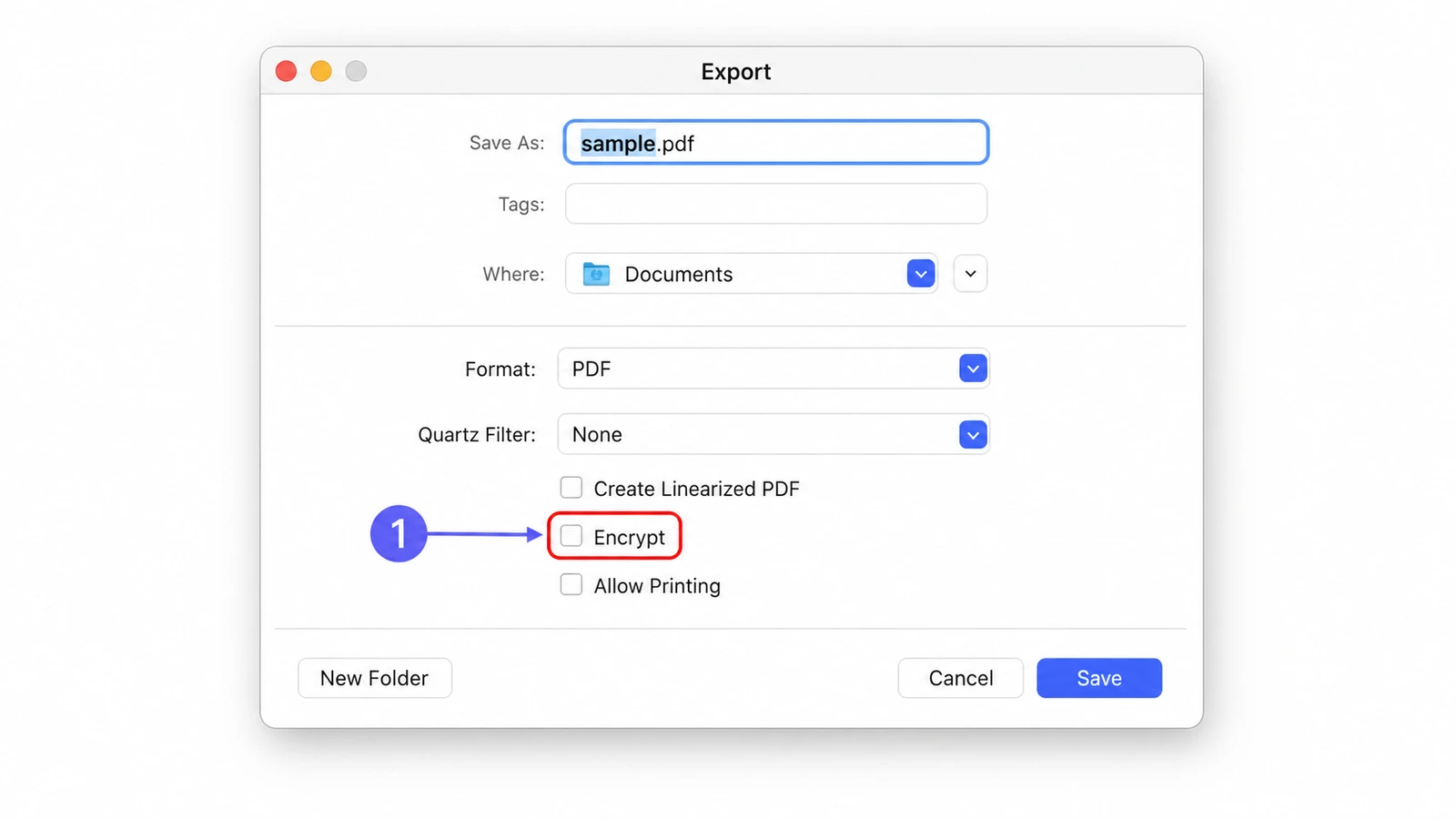
- In the Export dialog, leave the format as PDF, expand the Show Details section if visible, and ensure Encrypt is unchecked.
- Click Save. The new file has no password.
This works on every Mac running macOS Big Sur or later (2020+) and is the recommended method for single files. The trick is that Preview re-renders the PDF, which strips both open passwords and owner restrictions. Bookmarks and form fields are preserved; some advanced JavaScript actions or digital signatures may be lost — verify before sharing legal documents. For documents you also need to fill, our PDF filler keeps the unlocked file editable.
Method 2 — Adobe Acrobat Pro
Open the PDF in Adobe Acrobat Pro, click Tools → Encrypt → Remove Security, then save — the entire workflow takes under a minute.
The official Adobe support page documents this exact path. Acrobat Pro DC is a paid subscription and the only Adobe product that can remove passwords — Acrobat Reader (free) cannot. Inside Acrobat Pro:
- Open the PDF and enter the password.
- Click Tools in the right sidebar, then Protect.
- Click Encrypt → Remove Security.
- Confirm by entering the password again.
- Save the file (Cmd/Ctrl + S).
If the document has only an owner password (restrictions but no open password), Acrobat removes it without asking. Acrobat preserves the interactive elements — form fields, digital signatures, bookmarks, layers — which matters for compliance-sensitive documents. If you only need this once, Adobe's free trial covers it; for ongoing work, the iFillPDF unlock tool gives you the same result with no subscription.
Method 3 — Browser print-to-PDF (Chrome)
Open the password-protected PDF in Chrome, press Ctrl+P (or Cmd+P), choose "Save as PDF" as the destination, then click Save — the new PDF has no password.
This works because Chrome rasterizes the page when printing to PDF, which discards the original encryption layer. Steps:
- Drag the PDF into a Chrome tab (or right-click → Open With → Chrome).
- Enter the open password when prompted.
- Press Ctrl+P (Windows/Linux) or Cmd+P (Mac).
- Set Destination to Save as PDF.
- Click Save and choose a file name.
Limitations: form fields become flat images, hyperlinks may break, and digital signatures are stripped. File size often grows because text is re-rendered. Use this only for read-only documents you want to share or archive. The same trick works in Edge, Firefox, and Safari with minor menu differences. For preserving form fields, prefer Method 1 or Method 2.
Method 4 — Online tools (iLovePDF, Smallpdf, iFillPDF)
Online tools remove PDF passwords in your browser without installing software, but most of them upload your file to a remote server — choose carefully when documents are confidential.
The 2026 landscape compared:
| Tool | Free | No signup | Requires password | Batch unlock | Mobile | EU hosting |
|---|---|---|---|---|---|---|
| iLovePDF | Yes (limited) | Yes | Yes | Premium only | Yes | Spain |
| Smallpdf | 2 files/day | No | Yes | Pro only | Yes | Switzerland |
| Syncfusion | Yes | Yes | Yes | No | Yes | US |
| PDF24 | Yes | Yes | Yes | Yes | Yes | Germany |
| iFillPDF | Yes | Yes | Yes | No | Yes | Frankfurt (EU) |
What sets iFillPDF apart: the unlock happens client-side in your browser — your file never leaves your device — and the EU Frankfurt infrastructure handles only the page assets, not the document. No signup and no daily limit; files go through one at a time, up to 100 MB each. Once unlocked, the same workspace lets you fill, sign, or merge the result without juggling tabs.
Method 5 — qpdf CLI
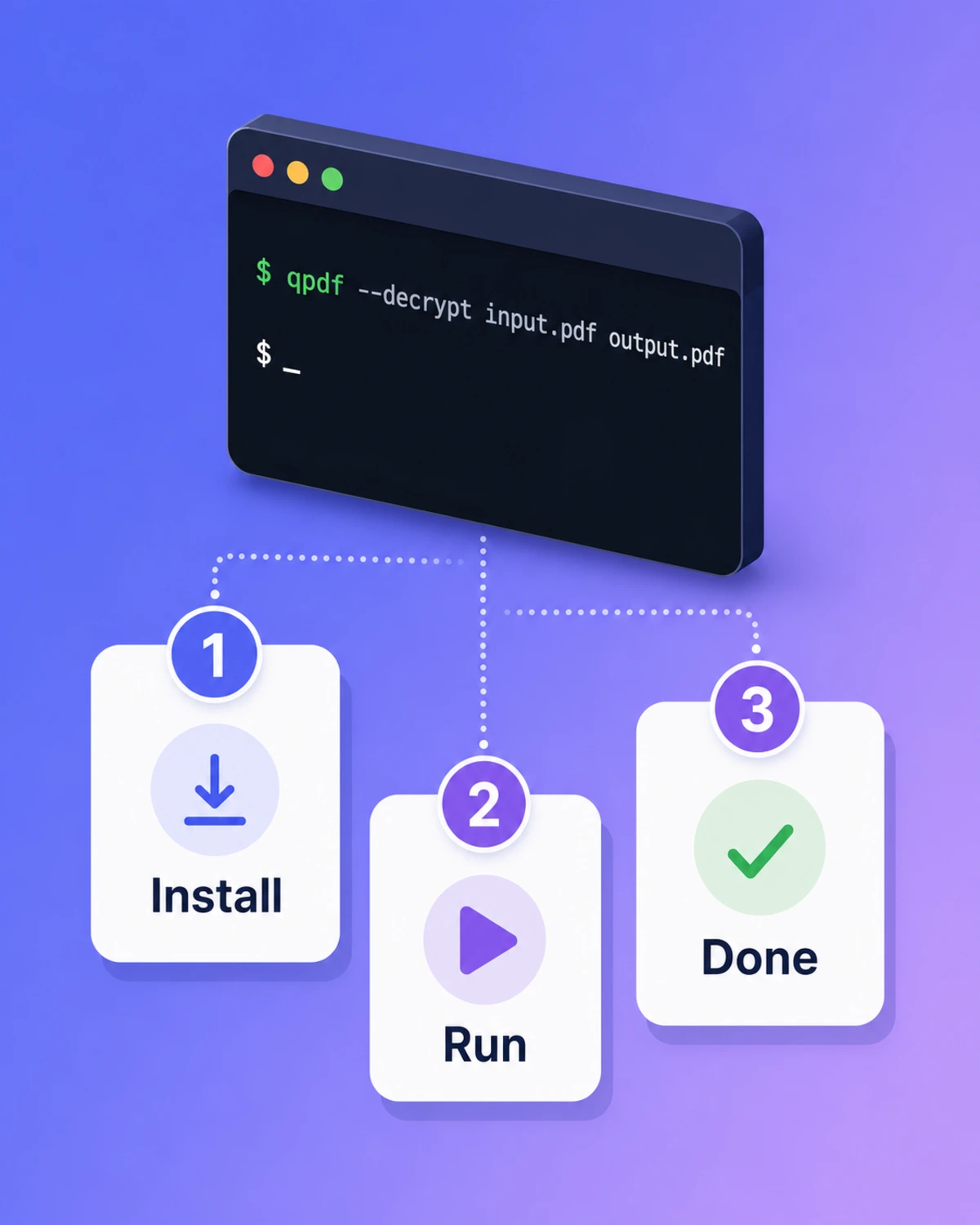
Install qpdf and run a single command: qpdf --decrypt --password=YOUR_PASSWORD input.pdf output.pdf — the unlocked file appears next to the original in milliseconds.
qpdf is a free, open-source tool maintained since 2008. Install it via Homebrew (brew install qpdf) on Mac, apt install qpdf on Debian/Ubuntu, or download the Windows binary from the qpdf GitHub releases page. The exact command:
qpdf --decrypt --password=YOUR_PASSWORD input.pdf output.pdf
For batch unlocking an entire folder (same password):
for f in *.pdf; do qpdf --decrypt --password=YOUR_PASSWORD "$f" "unlocked-$f"; done
qpdf preserves everything — form fields, signatures, bookmarks, attachments, JavaScript — because it operates on the raw PDF object structure rather than re-rendering. It is the method developers, IT admins, and anyone processing more than ten files at once should default to. The downside: command-line knowledge is required. If a typo blocks you, the iFillPDF unlock tool is a one-drag alternative for a single file.
FAQ
Can I remove a PDF password without knowing it? Not legally, in most cases. If you do not own the document, removing the password may violate the Computer Fraud and Abuse Act (US) or Directive 2013/40/EU (EU). If you own the file but forgot the password, your best options are checking your password manager, contacting whoever created the file, or restoring from a backup. Brute-force "recovery" tools exist but are slow, often paid, and have no guarantee of success on modern AES-256 PDFs.
Does the Mac Preview password trick really work? Yes — the Preview re-export method has worked reliably since macOS Big Sur and still works on current macOS releases. It strips both open passwords and owner-restriction passwords as long as you can open the document with the password. It does not work on PDFs you cannot open in the first place.
Is Adobe Acrobat Pro better than free tools? Acrobat Pro preserves every interactive element, so it is the low-risk route for documents containing digital signatures, complex form fields, or accessibility tags. For everyday owner-password removal, iFillPDF keeps the file in your browser and produces the unlocked PDF without an Acrobat subscription. Acrobat Pro earns its fee when your team also needs its editing, OCR, or e-signature suite every week.
How do I batch-unlock multiple PDFs at once?
Two practical options. Command line: install qpdf and use a for loop (see Method 5) — fastest for dozens or hundreds of files sharing the same password. Browser: iFillPDF processes files client-side without uploads, but one at a time — as do Mac Preview and Adobe Acrobat.
Can I unlock a PDF on iPhone? Yes. Open the file in the Files app, share it to the Books app, then export from Books — this strips the password if you can open the file. Alternatively, open the PDF in iFillPDF directly from Safari on iOS — it works in mobile browsers and processes the file in your phone's browser without uploading. The iLovePDF and Smallpdf iOS apps also work but require accounts for batch processing.
Ready to unlock your PDFs?
Pick the method that fits your context: Mac Preview for one-off Mac files, qpdf for batches, Acrobat Pro for signature-heavy documents, or iFillPDF when you want client-side processing with no signup and EU Frankfurt hosting. Once unlocked, the same workspace lets you protect a PDF with a new password, fill a form, add a signature, or merge multiple files — all in your browser, in seconds.