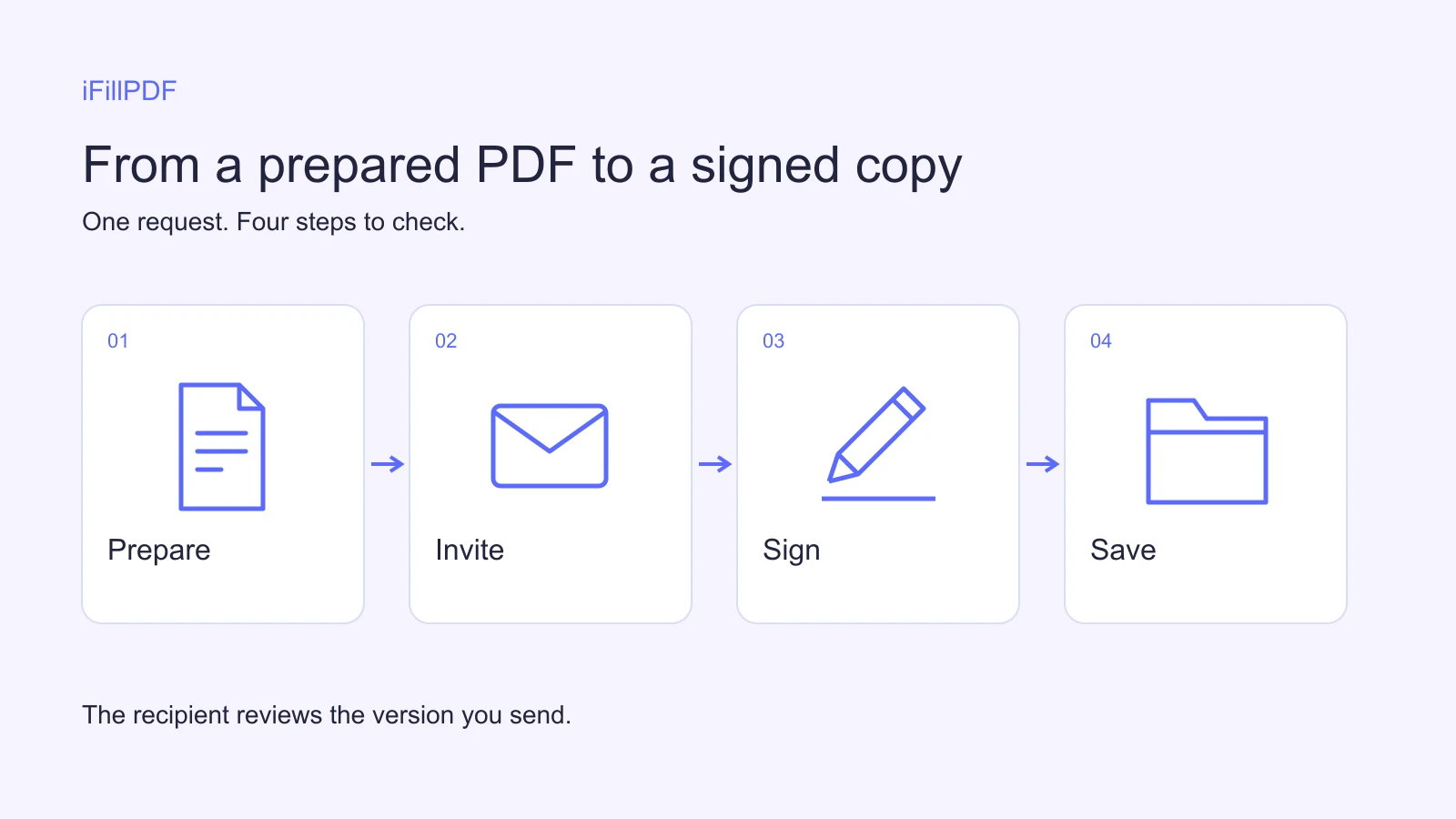
To send a PDF for signature by email, prepare the final document, assign a signature field to your recipient and send an invitation to their email address. They open the link, read the PDF and sign. If you enable email-code protection, they enter the code before viewing it. Download and check the completed copy afterward.
Before you send a PDF for signature
Check the document version, recipient address and required signing method first. Getting a signature on an outdated file still leaves you with the wrong document.
Read the names, dates, amounts and attachments. If someone else helped prepare the PDF, agree which version is ready to send. Confirm what the organization receiving it accepts, especially when its instructions specify a particular signature service or identity check.
| Your task | Suitable next step |
|---|---|
| Add your own signature | Open the PDF in a signing tool |
| Ask someone else to sign | Assign their field and send an invitation |
| Meet a qualified-signature requirement | Choose a qualified service that meets that requirement |
For your own signature, see our guide to signing a PDF. The steps below cover requesting someone else’s signature.
How to send a PDF for signature with iFillPDF
Open the PDF in your workspace and prepare the recipient’s signature field before sending. The field tells the recipient where to sign.
- Open the document in the editor. Check every page and fill in the information you need to supply.
- Add the recipient and place their signature field. Mark it required when their signature is needed to complete the request.
- Open the sending dialog and select the signing purpose. The current interface labels this option “Pour signer”, meaning “for signing.”
- Check the email address and add a message identifying the document and the action expected.
- Enable email-code protection if you want access checked through that address.
- Review and send the request, then find it in your sent documents.
Prepare a PDF for signing, and check the current pricing before sending. A document reference in your message helps the recipient recognize the invitation.
What your recipient receives
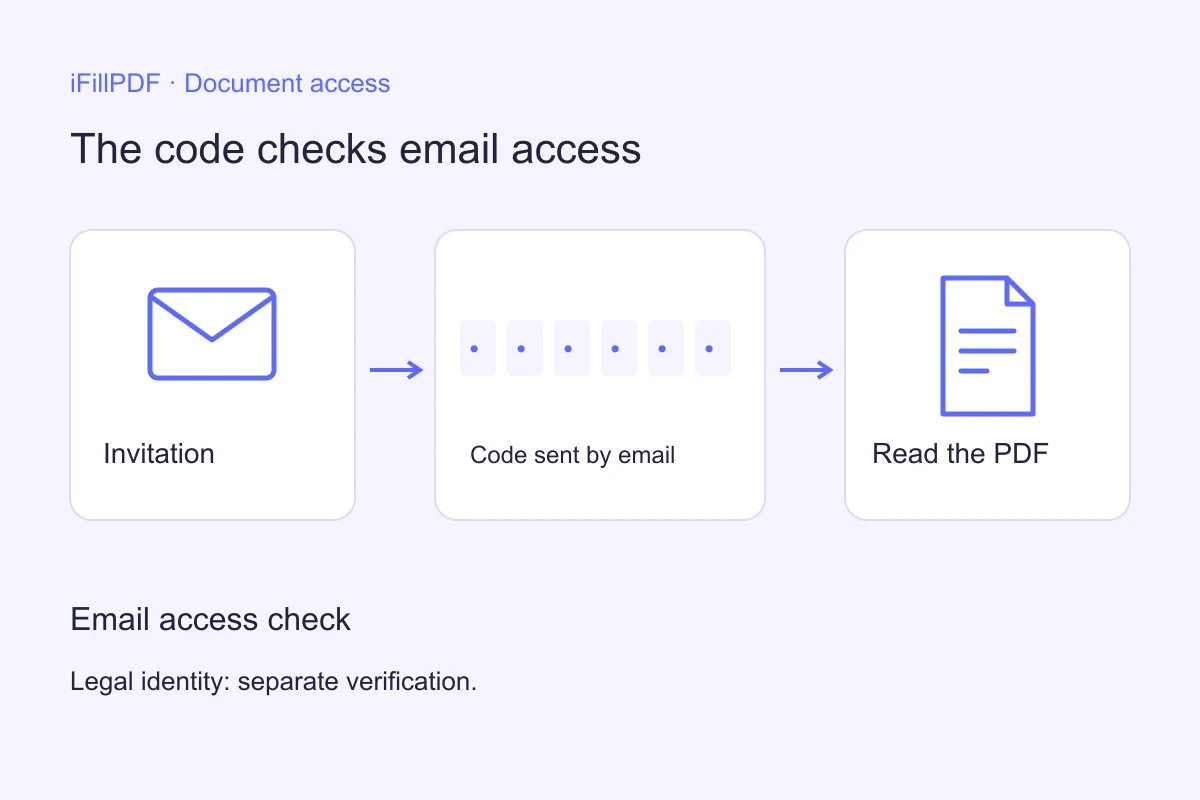
The recipient gets an email with a signing link. When code protection is enabled, they request a code delivered to their email address before opening the PDF.
They read the document, complete the signature field, enter their name and confirm consent. Opening a link or entering a code is separate from agreeing to the document’s content.
We tested this workflow in Chrome on September 22, 2026 using a fictitious document. The invitation and code arrived, an incorrect code was rejected, signing and consent completed, and completion emails arrived. The test browser blocked the final download, so successful file receipt remains unverified in that test.
Download and check the signed PDF
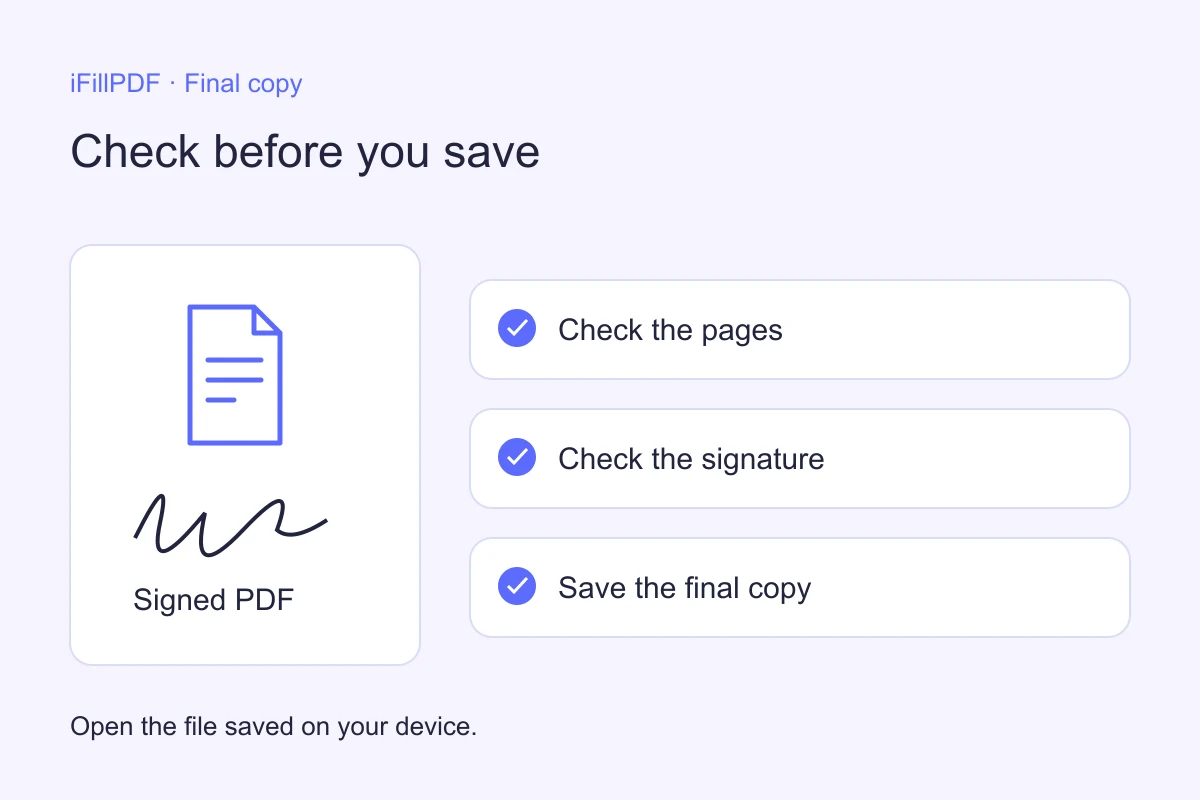
After signing, check the request’s tracking view and the completion notification. Use the available copy link, save the PDF and reopen it from your device.
Check every page, the signature and any completed fields. Keep the final copy with the relevant correspondence and a recognizable document reference. Give it a filename that distinguishes it from the draft.
A tracking status records an event in the workflow. Confirming receipt means checking the actual saved file. If the download fails, retain the error message and contact support before treating the request as fully archived.
Fix a missing invitation or blocked download
Start with the message shown at the failed step. Sending several new requests without checking the cause can leave the recipient with links to different versions.
| Problem | What to check |
|---|---|
| Invitation missing | Confirm the address and check the spam folder |
| Code rejected | Use the code for this request; request a new one if needed |
| Signature field missing | Check field placement and assignment before a new request |
| Final action unavailable | Complete required fields, name and consent |
| Download blocked | Read the browser alert and share the error with support; keep its protections in place |
Choose the signature process your recipient accepts
The iFillPDF workflow described here collects a simple electronic signature with a declared name, consent and optional email-access protection. Check that it meets the receiving party’s requirements for your document.
For documents governed by EU rules, the European Commission’s eSignature FAQ explains that qualified electronic signatures have the equivalent legal effect of handwritten signatures under eIDAS. An email code alone does not confer that status. This EU distinction does not establish acceptance for every document or jurisdiction.
Frequently asked questions
Can I send a PDF for signature for free?
Check the service’s current pricing, sending limits and export conditions before sending. Access to a free editor does not establish that every signature request or download is free. Review the iFillPDF pricing page for the available offer.
Does an email code verify the signer’s identity?
The code checks access to the recipient’s email address. That alone does not establish a verified legal identity or create a qualified electronic signature. Follow the receiving organization’s identification requirements when stronger verification is needed.
Can I edit the PDF after sending it?
An iFillPDF request uses the document version captured when it was sent. Later edits in the editor do not replace that version. If the content needs changing, tell the recipient and prepare a new request using the corrected PDF.
How do I sign a PDF someone emailed to me?
Check the sender and the document you expect. For an invitation, open the signing link, enter the requested code, read the PDF and complete the signature and consent steps. For an attachment, use a PDF editor and return the signed file as instructed.
Open your iFillPDF workspace to prepare a signature request.