TL;DR — There are five solid ways to crop a PDF in 2026: a browser tool (iFillPDF, Sejda, Smallpdf, iLovePDF, PDF24), Mac Preview's rectangle selection, Adobe Acrobat Pro's Crop tool, the open-source Briss desktop app, or the pdfcrop CLI. The best choice depends on your scenario: one-off mobile crop, batch e-reader prep, or scripted publishing pipeline. For most users, a browser cropper with a live preview finishes the job in under a minute.
Why crop a PDF (e-reader, print prep, screen capture)
Cropping a PDF removes unwanted whitespace, headers, watermarks or page edges so the remaining content reflows comfortably on a smaller screen or fits a precise print frame. The three dominant use cases in 2026:
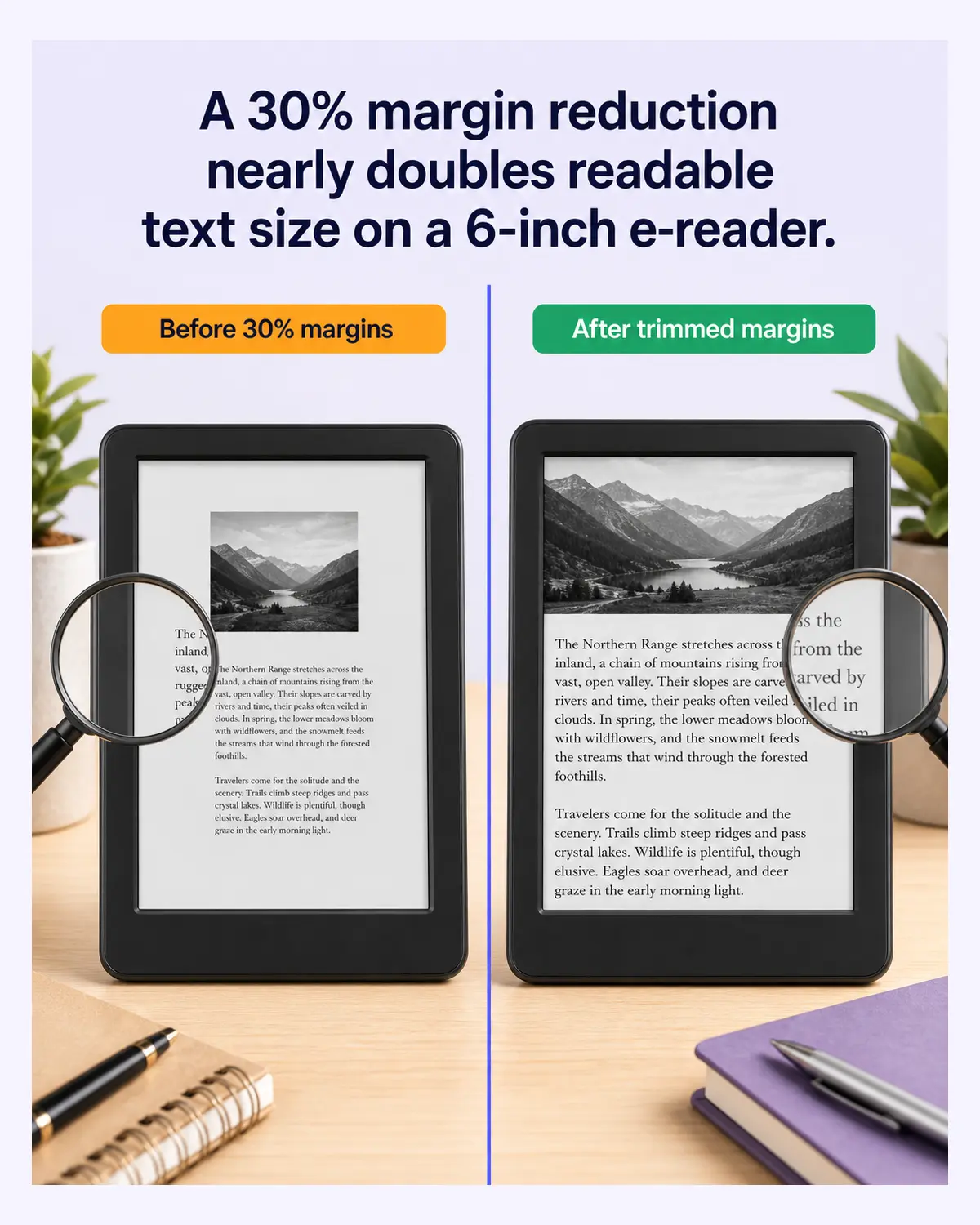
- E-reader optimization. A scanned A4 academic paper carries wide blank margins. Crop them before sending to a Kindle or reMarkable and the body text gains real size on screen — no more pinch-to-zoom.
- Print prep & bleed alignment. Designers crop exported PDFs to remove printer marks or align content to a custom trim box before sending to a press.
- Screen capture & embeds. When you screenshot a PDF page for a slide, blog post, or LinkedIn carousel, cropping out chrome (page numbers, footer URLs) yields a cleaner asset.
Cropping is non-destructive in the PDF spec: it modifies the CropBox rectangle but leaves the underlying content stream intact. That means a cropped PDF can be uncropped — useful safety net.
Method 1 — Online tools (iFillPDF, Sejda, Smallpdf, iLovePDF, PDF24)
The fastest path. Drop the file in, set the crop, download. No install. Here is how the leading browser croppers compare on the features that matter:
| Tool | Free tier | Margin controls | Custom rectangle | Batch all pages | Mobile-friendly | EU hosting |
|---|---|---|---|---|---|---|
| iFillPDF | Unlimited | Yes (four sliders + page presets) | Yes, live preview | Yes, single rectangle | Yes | Yes (Frankfurt) |
| Sejda | Capped free tier | Yes | Yes | Yes | Partial | No (US) |
| Smallpdf | Capped free tier | Yes | Yes | Yes | Yes | Partial (CH) |
| iLovePDF | Limited | Yes | Yes | Yes | Yes | No (US/ES mix) |
| PDF24 | Unlimited | Yes | Yes | Yes | Yes | Yes (DE) |
Why iFillPDF is worth a look for this job:
- Fully client-side — the crop runs in a browser worker, so the file never leaves your device.
- Four margin sliders (top, bottom, left, right) plus ready-made page presets — A4 portrait, Letter, square.
- Live preview redraws as you move a slider, so you see what you are keeping before you download.
- Same rectangle on every page, which is what you want for a uniformly scanned document.
- No signup, no daily quota, no watermark on the output.
- EU Frankfurt hosting for anything you choose to save to an account (GDPR-friendly).
Try it directly: iFillPDF Crop PDF. If you also need to remove pages instead of trimming them, see Edit PDF.
Method 2 — Mac Preview (rectangle selection)
macOS ships with a serviceable cropper hidden inside Preview. No third-party tool needed.
- Open the PDF in Preview.
- Click the Markup toolbar icon, then the Selection tool (rectangle).
- Drag a rectangle around the area to keep.
- Press Cmd + K (Tools → Crop), or File → Export as PDF to lock it in.
Caveats: Preview crops one page at a time by default. For a multi-page document, select all pages in the sidebar first, then Cmd + K. The crop is destructive once you export — keep a backup.
Method 3 — Adobe Acrobat Pro Crop tool
Acrobat Pro DC (included with Creative Cloud All Apps) is the most precise cropper of the bunch — it exposes all four PDF page boxes (CropBox, BleedBox, TrimBox, ArtBox) and supports presets like "Remove White Margins."
- Open the PDF, go to Tools → Edit PDF → Crop Pages.
- Drag a rectangle, or double-click anywhere to open the Set Page Boxes dialog.
- Tick Remove White Margins, set Page Range (Current, All, From-To), click OK.
Strong choice if you already own Acrobat. Overkill if cropping is a one-off task — for occasional use, Method 1 does the job.
Method 4 — Briss (open-source desktop)
Briss is a Java desktop app hosted on GitHub, long used by academics who batch-crop scanned papers for Kindle/reMarkable workflows. It overlays all pages on top of each other so you can draw a single crop rectangle that fits the worst-case page.

Install via Homebrew (brew install --cask briss) or download the JAR from the project's GitHub releases. Open a PDF, Briss clusters pages by similar dimensions and shows merged previews. Drag the rectangle, hit Action → Crop PDF, save. Free, offline, no telemetry.
Limitations: the UI feels dated, and Briss doesn't preserve form fields or annotations cleanly. For interactive PDFs, see Fill PDF before cropping.
Method 5 — pdfcrop CLI
If you need crop in a Makefile, GitHub Action, or shell script, pdfcrop is the canonical tool. It ships with TeX Live (brew install --cask mactex on macOS, apt install texlive-extra-utils on Debian/Ubuntu).
# Auto-crop white margins, write to new file
pdfcrop input.pdf cropped.pdf

# Custom margins (left, top, right, bottom in PostScript points)
pdfcrop --margins '10 10 10 10' input.pdf cropped.pdf

# Crop only odd/even pages or a range
pdfcrop --pages '1-5' input.pdf cropped.pdf
pdfcrop is non-destructive (it adjusts the BoundingBox via Ghostscript) and chains cleanly with pdftk, qpdf, or gs in pipelines.
FAQ
Can I crop a PDF without Adobe?
Yes. Browser tools like iFillPDF, Sejda, Smallpdf and PDF24 crop PDFs without an Acrobat license. Mac users can crop in Preview for free. Linux/Windows power users can use Briss or pdfcrop.
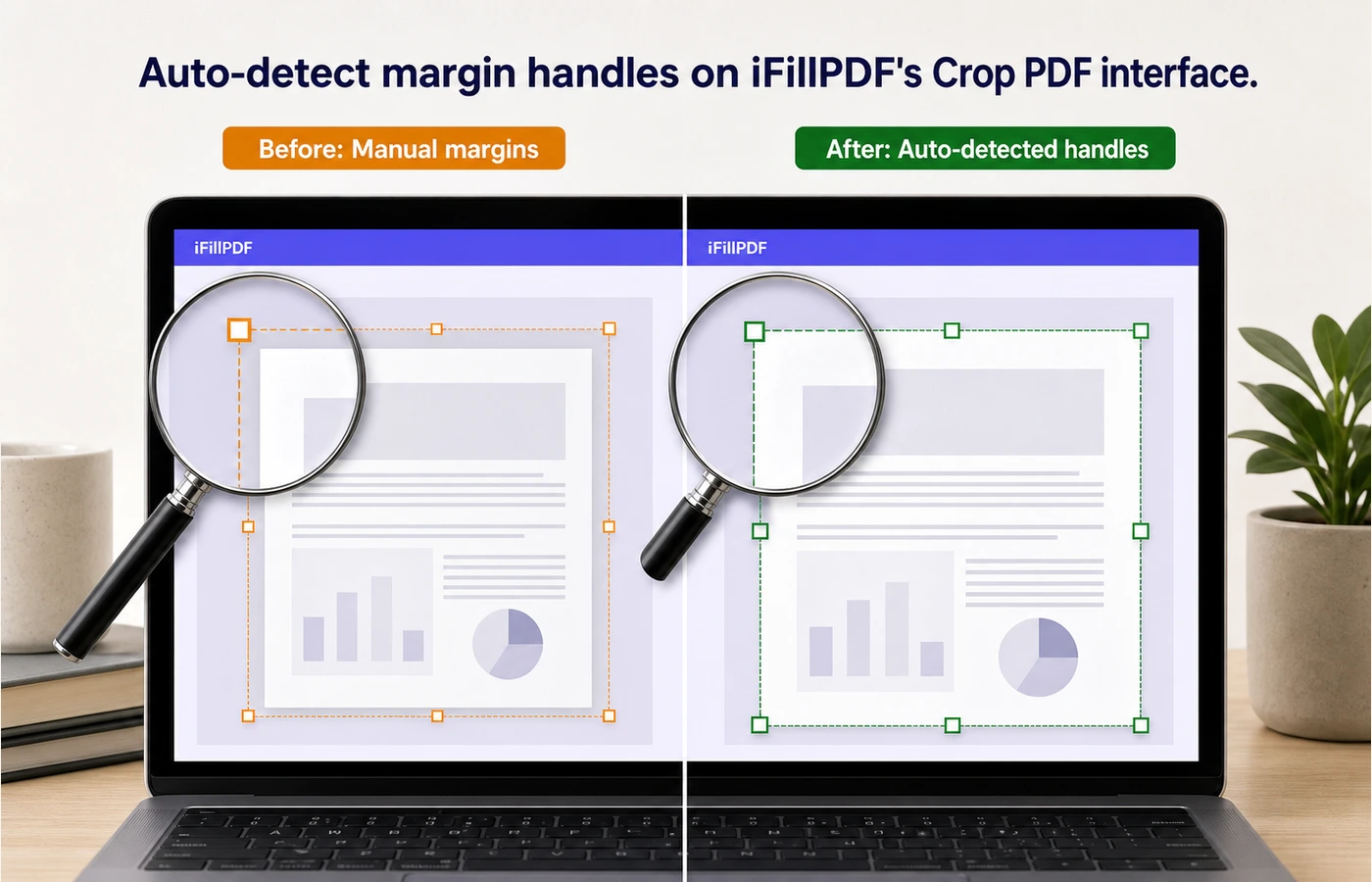
How does auto-detect margins work? Tools that offer it scan the page bitmap for the bounding box of non-white pixels, then apply a small safety padding. It behaves well on text PDFs and clean scans; expect manual adjustments on stained scans or PDFs with full-bleed images. iFillPDF takes the manual route instead: four margin sliders and page presets with a live preview, so you decide where the edge falls.
Can I crop different sizes per page?
Some tools do it, some don't. Briss is built for exactly this, and several browser croppers expose per-page rectangles. iFillPDF applies one rectangle to the whole document — the right behaviour for a uniformly scanned file, the wrong one if page 3 needs its own crop. For mixed pages, Briss or pdfcrop page by page is the safer route.
Can I crop a PDF on iPhone or iPad? Yes. iFillPDF's cropper works in mobile browsers — the margin sliders and preview are touch-friendly. On iPadOS, the Files app's Markup also has a basic crop. Adobe Acrobat Reader mobile keeps Crop behind its paid subscription.
Cropping vs deleting pages — what's the difference? Cropping trims the visible area of a page (margins, edges) but keeps the page in the document. Deleting removes whole pages. For removing pages, use Edit PDF. To combine cropped excerpts from multiple PDFs, crop first, then Merge PDF.
Crop your PDF in 30 seconds
The fastest path for most people: open iFillPDF Crop PDF, drop your file, pull the margin sliders until the preview looks right, download. No signup, no watermark, EU hosting, processing happens in your browser. If your workflow also includes filling forms or signing, chain it with Fill PDF and Sign PDF — same client-side architecture, same privacy guarantees.