TL;DR — Five free ways to add page numbers to a PDF in 2026: an online tool (iFillPDF, Smallpdf, iLovePDF, PDF24, Sejda), Mac Preview's Markup workaround, Adobe Acrobat Pro Header & Footer, LibreOffice round-trip, and the pdftk/qpdf CLI for batch jobs. For an existing PDF you didn't author, the fastest route is an online tool with custom position, format and start-from controls; if you're still drafting in Word or Pages, set page numbers there before exporting. The non-negotiable options to look for are custom position (corners + margins), custom format (Page X of Y, Roman numerals, prefix/suffix) and a start-from offset so cover pages stay un-numbered.

Why add page numbers (legal, academic, professional)
Page numbers are mandatory in legal exhibits, academic theses and professional reports — they make documents citable, printable and reviewable in order. A 240-page contract bundle without numbering is unusable in court (Bates stamping is the legal cousin of pagination). University style guides (APA, MLA, Chicago) require numbering, usually starting on page 2 or after a Roman-numbered preamble. In tenders and RFP responses, evaluators score by section number and expect "see page 47 paragraph 3" to actually land on the right page. Even internal slide decks exported as PDF benefit: page numbers cut "which page are you on?" friction in remote meetings. The free methods below cover all three contexts — the difference is how much control you need over position, format and starting offset.
Method 1 — Online tools (iFillPDF, Smallpdf, iLovePDF, PDF24, Sejda)
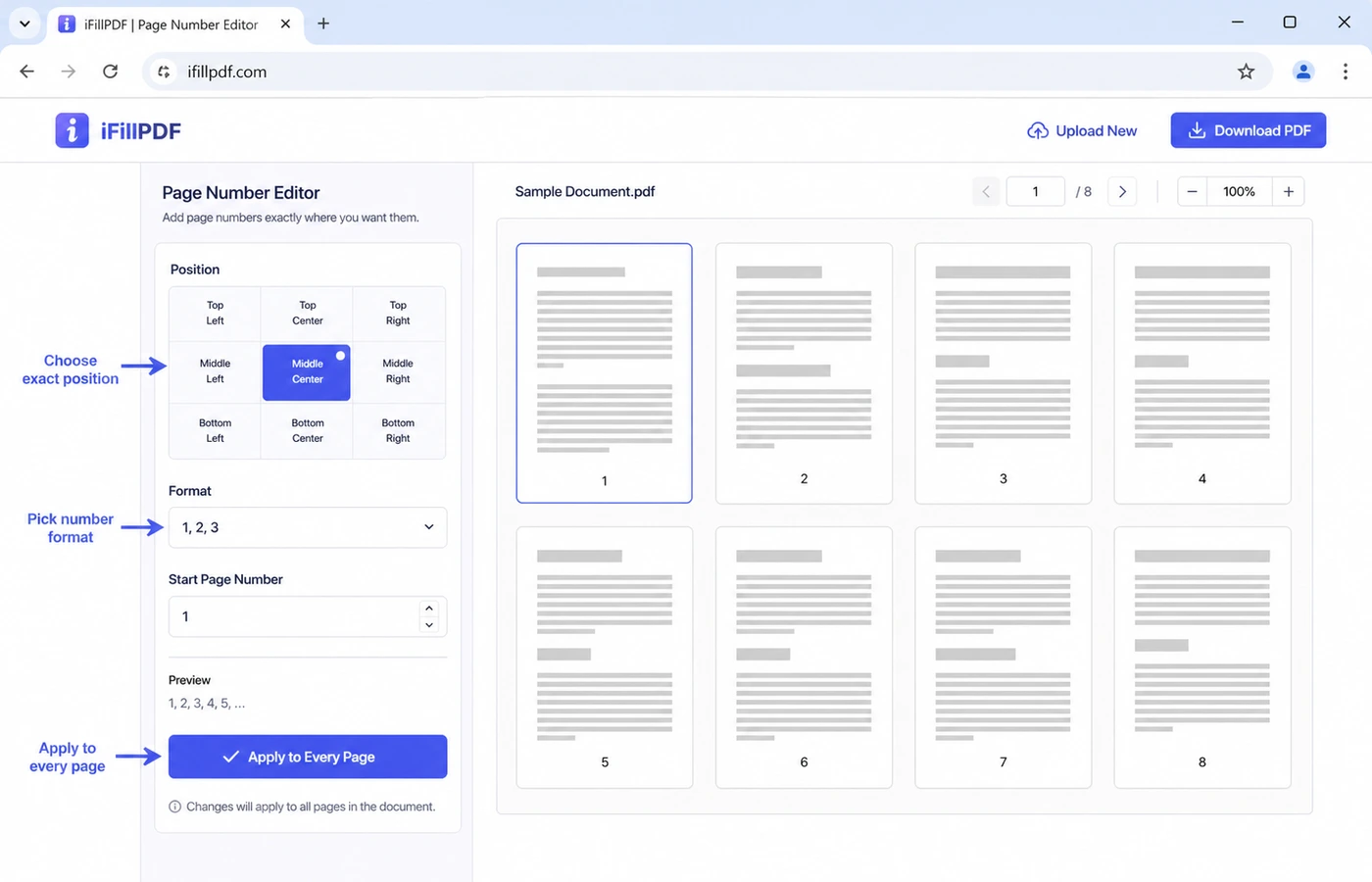
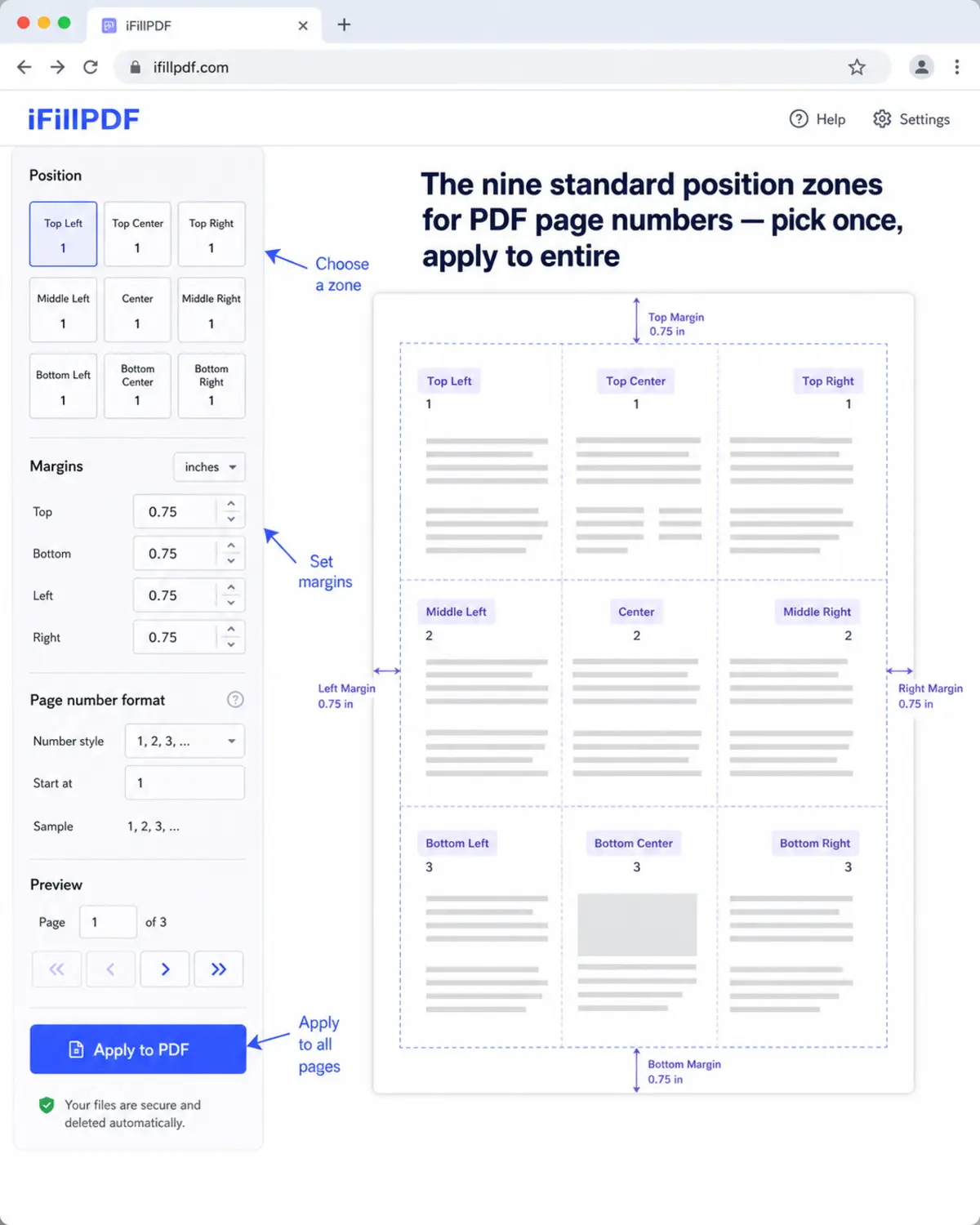
Drag your PDF into a browser tool, pick a position (one of nine zones), choose a format like "Page X of Y", set the starting page if you want to skip a cover, and download. The five most reliable options in 2026 are compared below. iFillPDF stamps numbers entirely in your browser (no upload, nothing to install), exposes six position zones (three along the top edge, three along the bottom), four number formats including Page X of Y and lowercase Roman numerals, and a start-at-page field for skipping a cover.
| Tool | Free | Custom position | Custom format | Start-from | Batch | EU hosting |
|---|---|---|---|---|---|---|
| iFillPDF | Yes | 6 zones | 1, 2, 3 · 1 / 10 · Page X of Y · Roman | Yes | One file at a time | Frankfurt |
| Smallpdf | Capped free tier | Yes | Yes | Yes | Paid tier | Switzerland |
| iLovePDF | Yes | Yes | Yes | Yes | Paid tier | Spain |
| PDF24 | Yes | Yes | Partial (prefix) | Yes | Yes | Germany |
| Sejda | Capped free tier | Yes | Yes | Yes | Paid tier | Netherlands |
Method 2 — Mac Preview (limited)
Preview cannot natively insert dynamic page numbers — there is no menu for it — but you can fake it with the Markup toolbar by typing the number on each page manually. Open the PDF, press Cmd+Shift+A to show Markup, click the text tool (T), drag a small box in the bottom-right corner of page 1, type "1", then repeat for every page. For documents under 10 pages this is acceptable; beyond that, the manual labour and lack of "Page X of Y" formatting make Preview a poor fit. Use it only when you can't install anything else and the document is short. For anything longer, jump to Method 1 (online) or Method 4 (LibreOffice).
Method 3 — Adobe Acrobat Pro (Header & Footer)
Acrobat Pro ships a proper Header & Footer panel under Tools → Edit PDF → Header & Footer → Add. The dialog gives you six insertion zones (left/center/right × top/bottom), a font picker, a "Page Number Format" button for Page n of m, Roman or letter numbering, a Page Range Options modal to skip the first N pages, and a margin control in inches or points. Click "Save Settings" to reuse the same scheme across documents — handy for legal teams stamping hundreds of exhibits a month. The output is a real PDF text layer (selectable, searchable), not a raster overlay. Worth the subscription only if you also need OCR, redaction and form authoring; for pagination alone it's overkill.
Method 4 — LibreOffice + reexport
Open the PDF in LibreOffice Draw (it auto-imports as editable pages), Insert → Header and Footer → tick "Page Number" → choose position, then File → Export as PDF. Free, offline, cross-platform (Windows, macOS, Linux) and gives you full typographic control: font, size, weight, color, margin in millimetres. The catch: LibreOffice converts each PDF page into a Draw page, which can shift complex layouts (multi-column legal text, scanned forms) by a pixel or two. For text-heavy reports, theses and books it's the cleanest free desktop route. For invoices, signed contracts or scanned documents, prefer Method 1 (online) which stamps without touching the underlying page geometry.

Method 5 — pdftk / qpdf CLI (advanced)
For batch jobs, scripts and CI pipelines, stamp numbers with a one-liner using pdftk and a pre-rendered numbers PDF, or use qpdf with an overlay. The classic pdftk recipe:
# Generate a numbers-only PDF with LaTeX or wkhtmltopdf, then:
pdftk input.pdf multistamp numbers.pdf output numbered.pdf

# qpdf alternative (overlay numbers.pdf onto every page):
qpdf input.pdf --overlay numbers.pdf -- output.pdf
For a fully scriptable approach without pre-rendering, cpdf (commercial but free for non-commercial use) does it in one shot:
cpdf -add-text "Page %Page of %EndPage" -bottomright 20 input.pdf -o numbered.pdf
Use the CLI when you process hundreds of files a day (legal e-discovery, academic publishing, archival workflows). For one-off documents the GUI methods above are faster.
FAQ
Can I add page numbers without Adobe? Yes. Online tools like iFillPDF, Smallpdf, iLovePDF, PDF24 and Sejda all stamp page numbers for free without an Adobe subscription. For desktop-only workflows, LibreOffice Draw (free) and macOS Preview (limited) cover most needs. Adobe Acrobat Pro is only worth its subscription if you also need OCR, redaction or form authoring.
How do I start numbering from page 3 (skip the cover)? All five online tools and Adobe Acrobat Pro expose a "starting page" or "first page" field — set it to 3 and pages 1-2 stay un-numbered. In iFillPDF the field is labelled "Start at page". For LibreOffice Draw, set the page style of the cover to "First Page" without footer, then "Default" with footer for the rest.
How do I get a custom format like "Page X of Y"?
iFillPDF, Smallpdf, iLovePDF and Adobe Acrobat all support the Page X of Y template natively (sometimes called "Page n of m"). iFillPDF offers four fixed formats — 1, 2, 3, 1 / 10, Page X of Y and Roman numerals — but no free-text field, so a custom prefix like "Section 1 — Page X" means Acrobat's Header & Footer dialog or the cpdf one-liner in Method 5.
Is there an iPhone app to number PDF pages? Yes — open Safari on iPhone, go to ifillpdf.com, upload your PDF and use the add-page-numbers tool directly in the browser. No App Store install, no account. Works offline once the page is loaded because numbering runs client-side. For native apps, PDF Expert (paid) and Foxit PDF (freemium) both ship a Header & Footer panel.
Can I add page numbers in Roman numerals? Yes — Adobe Acrobat Pro, iFillPDF and LibreOffice Draw all let you pick a Roman numeral format (iFillPDF outputs lowercase i, ii, iii). The classic academic pattern is Roman numerals for the front matter (cover, table of contents, abstract) then Arabic numerals starting from the first chapter. To do this in one PDF you need two passes: stamp Roman on pages 1-12 with start-from page 1, then stamp Arabic on pages 13-end with start-from page 1.
Add page numbers in 30 seconds — free, in your browser
Pick the method that matches your context: online for one-off files, LibreOffice for desktop control, CLI for batch jobs. If you want the fastest path with full control over position, format and starting page — and no upload to a third-party server — try the add-page-numbers tool on iFillPDF: six position zones, Page X of Y and Roman formats out of the box, client-side processing, no signup. While you're at it, check fill PDF, sign PDF, edit PDF and merge PDF — same browser, same privacy guarantees, same EU Frankfurt hosting.